Home Assistant Dashboard Ideas for the Living Room
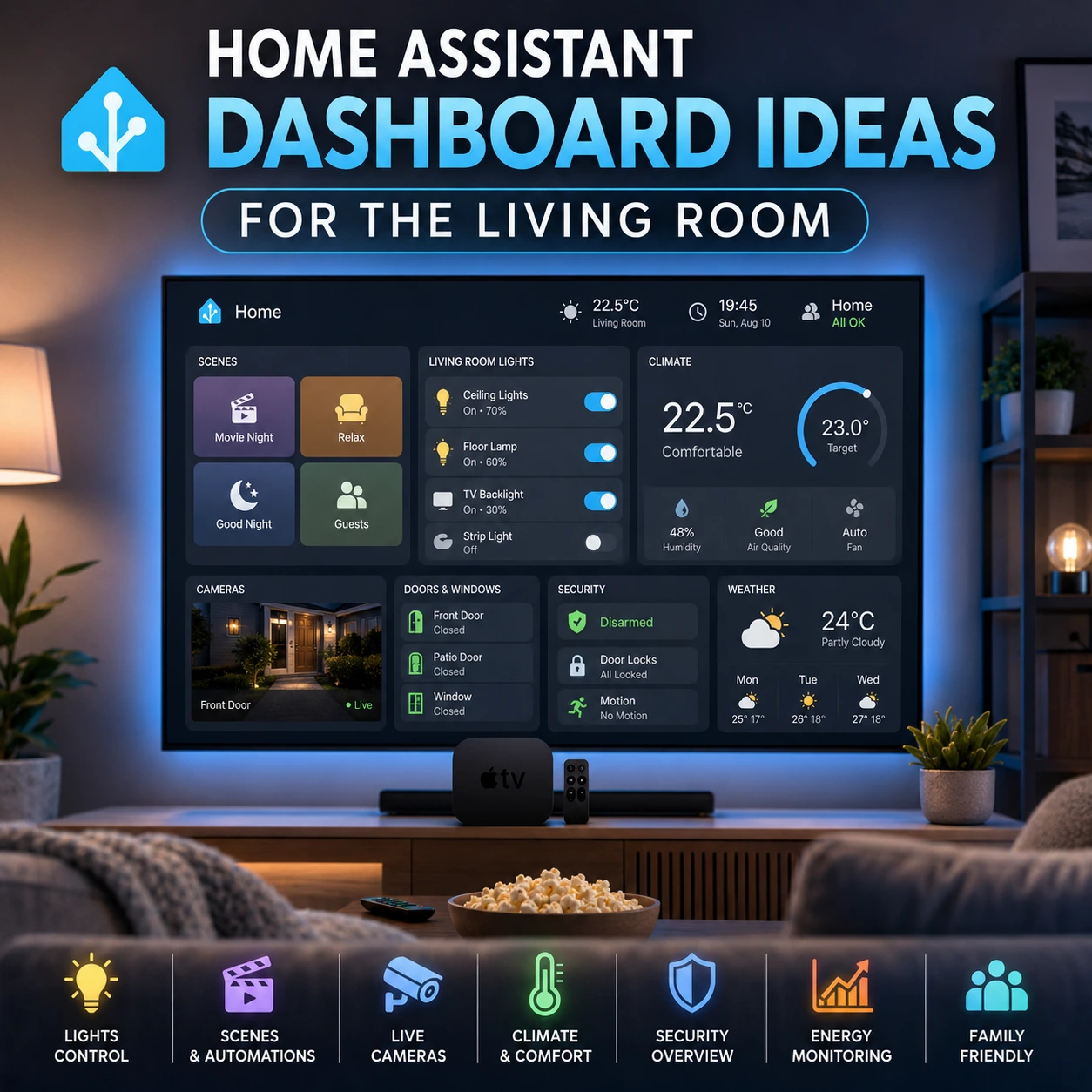
A living-room Home Assistant dashboard should not try to show everything in your smart home.
The most useful TV dashboard is usually a focused interface built around the actions and information that matter while people are sitting in the room: lighting, scenes, climate, cameras, security status, media-related controls, weather, and a small number of household sensors.
Home Assistant is designed to support multiple dashboards, including separate dashboards for different rooms, users, and devices. Its current dashboard system also supports multiple views, Sections layouts, resizable cards, conditional visibility, and dedicated control cards.
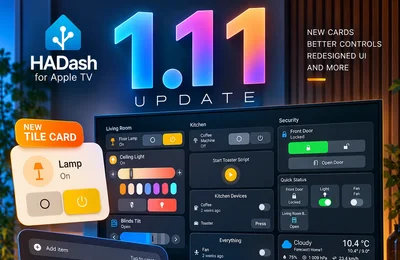
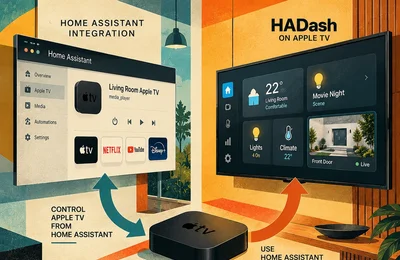
For Apple TV users, HADash can display existing Home Assistant dashboards directly on the television, including supported lights, sensors, cameras, graphs, and device controls.
This guide presents practical Home Assistant dashboard ideas specifically for the living room, with layouts that work well on a large television and can be controlled from across the room.
What Should a Living Room Home Assistant Dashboard Show?
A living-room dashboard should answer a small number of questions quickly:
- What lights are currently on?
- What is the temperature in the room?
- Are doors or windows open?
- Is anyone at the front door?
- What scene should I activate?
- Is the home in a normal or security-related state?
- Is there anything important I need to know right now?
That is different from an administrative dashboard.
A technical Home Assistant dashboard may include dozens of sensors, battery levels, integration diagnostics, device availability, automation states, network information, and energy statistics.
A living-room dashboard should filter most of that out.
Home Assistant officially describes dashboards as an at-a-glance interface for seeing what is happening in the home and controlling devices directly from the same screen. It also supports creating focused dashboards for specific use cases, such as a kitchen tablet or guest interface.
Best Layout for a TV Dashboard
For a television, the dashboard should prioritize:
- Large cards.
- Short labels.
- Strong state visibility.
- Limited columns.
- Predictable navigation.
- Frequently used actions near the top.
- Minimal scrolling.
- Low information density.
Home Assistant’s Sections view is particularly useful because it organizes cards into a grid and allows them to be grouped into sections. Cards can also be resized inside the Sections layout.
For a living-room television, two or three main sections per view are often easier to understand than a dense wall of small controls.
Idea 1: The Minimal Living Room Dashboard
This is the simplest and often the most effective layout.
The goal is to show only what someone actually needs from the couch.
Include
- Living Room Lights
- Movie Night
- Relax
- Good Night
- Indoor Temperature
- Front Door Camera
- Front Door Status
That is enough for many households.
A minimal dashboard works especially well when Apple TV is used occasionally rather than as an always-on information display.
Recommended structure
Top row:
- Movie Night
- Relax
- All Lights Off
Middle section:
- Living Room Lights
- TV Backlight
- Reading Lamp
Bottom section:
- Temperature
- Front Door
- Camera
The main advantage is speed. A user can reach the most common action with one or two remote movements.
Idea 2: Movie Night Dashboard
The living room is usually where Apple TV is already used, so a Movie Night dashboard is one of the most natural Home Assistant TV layouts.
Include
- Movie Night scene
- Pause Break scene
- TV Backlight
- Ceiling Lights
- Reading Lamp
- Curtains or blinds
- Living-room climate
- Front Door Camera
A Movie Night scene might dim the main lights, enable warm accent lighting, close supported blinds, and prepare the room for watching TV.
Home Assistant scenes are designed to set multiple entities to predefined states at once.
A script can be used when the routine requires actions in sequence rather than simply applying final states.
Useful buttons
Movie Night
Relax
Pause Break
Lights 50%
All Living Room Lights Off
End Movie Night
This is a better TV experience than presenting individual brightness sliders for every bulb.
Idea 3: Room Overview Dashboard
A room overview combines control and status.
Instead of focusing only on lighting, it provides a compact summary of the living room.
Include
- Main lighting state
- Temperature
- Humidity
- Climate mode
- Window state
- Motion
- Air quality
- Media status
- Main scene buttons
A practical layout could contain three sections:
Comfort
Temperature, humidity, thermostat.
Lighting
Ceiling lights, lamps, TV backlight, scenes.
Status
Window, motion, occupancy, air quality.
Home Assistant cards can both display information and control devices, which makes this type of mixed dashboard straightforward to build.
Idea 4: Living Room Security Dashboard
A television is useful for quickly checking what is happening around the home without opening a phone.
A security-focused view can include:
- Front Door Camera
- Driveway Camera
- Garden Camera
- Front Door Contact
- Balcony Door
- Main Windows
- Motion Sensors
- Alarm Status
- Exterior Lights
The goal is not to create a full security control station.
The dashboard should answer:
- Is the house closed?
- Is someone outside?
- Is motion detected?
- Are any exterior doors open?
For a shared TV, avoid placing sensitive controls such as alarm disarming or door unlocking directly next to ordinary buttons.
A read-heavy security dashboard is generally safer than a dashboard with unrestricted access to locks and alarms.
Idea 5: Camera-First Dashboard
If cameras are one of the main reasons for using Home Assistant on Apple TV, dedicate an entire view to them.
Layout A: One Main Camera
Use one large camera card for:
- Front door
- Driveway
- Nursery
- Garden
Add only a few related sensors.
For example:
Front Door Camera
Door State
Motion
Porch Light
Layout B: Four-Camera Grid
Use:
- Front Door
- Driveway
- Garden
- Garage
This provides a quick security overview.
Keep in mind that several simultaneous live camera feeds increase network and processing demand.
HADash publicly lists support for live camera feeds and real-time dashboard data.
For more detailed camera configuration, use a dedicated camera dashboard rather than mixing four live feeds into the main Home view.
Idea 6: Lighting and Scenes Dashboard
This layout is ideal when lighting is the most frequently controlled system in the living room.
First section: Scenes
- Movie Night
- Relax
- Reading
- Guests
- Cleaning
- Good Night
Second section: Main Lights
- Ceiling Lights
- Lamps
- TV Backlight
- Dining Area
- Hallway
Third section: Global Actions
- All Downstairs Lights Off
- Evening Mode
- Away
Scenes should usually come before individual light controls because a single scene can replace several manual actions.
Home Assistant supports scenes as named entity states, while scripts can perform more complex sequences.
Idea 7: Climate and Comfort Dashboard
A comfort-focused dashboard works well in homes with climate sensors, HVAC, smart thermostats, air quality sensors, or motorized blinds.
Include
- Current temperature
- Target temperature
- Humidity
- Air quality
- CO2
- Heating or cooling mode
- Fan state
- Window state
- Blinds
- Outdoor temperature
A simple layout might show:
Current Conditions
22.5°C
48% Humidity
620 ppm CO2
Climate
Heating
Target 22°C
Fan Auto
Room State
Window Closed
Blinds 70%
No Motion
The television is particularly useful for displaying this information because several household members can see the room status at the same time.
Idea 8: Guest-Friendly Dashboard
A guest dashboard should be extremely simple.
Do not expose the entire Home Assistant interface.
Include
- Living Room Lights
- Kitchen Lights
- Guest Scene
- TV Backlight
- Temperature
- All Common Area Lights Off
Avoid:
- Alarm controls
- Door locks
- Private cameras
- Presence tracking
- Administrative controls
- Detailed energy monitoring
- Automation settings
Home Assistant supports multiple dashboards, making it possible to create a simplified interface specifically for guests or shared devices.
A separate Home Assistant user for HADash can provide an additional separation between personal and shared access.
Idea 9: Night Dashboard
A Night dashboard should use fewer controls and focus on actions that matter after dark.
Include
- Good Night
- Hallway Night Light
- Living Room Lights Off
- Exterior Lights
- Front Door Camera
- Door and Window Status
- Alarm Status
- Bedroom Temperature
The dashboard should make abnormal states obvious.
For example:
Front Door — Closed
Balcony Door — Open
Kitchen Window — Closed
Garden Motion — Clear
This is more useful at night than a large collection of decorative sensors.
Idea 10: Family Dashboard
A family dashboard combines household information with safe shared controls.
Include
- Main scenes
- Weather
- Indoor temperature
- Doors
- Selected cameras
- Family room lights
- Energy summary
- Calendar or household status where appropriate
Keep the dashboard neutral and understandable.
Avoid technical Home Assistant terminology.
Instead of:
Automation Evening Lighting
use:
Evening
Instead of:
script.house_shutdown
use:
Good Night
Instead of:
binary_sensor.front_door_contact
use:
Front Door
The dashboard should communicate outcomes rather than implementation details.
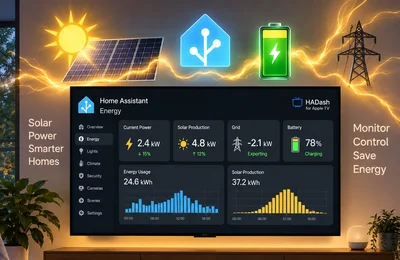
Idea 11: Energy Snapshot Dashboard
A full energy dashboard may be too detailed for a living-room television, but a summary view can be useful.
Include
- Current household consumption
- Solar production
- Grid import or export
- Battery status
- Today’s energy use
- High-consumption alert
Home Assistant dashboard cards can display graphs and sensor values, and HADash lists graphs and real-time data among its supported dashboard content.
Keep detailed historical analysis on the desktop or tablet dashboard.
The TV should answer:
How much power are we using right now?
Are we importing or exporting electricity?
Is anything unusual happening?
Idea 12: At-a-Glance Home Status Dashboard
This layout is useful as a first screen.
Instead of controlling one specific room, it summarizes the home.
Include
- Lights On
- Doors Open
- Windows Open
- Current Temperature
- Alarm State
- Motion
- Active Cameras
- Energy Consumption
- Important Alerts
This view should emphasize exceptions.
If everything is normal, the dashboard should look quiet.
If a window is open, motion is detected, or a sensor becomes unavailable, that information should stand out.
Home Assistant allows cards to use conditional visibility, which can help show information only when specific conditions are met.
Recommended Dashboard Structure
A practical Apple TV dashboard does not need ten separate views.
For many homes, five views are enough:
Home
- Movie Night
- Relax
- Good Night
- Main Lights
- Temperature
- Front Door
Lights
- Living Room
- Kitchen
- Dining Area
- Hallway
- Exterior
- Lighting Scenes
Cameras
- Front Door
- Driveway
- Garden
- Garage
Climate
- Temperature
- Humidity
- Thermostat
- Air Quality
- Windows
Security
- Doors
- Windows
- Motion
- Alarm Status
- Exterior Cameras
This gives each type of information a predictable location without making the dashboard difficult to navigate.
Sections View vs Other Home Assistant Layouts
Home Assistant currently provides several view types, including Sections, Masonry, Panel, and Sidebar.
For a living-room dashboard, Sections is often the most practical starting point.
The Sections view:
- Uses a grid.
- Groups cards into logical sections.
- Allows card resizing.
- Supports a configurable maximum number of sections across the screen.
- Can use dense placement to reduce gaps.
Use Sections for
- Mixed controls and sensors
- Room dashboards
- Scene grids
- Climate information
- General living-room layouts
Use Panel for
Panel displays one card across the full width of the view.
It can be useful for:
- One large camera
- A map
- A large graph
- A specialized full-screen card
Use Sidebar for
Sidebar provides a wide area plus a narrower side column.
It can work well for:
- Main camera plus status
- Large graph plus controls
- Media information plus room sensors
How Many Cards Should Be on a TV Dashboard?
There is no universal number, but a television dashboard should contain fewer visible controls than a desktop dashboard.
A useful rule is:
Main View
About 6–12 important cards.
Secondary Views
Enough cards to cover one function or room without requiring excessive scrolling.
If you need 30 small cards on the first screen, the dashboard probably needs another view.
The television is not a configuration interface. It is a quick-control and monitoring interface.
Which Cards Work Well on TV?
Start with standard Home Assistant cards.
Good candidates include:
- Tile
- Button
- Entities
- Picture Entity
- Gauge
- Sensor
- Weather
- Thermostat
- Grid
- History Graph
Home Assistant’s current documentation recommends Tile cards as a useful starting point in Sections layouts.
HADash maintains its own public compatibility information for supported Home Assistant cards, so the installed version should be checked before relying heavily on more complex cards.
Avoid Overusing Custom Cards
Custom Home Assistant cards can create sophisticated dashboards, but a card designed for a desktop browser or touchscreen may not translate perfectly to Apple TV.
Possible problems include:
- Small click targets.
- Hover interactions.
- Touch gestures.
- Complex pop-ups.
- Nested menus.
- Browser-specific JavaScript.
- Difficult remote navigation.
For an Apple TV dashboard:
- Build the first version with standard cards.
- Test it in HADash.
- Add custom cards one at a time.
- Keep important controls on standard cards where possible.
Reliability matters more than visual complexity on a shared television.
Make Cards Readable from the Couch
A dashboard that looks good on a laptop may be difficult to read from three meters away.
Use:
- Short labels.
- Large numbers.
- Large icons.
- High contrast.
- Consistent card sizes.
- Limited text.
Avoid:
- Long entity names.
- Small secondary labels.
- Dense graphs.
- Tiny buttons.
- Six or seven columns of controls.
- Detailed diagnostic data.
Test the dashboard from the actual seating position.
Use Scenes Instead of Too Many Individual Controls
One of the easiest ways to simplify a TV dashboard is to replace multiple controls with scenes.
Instead of showing:
Ceiling Light
Lamp 1
Lamp 2
TV Backlight
Dining Light
Hallway Light
you may only need:
Movie Night
Relax
Guests
Good Night
Home Assistant scenes apply predefined states to multiple entities at once.
The individual light controls can remain in a secondary Lights view.
Use Conditional Information
Not every card needs to be visible all the time.
Home Assistant supports conditional visibility for cards.
This can be used to show:
- Open windows only when a window is open.
- A warning only when a sensor is unavailable.
- Motion information only when motion is detected.
- Battery alerts only when a battery is low.
- Security warnings only when attention is required.
This keeps the dashboard calm when everything is normal.
Should the TV Dashboard Be Always On?
Not necessarily.
A living-room television is different from a dedicated wall-mounted tablet.
Apple TV works well for:
- On-demand smart home control.
- Camera viewing.
- Scene activation.
- Shared household status.
- Large graphs.
- Occasional monitoring.
A wall-mounted tablet may be better when the dashboard needs to remain visible throughout the day.
HADash’s App Store listing specifically positions the app for big-screen use, including living rooms and wall-mounted displays.
Living Room Dashboard vs Mobile Dashboard
Do not use exactly the same interface on both.
Mobile dashboard
Prioritize:
- Personal controls
- Detailed navigation
- Touch interactions
- Notifications
- Location-specific actions
TV dashboard
Prioritize:
- Shared controls
- Large information
- Scenes
- Cameras
- Household status
- Remote navigation
Home Assistant’s multiple-dashboard architecture makes this separation practical.
Living Room Dashboard vs Wall Tablet
A wall tablet is usually better for frequent direct interaction.
A television is better for:
- Shared viewing
- Large camera feeds
- Living-room scenes
- At-a-glance information
- Remote-based control
Many advanced Home Assistant homes use both.
The tablet becomes the permanent control surface, while Apple TV provides the large-screen interface.
A Practical Starter Dashboard
If you do not know where to begin, create one dashboard with these ten elements:
- Movie Night
- Relax
- Good Night
- Living Room Lights
- TV Backlight
- Indoor Temperature
- Front Door Status
- Front Door Camera
- Window Status
- All Downstairs Lights Off
Use it for several days.
Then ask:
- Which controls did we actually use?
- Which information did we never look at?
- What did we still need to open our phones for?
Remove unused cards and add only the missing functions.
This usually produces a better dashboard than trying to design the perfect interface in advance.
Frequently Asked Questions
What should I put on a Home Assistant living room dashboard?
What is the best Home Assistant dashboard layout for a TV?
Should I create a separate dashboard for Apple TV?
Can a Home Assistant TV dashboard show cameras?
How many cards should I put on the main screen?
Are scenes better than individual light controls on TV?
Should I use custom cards?
Can I make a dashboard specifically for guests?
Can HADash display my existing Home Assistant dashboard?
Final Thoughts
The best Home Assistant living room dashboard is not the dashboard with the most cards.
It is the dashboard that gives the household the right information and the right controls with the fewest unnecessary steps.
For most living rooms, start with:
- Scenes
- Main lights
- Climate
- Front-door status
- One or two cameras
- Security alerts
- A small number of household sensors
Then create separate views for detailed lighting, cameras, climate, and security.
Home Assistant’s multiple-dashboard architecture and Sections layout make it possible to build a dedicated television interface while keeping more detailed mobile and desktop dashboards separate.
For Apple TV, HADash provides a native way to display and interact with those existing Home Assistant dashboards on the big screen, including supported lights, sensors, cameras, graphs, and device controls.
The most effective approach is to begin with a simple dashboard, use it in the living room, and remove anything that does not provide value from the couch.
Sources
- Home Assistant: Dashboards.
- Home Assistant: Multiple Dashboards.
- Home Assistant: Dashboard Cards.
- Home Assistant: Sections View.
- Home Assistant: Dashboard Views.
- Home Assistant: Scenes.
- HADash public GitHub repository.
- Apple App Store: HADash.
Home Assistant dashboard features and HADash capabilities were checked against the cited official sources in August 2026. Layout options, card compatibility, and application features may change in later releases.