Home Assistant Apple TV Integration vs HADash: What's the Difference?
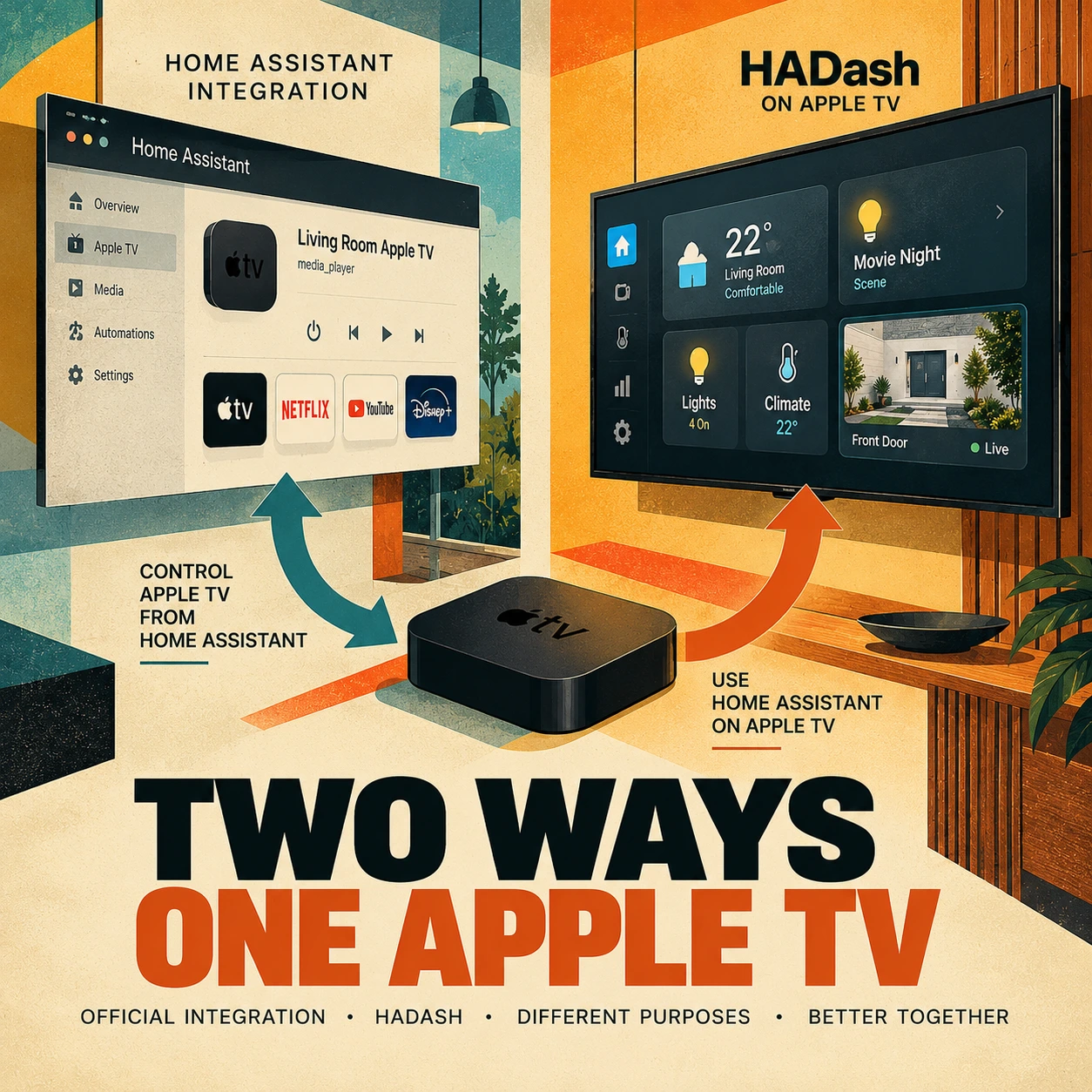
Two Different Ways to Connect Apple TV and Home Assistant
Suppose you add the official Apple TV integration to Home Assistant, complete the connection, and expect your dashboard to appear on the television. Instead, you find Apple TV controls inside Home Assistant.
That is the intended direction of the integration—not evidence that dashboard setup failed.
Quick answer: The official Apple TV integration adds Apple TV to Home Assistant as a media device. HADash is a native tvOS app that displays supported Home Assistant dashboards on Apple TV. You can use either solution independently or combine both.
The Home Assistant Apple TV integration lets Home Assistant control Apple TV. HADash, available through the Apple TV App Store, lets you use the television to interact with Home Assistant.
The distinction is about responsibility. One connects a media device to your automation system. The other provides a dashboard interface on that device’s screen.
Home Assistant still runs on your existing server. Neither adding the integration nor installing HADash turns Apple TV into that server.
If you are exploring display options more broadly, start with how to use Home Assistant on Apple TV. Here, the focus is narrower: which capability each solution supplies and when using both makes sense.
What Does the Official Home Assistant Apple TV Integration Do?
The official integration connects Apple TV to Home Assistant for device control. Its relevant functions include media-player information, remote commands, and app launching.
Media-player information and controls
The integration creates a media_player entity for the Apple TV. It can expose the active app and available playback controls.
An entity is Home Assistant’s representation of a device function or piece of information. It is not an application installed on your television.
Home Assistant’s media-player documentation explains states such as playing, paused, idle, unavailable, and unknown. These distinctions matter when designing an automation: paused playback and an unavailable device should not automatically produce the same response.
Remote commands
A separate remote entity supports commands such as play, pause, home, and directional navigation through remote.send_command.
Support is not universal. Apple TV generation, the active application, and configuration can affect which commands work. Test the particular action in the app you intend to use rather than assuming every documented command behaves identically everywhere.
Apps and automations
The integration documents app launching through media_player.select_source. This is distinct from installing an app or giving it permission to access Home Assistant.
You can also configure Home Assistant to dim lights when playback begins, pause a movie after a doorbell event, or change evening lighting when an appropriate Apple TV state is reported.
These are scenarios you build. They are not a default automation package enabled simply by adding Apple TV. Home Assistant’s automation documentation explains how triggers, conditions, and actions form a configured response.
The official Apple TV integration does not install a Home Assistant dashboard interface on the Apple TV screen.
What Is HADash and How Is It Different?
HADash is an independent, native Apple TV application for displaying and interacting with supported Home Assistant dashboards. You open it on Apple TV and navigate with the Siri Remote.
Instead of making Apple TV a controllable device inside Home Assistant, HADash makes the television a place to access your existing smart-home interface.
The HADash App Store description lists existing dashboard display, multiple-server support, camera feeds, sensors, graphs, and device controls. The Home Assistant app for Apple TV overview discusses this dashboard-client approach in more detail.
A dashboard you use from the couch
Imagine opening HADash before a film. Your selected dashboard offers a supported Movie Night action, a kitchen-light toggle, the front-door camera, and the living-room temperature.
You use the remote to select the relevant control or view. The devices and their underlying integrations remain managed by Home Assistant.
For this display arrangement, you do not need an additional Raspberry Pi or browser computer connected to the television. You still need a working Home Assistant server that Apple TV can reach.
HADash also supports multiple server connections. That is a client feature for accessing different Home Assistant instances, not a way to merge their configurations into one server.
Connection and compatibility
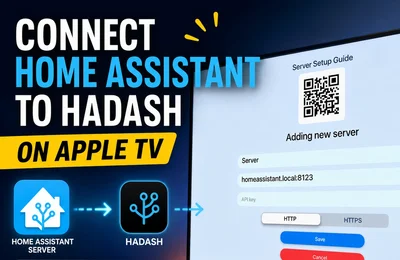
HADash connects using your Home Assistant server address and a Long-Lived Access Token. Follow how to connect a Home Assistant server to HADash for the setup details.
Home Assistant’s dashboards documentation describes the interface you configure on the server. HADash reuses supported dashboard content; it is not a complete browser copy of the Home Assistant frontend.
Check the HADash compatibility information and changelog together. Support for a card does not necessarily include every interaction or setting. For example, the compatibility notes limit the Light Card to toggling.
The Home Assistant card catalog describes Home Assistant’s own cards, not a guarantee that every card or custom extension works in HADash. For that display distinction, see HADash vs browser-based Home Assistant dashboards.
Apple TV Integration vs HADash: Feature Comparison
The table compares the capabilities supplied directly by each solution. “Supported” means the relevant device, application, card, and configuration must allow the action.
| Feature | Official Apple TV integration | HADash |
|---|---|---|
| Adds Apple TV as a Home Assistant device | Yes | No |
| Controls Apple TV playback directly | Yes, where supported | Not its role |
| Sends Apple TV remote commands | Yes, where supported | Not its role |
| Displays Home Assistant dashboards on Apple TV | No | Yes, supported content |
| Controls supported Home Assistant entities from Apple TV | Does not provide that TV interface | Yes, through supported cards and actions |
| Displays Home Assistant cameras on the television | Does not provide a camera dashboard | Yes, with compatible camera content |
| Displays sensors and graphs on the television | No dashboard interface | Yes, supported cards |
| Supplies Apple TV control for Home Assistant media automations | Yes | Not its purpose |
| Requires installation of a tvOS dashboard app | No | Yes |
| Can be used alongside the other solution | Yes | Yes |
Choose the integration when the missing capability is Apple TV device management: playback commands, reported state, or supported app launching. Those functions can be used from Home Assistant without opening HADash.
Choose HADash when the missing capability is a television dashboard: seeing a room temperature, operating a supported light control, or checking a camera from the remote. Adding more media-device controls does not supply that interface.
The distinction also helps with troubleshooting. A missing dashboard card and a playback command that fails in one streaming app are different problems. Investigate HADash card compatibility for the former and Apple TV integration or application support for the latter.
Can You Use Both Together? Practical Examples
You do not need to choose one solution for every Apple TV task. The following examples show how their responsibilities can remain separate within the same setup. They are proposed configurations, not built-in automations or reports of a tested household installation.
Example A: Movie Night
You open HADash and select a supported dashboard action for Movie Night.
In Home Assistant, you have already configured the required entities and scene. Depending on the devices and their capabilities, the scene could dim the living-room lights, switch on television backlighting, close supported blinds, and apply a supported climate preset.
HADash provides the interface for initiating the action. Home Assistant applies the configured device states.
If you also want to launch a streaming application or send Apple TV commands, handle that through an appropriately configured Home Assistant script or automation using the official integration. Do not assume that a lighting scene automatically launches a media app.
A practical setup test is to check the household scene independently, verify the Apple TV command independently, and then test their intended sequence. That separates a dashboard interaction problem from a device-control problem.
For the dashboard side, follow how to control Home Assistant lights and scenes from Apple TV.
Example B: Doorbell during playback
You are watching a film when Home Assistant receives an event from your configured doorbell integration.
An automation you have created can check the relevant conditions and send a supported pause action through the official Apple TV integration. You then open HADash yourself and select the front-door camera view.
The doorbell integration supplies the event. Home Assistant evaluates the automation. The Apple TV integration handles the media command. HADash supplies the camera dashboard after you open it.
This example does not mean HADash automatically appears over another tvOS application, takes over the screen, or displays a camera overlay during every film. Pausing playback and opening a dashboard are separate actions.
Test the camera independently as well. A working pause command does not establish that the camera feed is compatible or available.
Which Solution Should You Choose?
Choose the official Apple TV integration for media-device control
Use it when your question is: “How can Home Assistant control my Apple TV?”
Relevant tasks include checking available device information, sending supported remote commands, launching supported apps, and including playback in automations.
Start by verifying the exact command and application involved. A device connection alone does not establish support for every media action.
Choose HADash for a dashboard on the television
Use HADash when your question is: “How can I see and operate my Home Assistant dashboard with the Apple TV remote?”
Build around supported cards for everyday controls and information: lights, scenes, cameras, climate, sensors, and graphs. Check compatibility before relying on a custom card or a less common interaction.
Use both when you need both capabilities
Combine them when Apple TV should participate in media automations and also provide an interactive smart-home dashboard.
The official integration and HADash solve different problems. Let the integration handle Apple TV device control and HADash handle supported dashboard display and interaction. Test each responsibility separately before combining them into a household routine.