How to Display a Home Assistant Dashboard on a TV
A Home Assistant dashboard can turn a television into a large smart home interface for cameras, lights, climate controls, sensors, energy data, security devices, scenes, and other connected systems.
There is no single method that works equally well with every television. The best solution depends on the hardware connected to the screen, whether the dashboard must be interactive, and how often it will be used.
The main options include:
- A native application for Apple TV.
- The official Home Assistant app on compatible Android TV devices.
- Home Assistant Cast on Chromecast-compatible screens.
- A web browser built into the television.
- A computer or Raspberry Pi connected through HDMI.
- Screen mirroring from a phone, tablet, or computer.
Each method has different requirements and limitations. Some provide full dashboard interaction, while others are better for displaying information temporarily or launching a specific view through an automation.
This guide explains how to display a Home Assistant dashboard on a TV and how to choose the right setup for your home.
What Is a Home Assistant Dashboard?
A Home Assistant dashboard is the visual interface used to monitor and control a smart home.
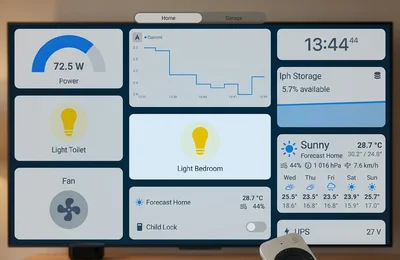
Dashboards are composed of views and cards. A card may display information, provide a device control, show a camera, present a graph, or group several entities together. Home Assistant includes a dashboard automatically and also allows users to create additional dashboards for particular rooms, devices, and household members.
A television dashboard might show:
- Lights and switches.
- Indoor temperature and humidity.
- Thermostats.
- Security cameras.
- Doors and windows.
- Motion sensors.
- Weather information.
- Energy consumption.
- Scenes and scripts.
- Media controls.
- Historical graphs.
The television does not need to host Home Assistant itself. In most configurations, Home Assistant runs on another device, while the television or connected media player acts as a client that displays the interface.
Can Home Assistant Be Displayed on Any TV?
A Home Assistant dashboard can be shown on many televisions, but the TV normally needs one of the following:
- An Apple TV.
- An Android TV or Google TV platform.
- A Chromecast or other compatible Google Cast receiver.
- A usable built-in web browser.
- An HDMI input connected to a computer or single-board computer.
- Support for screen mirroring.
A standard television without apps, a browser, casting support, or an external media device cannot display the dashboard independently.
The choice of method also determines whether the television will provide:
- Display only — the dashboard is visible, but interaction is limited.
- Remote-based interaction — cards and controls can be selected with a TV remote.
- Touch interaction — generally available only when using a touchscreen or separate mobile device.
- Automated display — Home Assistant launches a particular dashboard view when an event occurs.
Before choosing a solution, decide whether the television should serve as a permanent control panel, an occasional monitoring screen, or an automatically triggered information display.
Method 1: Use HADash on Apple TV
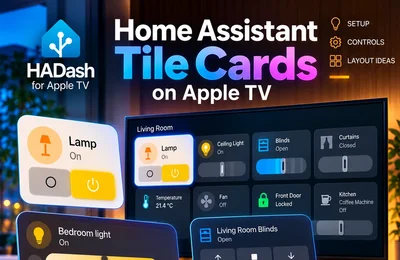
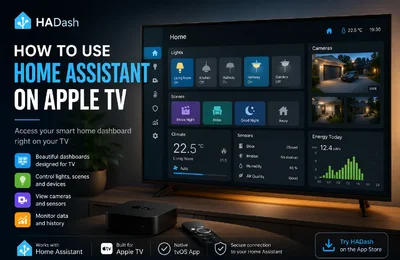
For homes with Apple TV, a native tvOS application provides the most direct way to display and interact with a Home Assistant dashboard on the television.
HADash is a dedicated Apple TV application that connects directly to an existing Home Assistant instance. According to its App Store listing, it displays existing dashboards without requiring users to rebuild them inside a separate application. It also supports multiple servers, themes, lights, sensors, cameras, graphs, and other dashboard content.
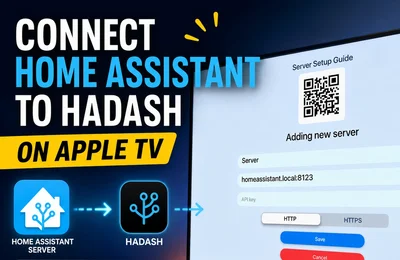
What You Need
- A working Home Assistant installation.
- An Apple TV compatible with the current HADash version.
- The HADash app.
- The address of the Home Assistant server.
- A valid Home Assistant access token.
- Network connectivity between Apple TV and Home Assistant.
How It Works
HADash runs directly on Apple TV and connects to Home Assistant as a client.
This is different from the official Apple TV integration. The official integration adds Apple TV to Home Assistant as a media player and remote-controlled device. It does not place a Home Assistant dashboard on the television.
The difference can be summarized as follows:
- HADash lets Apple TV display and interact with Home Assistant.
- The official integration lets Home Assistant monitor and control Apple TV.
Both can be used at the same time because they solve different problems.
Advantages
- Native Apple TV application.
- No permanent phone or computer connection.
- Uses existing Home Assistant dashboards.
- Remote-based interaction.
- Support for multiple servers.
- Suitable for cameras, sensors, controls, and graphs.
- Designed specifically for television use.
Limitations
- Some custom Home Assistant cards may not work exactly as they do in a desktop browser.
- Dense touchscreen-oriented dashboards may be difficult to navigate with a remote.
- Camera compatibility still depends on the camera integration, stream format, and network configuration.
- Apple TV is usually better for deliberate interaction than for a dashboard that must remain visible continuously.
Best For
HADash is best suited to users who want an interactive Home Assistant dashboard on the main television in a room and already use Apple TV.
Method 2: Use the Home Assistant App on Android TV or Google TV
The Home Assistant Android project includes an Android TV target, and the application can be installed on Android TV hardware.
This may include:
- Televisions with Android TV.
- Televisions with Google TV.
- Compatible Android TV streaming boxes.
- Other supported Android-based television devices.
The exact installation and interface behavior can vary by device, Android version, manufacturer, and application release.
Advantages
- Runs on compatible Android-based television hardware.
- Does not necessarily require an additional computer.
- Can connect directly to Home Assistant.
- May provide a more integrated experience than screen mirroring.
- Uses the television remote for navigation.
Limitations
- A dashboard designed for touch interaction may not be easy to operate with directional buttons.
- Custom cards can depend on browser or frontend functionality that does not behave consistently on every television.
- Performance varies significantly between inexpensive televisions and more powerful streaming devices.
- Built-in TV hardware may receive software updates for a shorter period than a separate streaming box.
Best For
This method is appropriate when the television already runs Android TV or Google TV and the user wants a direct application-based solution without adding Apple TV or another computer.
Method 3: Use Home Assistant Cast
Home Assistant has its own Cast application for displaying the Home Assistant interface on Chromecast-compatible devices.
The official documentation states that Home Assistant Cast can show the Home Assistant UI on Chromecast devices. A dashboard can be launched from a Cast entity row or through the cast.show_lovelace_view action, which can display a specific dashboard view from an automation or script.
This method is particularly useful when the television already includes Chromecast support or has an external Chromecast connected.
What You Need
- A Chromecast-compatible television or receiver.
- Home Assistant and the Cast device available on the network.
- A dashboard view suitable for the television.
- Correct Home Assistant internal or external URL configuration where required.
How It Works
Instead of opening the complete Home Assistant frontend manually on the television, Home Assistant sends a selected dashboard view to the Cast receiver.
For example, an automation could display:
- A front-door camera when the doorbell rings.
- A security dashboard when an alarm changes state.
- Energy data at a scheduled time.
- Weather and travel information in the morning.
- A room-control view when someone enters the living room.
Home Assistant introduced Cast specifically to use Chromecast-powered televisions and displays as interfaces for checking and adjusting important smart home information.
Advantages
- Official Home Assistant functionality.
- Works with Chromecast-compatible screens.
- Can display a specific dashboard view.
- Can be triggered by automations and scripts.
- Useful for contextual and temporary dashboards.
- Does not require a full computer connected through HDMI.
Limitations
- Casting is not the same as running a permanent native dashboard application.
- The experience is often more suitable for display than regular remote-based navigation.
- Network configuration and Home Assistant URL accessibility can affect loading.
- Not every dashboard component is equally suitable for casting.
- The Cast session may not provide the same persistent interface as a dedicated TV client.
Best For
Home Assistant Cast is best for households using Chromecast, Google TV, or compatible smart displays, especially when a dashboard should appear automatically in response to an event.
Method 4: Open Home Assistant in the TV’s Web Browser
Some smart televisions include a built-in browser. In theory, the browser can open the Home Assistant URL in the same way as a desktop browser.
This is one of the simplest methods to test because it may require no additional hardware.
Basic Setup
- Open the browser on the television.
- Enter the local or remote Home Assistant URL.
- Sign in.
- Open the required dashboard.
- Add the page to bookmarks if the browser supports them.
- Enable fullscreen mode where available.
Advantages
- No additional media device may be required.
- Displays the actual Home Assistant web interface.
- Can provide direct access to existing dashboards.
- Easy to test before buying additional hardware.
Limitations
Built-in television browsers are often the weakest part of a smart TV platform.
Potential problems include:
- Slow JavaScript execution.
- Limited browser standards support.
- Poor remote navigation.
- Automatic page unloading.
- Lost login sessions.
- No reliable kiosk mode.
- Difficulty entering long URLs or credentials.
- Inconsistent video and camera support.
- Limited software updates.
Home Assistant dashboards can include interactive cards, dynamic data, media, and custom frontend elements. Since cards are the functional building blocks of the dashboard, browser limitations can affect both display and control.
Security Considerations
A shared television should not be treated like a private computer.
Consider:
- Whether guests can access the dashboard.
- Which entities are visible.
- Whether security controls are exposed.
- Whether the browser stores the user’s session.
- Whether a restricted Home Assistant user should be created.
- Whether remote access uses a secure HTTPS connection.
Best For
The built-in browser is useful as a no-cost experiment. It is less suitable when reliability, camera playback, smooth navigation, or long-term support are important.
Method 5: Connect a Raspberry Pi or Mini PC Through HDMI
A flexible alternative is to connect a small computer to the television and open Home Assistant in a full desktop browser.
Possible hardware includes:
- Raspberry Pi.
- Mini PC.
- Repurposed laptop.
- Compact Linux computer.
- Small Windows computer.
The connected device can run a browser in fullscreen or kiosk mode and automatically load a dedicated Home Assistant dashboard.
How It Works
The computer outputs the browser interface to the television through HDMI. A keyboard, mouse, air mouse, remote, or other input device can be used for control.
A typical configuration includes:
- Installing an operating system.
- Connecting the device to the local network.
- Installing a supported browser.
- Creating a restricted operating-system account.
- Configuring the browser to open the dashboard automatically.
- Enabling fullscreen or kiosk mode.
- Preventing the device from entering sleep mode.
- Configuring automatic recovery after a restart.
Advantages
- Full browser environment.
- Greater compatibility with standard and custom cards.
- More control over startup behavior.
- Suitable for a continuously visible dashboard.
- Hardware can be replaced independently of the television.
- Can support keyboards, touch overlays, and specialized remotes.
Limitations
- More hardware and cables.
- Higher setup and maintenance requirements.
- The operating system and browser require updates.
- Poor kiosk configuration can expose the desktop or system controls.
- Power consumption is higher than that of a simple casting receiver.
- Camera playback still depends on codecs, network quality, and Home Assistant configuration.
Best For
A Raspberry Pi or mini PC is the most flexible choice for a permanent television dashboard, especially when browser compatibility, kiosk mode, or custom frontend components are important.
Method 6: Mirror a Phone, Tablet, or Computer
Screen mirroring displays Home Assistant from another device on the television.
Depending on the ecosystem, this may use:
- AirPlay.
- Google Cast screen mirroring.
- Miracast.
- Manufacturer-specific wireless display technology.
- A direct HDMI connection.
Advantages
- Fast to set up.
- Useful for demonstrations.
- Requires no separate dashboard configuration.
- Displays the same interface as the source device.
- Convenient for occasional camera or energy monitoring.
Limitations
- The source device must remain connected.
- Navigation normally happens on the phone, tablet, or computer.
- Notifications may appear on the television.
- Battery consumption can be significant.
- Calls, application switching, or screen locking can interrupt the session.
- It is not an independent smart home control interface.
Best For
Screen mirroring is suitable for temporary use, troubleshooting, demonstrations, and occasional monitoring. It is not normally the best option for a permanent dashboard.
Method 7: Display Cameras or Selected Information Instead of a Full Dashboard
A complete Home Assistant dashboard is not always necessary.
In some rooms, the television may only need to display:
- A doorbell camera.
- A group of security cameras.
- Weather conditions.
- Energy consumption.
- An alarm panel.
- A single room overview.
- A temporary alert.
Home Assistant dashboards are organized into separate views and cards, so a purpose-built view can be displayed instead of the entire interface.
Home Assistant Cast is particularly useful for this type of contextual display because an automation can launch a specific dashboard view on a compatible receiver. (Home
For example:
- When the doorbell rings, show the front-door camera.
- When a leak sensor activates, show the affected room and shutoff control.
- When the alarm is armed, display doors, windows, and motion sensors.
- When solar production peaks, display the energy dashboard.
- When movie mode starts, show a simplified lighting and climate panel.
This approach is often more useful than placing every available entity on one television screen.
Which Method Is Best?
The best method depends on the television platform and intended use.
Best for Apple TV
Use HADash when the goal is to open and interact with existing Home Assistant dashboards directly on Apple TV. It is built specifically for tvOS and supports dashboard content such as lights, sensors, cameras, and graphs.
Best for Chromecast and Automated Displays
Use Home Assistant Cast when a particular view should be sent to a compatible screen manually or from an automation.
Best for Android TV or Google TV
Test the Home Assistant Android TV application on compatible hardware. The official Android project includes Android TV as a supported target.
Best No-Cost Test
Try the television’s built-in browser. This can confirm whether the overall concept is useful before additional hardware is purchased.
Best for Maximum Compatibility
Use a Raspberry Pi or mini PC with a full browser. This provides the most control over browser versions, kiosk behavior, startup, and input devices.
Best for Occasional Use
Mirror an existing phone, tablet, or computer.
How to Design a Home Assistant Dashboard for a TV
A dashboard designed for a phone will rarely work perfectly on a television without modification.
The TV is viewed from farther away and is usually controlled with directional buttons rather than touch. A separate TV-specific dashboard is therefore recommended.
Home Assistant supports multiple dashboards, including focused dashboards for different devices and users.
Use Large Cards
Controls and text should remain readable from the couch.
Avoid:
- Small badges.
- Dense entity lists.
- Tiny graph labels.
- Multiple narrow columns.
- Small touch targets.
Prefer:
- Large buttons.
- Clear status indicators.
- Short labels.
- Strong contrast.
- Spacious layouts.
Create Separate Views
Instead of placing everything on one screen, divide the dashboard into logical sections:
- Home.
- Lights.
- Climate.
- Cameras.
- Security.
- Energy.
- Media.
This reduces visual density and makes remote navigation more predictable.
Prioritize Scenes
Scenes are especially useful on a television because one action can control multiple entities.
Examples include:
- Movie Night.
- Relax.
- All Lights Off.
- Good Night.
- Guests.
- Away.
- Morning.
A television interface should prioritize actions that are likely to be used from the room where the screen is located.
Limit Sensitive Controls
A shared living-room screen may be accessible to children, visitors, or guests.
Consider excluding:
- Alarm disarming controls.
- Door lock controls.
- Garage door controls.
- Detailed presence history.
- Private cameras.
- Administrative settings.
A restricted Home Assistant user and a dedicated dashboard can reduce unnecessary access.
Test Standard Cards First
Home Assistant provides standard cards for entities, buttons, cameras, weather, gauges, thermostats, media controls, graphs, and other functions. Cards are the basic components that display information or control devices.
Standard cards are generally the safest starting point when testing a new TV platform.
Add custom cards only after confirming that:
- The dashboard loads consistently.
- Remote navigation works.
- Controls respond correctly.
- Camera streams load.
- The screen remains stable over time.
Consider Display Type and Burn-In
A static dashboard can leave the same interface elements on the screen for long periods.
Depending on the television technology and manufacturer recommendations, it may be sensible to:
- Avoid leaving the same dashboard visible continuously.
- Use screen savers.
- Dim the display when the room is empty.
- Rotate between views.
- Turn off the screen automatically.
- Use a tablet or dedicated monitor for permanent display instead.
For a living-room television, an on-demand dashboard is often more appropriate than an always-on control panel.
Local and Remote Connections
A television inside the home will normally connect to Home Assistant over the local network.
A local connection can reduce latency and avoid dependence on an external internet connection. However, the television or connected client must be able to resolve and reach the Home Assistant address.
Remote access may require:
- Home Assistant Cloud.
- A securely configured reverse proxy.
- A VPN.
- A valid HTTPS certificate.
- Correct internal and external URLs.
Do not expose an unsecured Home Assistant installation directly to the internet.
Access tokens, passwords, and authenticated browser sessions should be treated as sensitive credentials.
Common Problems and Solutions
The Dashboard Does Not Load
Check:
- The Home Assistant address.
- Local DNS resolution.
- Wi-Fi or Ethernet connectivity.
- Firewall rules.
- HTTPS certificate validity.
- Whether the client can reach the same URL from another device.
- Whether Home Assistant itself is available.
The Dashboard Is Too Small
Create a dedicated TV dashboard with:
- Fewer columns.
- Larger cards.
- Larger text.
- Less information per view.
- Shorter entity names.
The Remote Cannot Select Some Cards
Some cards are designed primarily for touch or mouse input.
Replace difficult cards with standard Home Assistant buttons, entity cards, or simpler layouts. Test navigation after every significant dashboard change.
Camera Streams Do Not Work
Check the camera inside the standard Home Assistant dashboard first.
Potential causes include:
- Unsupported stream format.
- Authentication problems.
- Network bandwidth.
- Camera integration errors.
- Browser codec limitations.
- Custom card incompatibility.
- Transcoding requirements.
The TV display method cannot correct a camera feed that is already failing inside Home Assistant.
The Session Keeps Logging Out
Possible causes include:
- Browser privacy settings.
- Automatic data clearing.
- Expired authentication.
- A television browser that does not retain storage reliably.
- Network or hostname changes.
A native app, dedicated browser device, or more stable external media platform may solve the problem.
The Dashboard Stops After the TV Sleeps
Televisions and streaming devices manage applications differently when the display sleeps.
A permanent dashboard may require:
- Kiosk software.
- Automatic browser startup.
- An automation that launches the view again.
- Device-specific power settings.
- A dedicated external computer.
TV Dashboard vs Wall-Mounted Tablet
A television and a wall tablet serve different roles.
Television Dashboard
Best for:
- Living-room control.
- Camera viewing.
- Shared household status.
- Large graphs.
- Remote-based scenes.
- Occasional interaction.
Wall-Mounted Tablet
Best for:
- Continuous availability.
- Touch control.
- Hallways and entrances.
- Frequent device interaction.
- Alarm and door controls.
- Always-visible status.
Many homes benefit from using both:
- A tablet as the permanent control panel.
- Apple TV or another television platform as the large shared display.
- Phones for individual mobile access.
- A desktop browser for configuration.
Frequently Asked Questions
Can I put Home Assistant directly on my smart TV?
It depends on the television platform. Android TV devices may support the Home Assistant Android application, Apple TV can use a dedicated tvOS client such as HADash, and televisions with a compatible browser may open the Home Assistant web interface.
Can Chromecast display a Home Assistant dashboard?
Yes. Home Assistant Cast can display the Home Assistant UI on Chromecast devices and can launch a specific dashboard view through the cast.show_lovelace_view action.
Can Apple TV display a Home Assistant dashboard?
Yes. HADash is a dedicated Apple TV app designed to connect to Home Assistant and display existing dashboards. (App Store)
Does the official Apple TV integration display Home Assistant on the TV?
No. The official integration adds Apple TV to Home Assistant as a controllable media device. A separate tvOS client is required to place an interactive Home Assistant dashboard on the television.
Can I display Home Assistant through a web browser?
Yes, provided the browser supports the frontend and can reach the Home Assistant server. Compatibility and performance depend heavily on the browser and television hardware.
Can the dashboard open automatically?
Home Assistant Cast can launch a specific view through an automation or script. A browser-based computer can also be configured to open a dashboard automatically in fullscreen or kiosk mode.
Do I need a separate dashboard for the television?
It is not mandatory, but it is strongly recommended. Home Assistant supports multiple dashboards, allowing users to build a simplified layout specifically for a TV.
Final Verdict
There are several reliable ways to display a Home Assistant dashboard on a television, but they are designed for different use cases.
For Apple TV, HADash provides a direct native route to existing Home Assistant dashboards. For Chromecast-compatible screens, Home Assistant Cast is the official solution for sending specific views to a television. Android TV users can test the Home Assistant Android TV application, while a Raspberry Pi or mini PC provides the greatest browser compatibility and kiosk control.
A built-in TV browser or screen mirroring can be sufficient for occasional use, but these methods are generally less reliable as permanent smart home interfaces.
The most important step is not choosing the hardware. It is designing the dashboard for television use.
Use large controls, short labels, a limited number of cards, clearly separated views, and only the information that is useful from the room where the television is located. Home Assistant’s support for multiple dashboards makes it possible to create this TV interface without compromising the dashboards used on phones, tablets, or computers.
Sources
- Home Assistant: Dashboards.
- Home Assistant: Dashboard Cards.
- Home Assistant: Introduction to Dashboards.
- Home Assistant: Google Cast integration and Home Assistant Cast.
- Home Assistant Developer Documentation: Android targets.
- Home Assistant: Apple TV integration.
- Apple App Store: HADash.
Product capabilities and platform support were checked against the cited official sources in July 2026. Application compatibility, operating-system requirements, and supported dashboard features may change after publication.