Home Assistant Tile Cards on Apple TV: Setup, Controls and Layout Ideas
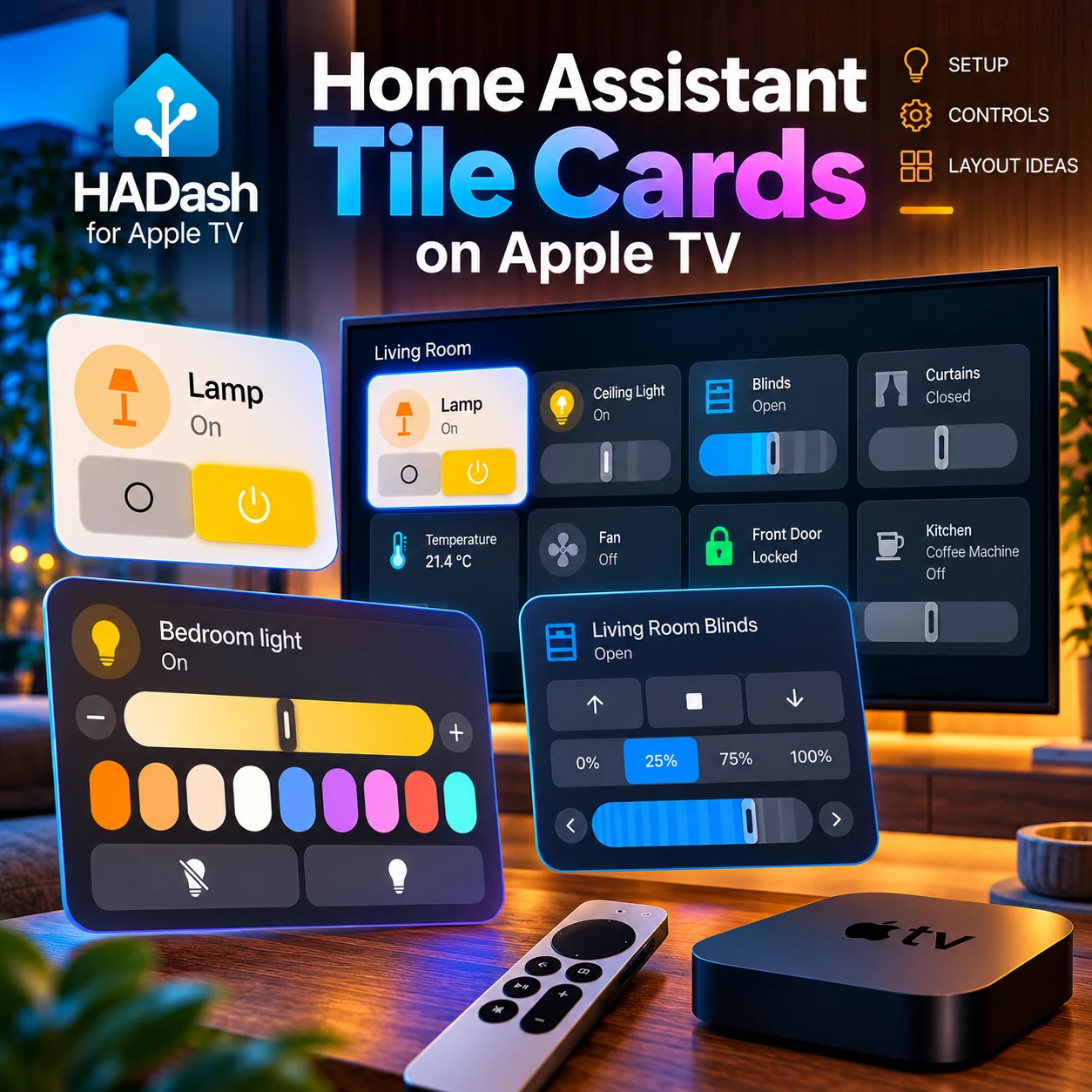
Home Assistant Tile Cards provide a compact way to see an entity’s name, state, and available actions. With HADash 1.11 or later, you can add supported Tile Cards to a Home Assistant dashboard and display that dashboard on Apple TV.
The setup happens in Home Assistant. HADash connects to your existing server and presents supported dashboard content on tvOS. Individual controls and actions still need to be checked on your Apple TV: support for the Tile Card type does not guarantee that every Home Assistant feature behaves identically in HADash.
What Are Home Assistant Tile Cards?
A Tile Card is a Home Assistant dashboard card designed to provide an overview of one entity. Depending on its configuration, it can show an icon, a name, the current state, and available actions.
For example, a tile might tell you whether a floor lamp is on, show the temperature reported by a sensor, or represent a blind in your living room. Home Assistant also allows certain cards to include additional features, such as controls relevant to the selected entity.
The distinction between the card, the entity, and its features is useful when planning a dashboard:
- The entity represents something in Home Assistant, such as a light, switch, sensor, scene, or cover.
- The Tile Card presents that entity on a dashboard.
- Features and actions can add ways to interact with it, depending on the card configuration and the entity’s capabilities.
A simple switch and a dimmable light, for example, do not necessarily expose the same controls. Home Assistant explains the available options in its Tile Card documentation and card features guide.
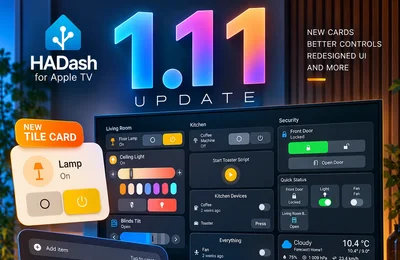
HADash 1.11 added support for Tile Cards, allowing supported tiles from an existing Home Assistant dashboard to appear in the native Apple TV app. HADash is a separate tvOS client, not the official Home Assistant application.
How to Add Tile Cards to an Apple TV Dashboard
Start with a working Home Assistant installation and an Apple TV with HADash 1.11 or newer. Your devices or integrations should already be available as entities in Home Assistant.
1. Open Home Assistant
Open the Home Assistant web interface on a computer, phone, or tablet. Sign in with an account that can edit the dashboard you want to use.
Before building the TV view, check that the relevant entities work in Home Assistant. If a light or blind does not respond there, resolve that issue before testing it through HADash.
2. Choose a dashboard
Select an existing dashboard or create one for your Apple TV. A dedicated TV dashboard can be useful if your everyday dashboard contains small controls, detailed graphs, or many cards designed for a touchscreen.
You do not have to start with an entire room. One or two frequently used lights and a temperature sensor are enough to test the layout.
If you edit an automatically generated default dashboard, Home Assistant may ask you to take control of it. The Home Assistant documentation explains that doing so stops automatic updates for that dashboard, and the same dashboard cannot be switched back to automatic updating. Creating a separate dashboard for Apple TV lets you keep the default one unchanged.
3. Add a Tile Card
In Home Assistant, open the dashboard editor and add a new card. Choose Tile, select an entity, and adjust the name, icon, and available settings to suit your dashboard.
For example, select a living room lamp and give it a short, recognizable name. Save the card and then save the dashboard.
The card is configured in Home Assistant, not in a separate dashboard editor inside HADash. If you are unfamiliar with the editor, Home Assistant’s dashboard cards guide explains how cards are added and configured.
4. Configure any available features
If Home Assistant offers relevant features for the selected entity, consider adding them in the card editor. Depending on the entity, examples may include a light brightness control, cover position control, or climate-related options.
Available features depend on the entity and its capabilities. A feature being configurable in Home Assistant does not, by itself, confirm that the same control will be available or work identically in HADash.
5. Open the dashboard in HADash
Connect HADash to your Home Assistant server and open the dashboard you configured. If this is your first time connecting the app, follow the Home Assistant server connection guide.
Check that you have opened the correct dashboard and that the new tile is visible. HADash’s public compatibility list identifies Tile Card support as available from version 1.11.
6. Test with the Apple TV Remote
From your usual viewing position, check the entity name, icon, and state. Then use the remote to move through the dashboard and try the action you configured.
Pay attention to where focus moves, whether the control is clear, and whether the actual device responds as expected. If a particular feature is important to your setup, test that feature separately instead of assuming that it behaves like the browser version.
Tile Card Controls in HADash 1.11
A Tile Card can be useful when all you need is a clear answer to a simple question: “Is the lamp on?”
Compact Tile Cards
A compact lighting card can show the entity name and current state without taking up much of the TV screen. In the example below, the Lamp entity is shown as On, alongside visible controls.

Caption: Compact Home Assistant lighting card displayed in HADash 1.11, showing the Lamp entity and its current state.
This format is useful when you want several devices visible at once. A row of clearly named lights can provide an overview without requiring a separate, detailed control screen for each one.
When testing the tile, compare the state shown on the TV with the device’s actual state. Then try the action you expect household members to use most often.
Expanded light controls
A more detailed interface can be useful when switching a light on or off is not enough. The HADash 1.11 example below shows a Bedroom Light panel with brightness adjustment, color presets, and light controls.
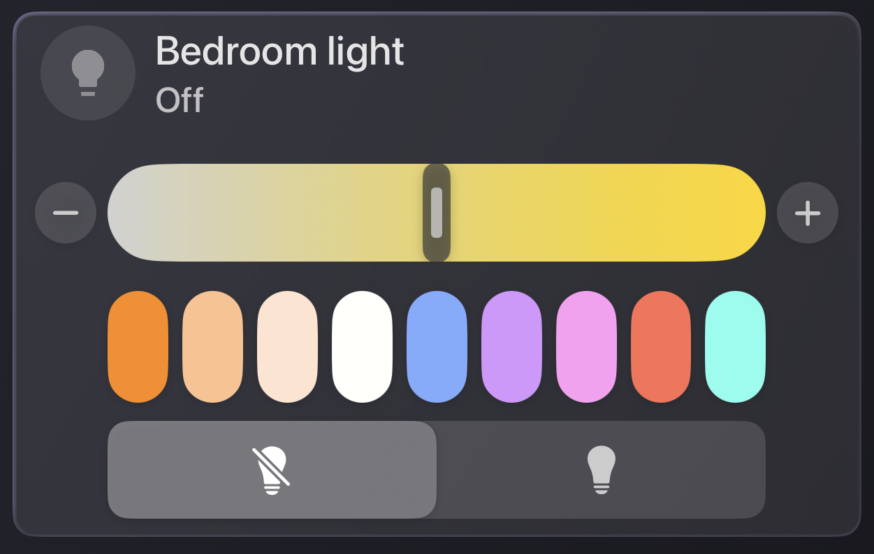
Caption: Expanded Bedroom Light controls in HADash 1.11 with brightness adjustment and color presets.
This screenshot illustrates an expanded HADash entity-control interface. It should not be read as proof that every control shown is a feature of the original Tile Card, or that every light supports brightness and color.
Your own options depend on the light and integration. For a broader approach to setting up lighting controls and scenes, see how to control Home Assistant lights and scenes from Apple TV.
What about other Tile Card features?
Home Assistant supports different features and actions for different entities. In a browser dashboard, a tile might include a slider, a cover control, a climate-related option, or a configured action.
On Apple TV, check the interactions that matter to your setup:
- Actions: Check what happens when you select the relevant control.
- Sliders: Confirm that the control appears and can be adjusted in a way that works for you.
- Covers: Test the actions your blind or shutter actually supports.
- Climate controls: Check the available modes and adjustments for your climate entity.
- Custom features: Do not assume a browser-specific customization will also work in HADash.
The Home Assistant features documentation describes the underlying features. HADash’s public compatibility list confirms support for the card type but does not provide an exhaustive feature-by-feature compatibility matrix.
Best Tile Card Layout Ideas for Apple TV
A television dashboard works best when the most useful information is easy to read from the sofa. These three layouts provide starting points that you can adapt to your own entities.
Layout A: Living room lighting
Group the lights you use together:
- Living Room Lights
- Floor Lamp
- TV Backlight
- Reading Light
Use concise names that distinguish one light from another. A tile for each entity makes it easier to scan their states before deciding which one to change.
For a recurring setup such as Movie Night or Relax, consider a separate Button Card linked to a scene. That keeps the overview of individual lights separate from an action intended to change several things at once.
Before relying on a scene from the TV, test it in Home Assistant and then check its behavior in HADash.
Layout B: Blinds and window controls
A window-focused section could include:
- Living Room Blinds
- Bedroom Blinds
- Kitchen Window
- Patio Door Status
The first three items might be cover entities, while Patio Door Status could be a sensor. Keep the names clear so that a device you can control is not confused with a state you can only observe.
The following screenshot shows an expanded blinds interface in HADash 1.11. It includes controls for movement, position, and tilt in the illustrated setup.
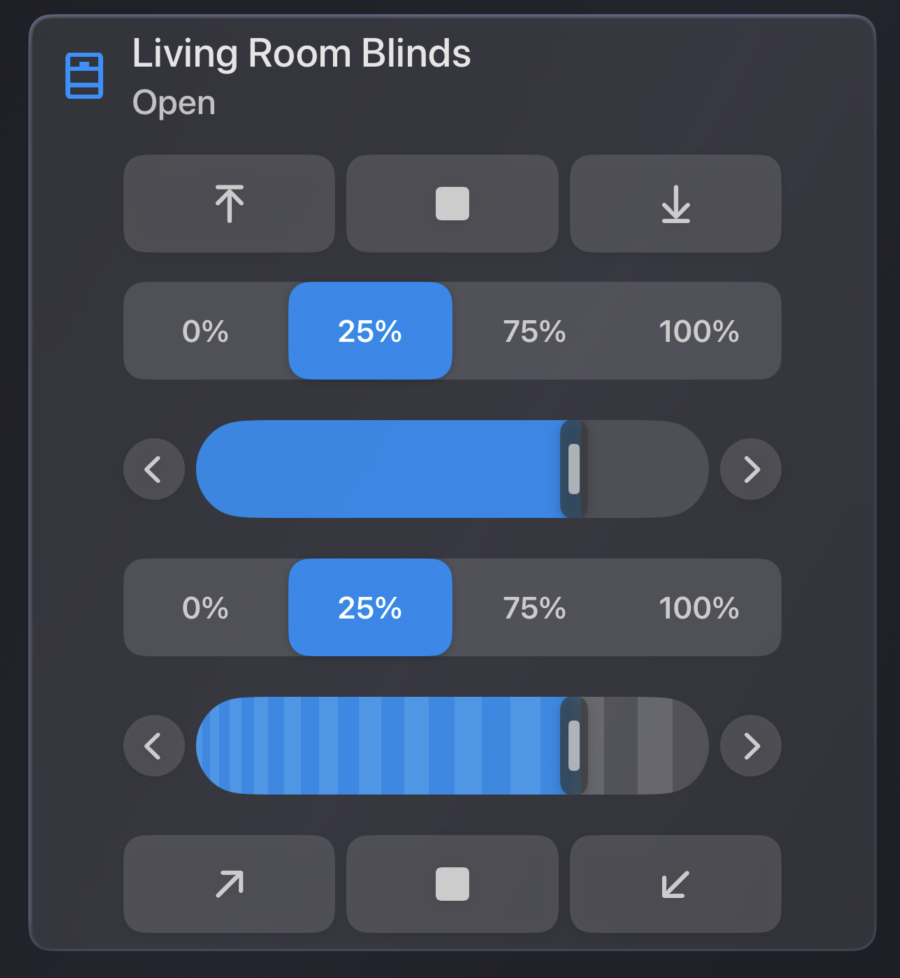
Caption: Expanded blinds controls in HADash 1.11, including open, stop, close, position and tilt options.
Not every cover supports every action. A blind without tilt support, for example, should not be expected to provide tilt adjustment. This is an expanded entity-control panel, not evidence that all the controls shown are embedded Tile Card features.
Layout C: Smart home overview
For a shared living-room screen, start with a small selection of states and actions:
- Living Room Temperature
- Main Lights
- Front Door
- Climate Status
- Outdoor Temperature
- Selected Switches
This view answers common household questions without displaying every entity in Home Assistant. Keep less frequently used controls on another view, rather than making the main screen difficult to scan.
Home Assistant’s Sections view lets you organize cards into groups. You could create sections named Living Room, Climate, and Entry, then open the result in HADash to check how the grouping and focus order work on your TV.
For more layout guidance, see how to build a remote-friendly Home Assistant dashboard for Apple TV.
Tile Card vs Button Card vs Light Card
Tile, Button, and Light Cards serve different purposes. The best choice depends on whether you primarily want an overview, a single action, or a dedicated lighting control.
| Card | Best use case | Main consideration on Apple TV |
|---|---|---|
| Tile Card | Compact entity overview with supported controls | Verify the individual features and actions you need in HADash |
| Button Card | One clear action, scene, or script | Keep the action recognizable and test it with the remote |
| Light Card | A dedicated card for a light entity | Check which interactions are supported in your HADash version |
A Tile Card is useful when the entity and its current state should remain visible alongside other information. A Button Card is often a good fit for a clearly named action such as Movie Night or All Lights Off.
Home Assistant describes its Button Card as a way to add buttons for tasks. Its Light Card is designed for controlling a light, including brightness in the Home Assistant interface. The controls you see in HADash should be checked separately.
Tile Cards work well for compact entity overviews, while Button Cards remain useful for simple one-action workflows. You can combine both on the same dashboard when that makes the screen easier to use.
For a wider comparison, read Best Home Assistant Cards for Apple TV.
Troubleshooting, FAQ and Final Recommendations
If a card does not look or behave as expected, start by separating the Home Assistant configuration from its presentation in HADash.
The Tile Card is not displayed. Check that HADash is running version 1.11 or later, that the app is connected to the right server, and that you opened the dashboard containing the saved card. Review the current HADash compatibility information if the dashboard uses additional card types.
A specific control does not work. First confirm that the underlying entity supports the action and that it works in Home Assistant. Then test the same use case in HADash. A card can be supported while a particular configuration or interaction behaves differently.
The tile looks different from the browser. HADash is a native tvOS client, not the Home Assistant browser frontend. Differences in layout or interaction do not automatically mean the underlying entity is misconfigured.
The dashboard is difficult to navigate. Reduce the number of cards, shorten labels, and group related entities. Test the screen from your normal viewing position and use the remote to check focus between controls.
Changes are not visible. Confirm that you saved the dashboard in Home Assistant and that you are viewing the intended dashboard in HADash. Try opening it again and check the server connection if necessary.
Does HADash support Home Assistant Tile Cards?
Yes. HADash supports the Tile Card type, so you can include supported tiles in an existing Home Assistant dashboard and open that dashboard on Apple TV. Check the specific actions and features you need in your own configuration.
Which HADash version introduced Tile Card support?
Tile Card support was introduced in HADash 1.11. If you use an earlier version, update the app before testing a dashboard that contains Tile Cards. You can check the version history in the App Store listing.
Can I control lights using Tile Cards on Apple TV?
A light entity can be used with a Tile Card in Home Assistant, and HADash supports the Tile Card type. The controls available to you depend on the light, its configuration, and the interaction supported in HADash, so test your setup with the remote.
Are all Home Assistant Tile Card features supported by HADash?
Do not assume complete feature parity. Home Assistant offers different features for different entities, while HADash renders supported content in a native tvOS interface. The public compatibility list confirms Tile Card support but does not enumerate every possible feature and configuration.
Can I use Tile Cards and Button Cards on the same Apple TV dashboard?
Yes. Home Assistant dashboards can contain different card types, and HADash lists support for both Tile and Button Cards. Use tiles for entity overviews and buttons for clearly named actions, then test the combined layout and interactions on Apple TV.
Start with a few entities you use often, verify their controls, and expand the dashboard once the essentials are easy to see and operate.
Explore HADash · Download HADash on the App Store · View the HADash GitHub project