Best Home Assistant Cards for Apple TV: What Works Best with HADash
The best Home Assistant cards for Apple TV are the ones that remain readable from across the room and require simple directional navigation. With HADash, the strongest choices are the Entities, Button, Light, Thermostat, Weather, Gauge, Sensor, History Graph, Statistics Graph and Picture Entity cards.
No single card is best for every dashboard. Button cards suit scenes and scripts, Entities cards provide compact status information, Picture Entity works for cameras, and graph cards show changes over time. A practical Apple TV dashboard combines several of these card types while limiting dense text and touch-oriented controls.
Best Cards for HADash at a Glance
| Home Assistant card | Best Apple TV use | Current HADash support or limitation |
|---|---|---|
| Button | Scenes, scripts and single actions | Supported |
| Entities | Compact room or system summaries | Supported |
| Entity | One important device or sensor | Supported |
| Light | Turning a light on or off | Supported; toggle action only |
| Thermostat | Climate status and temperature control | Supported |
| Weather | Current conditions and forecast | Supported |
| Gauge | Values with meaningful limits | Supported |
| Sensor | Large individual readings | Supported |
| History Graph | Recent changes over time | Supported |
| Statistics Graph | Min, max and mean comparisons | Supported for min, max and mean |
| Picture Entity | Camera feeds | Supported for cameras |
| Glance | Compact status overview | Supported |
| Heading | Labelling rooms and groups | Supported |
| Vertical Stack | Grouping related cards vertically | Supported |
| Markdown | Short instructions or labels | Supported in simplified form |
| Picture Elements | Visual plans and diagrams | Supported, but elements are not clickable |
HADash support can change between releases. Check the current HADash card compatibility information before building a dashboard around a specific card or interaction.
1. Button Card: Best for Scenes and Scripts
The Button card is the clearest choice when one remote action should trigger one Home Assistant entity.
Useful Apple TV examples include:
- Movie Night scene
- Good Night scene
- All Lights Off script
- Close Blinds action
- Start Cleaning script
- Guest Mode toggle
Home Assistant’s official Button card documentation explains that the card can display an entity and trigger actions. On Apple TV, its large visual target is easier to select with directional navigation than a small control embedded in a dense dashboard.
Use a short name that describes the result rather than the technical entity. “Movie Night” is easier to understand from the sofa than script.living_room_movie_mode.
Button cards work best when the result is predictable. Avoid placing destructive, security-sensitive or easily triggered actions on the first view of a shared television dashboard.
2. Entities Card: Best for Compact Status Groups
The Entities card can place several related entities in one panel. It is a practical choice for a room summary or a small household-status block.
A living-room Entities card might contain:
- Main light
- Floor lamp
- Indoor temperature
- Humidity
- Window sensor
- TV backlight
A security summary might show the front door, garage door, alarm state and selected motion sensors.
Home Assistant describes the Entities card as a way to group multiple entities into a single card. HADash supports the card and added secondary-information support in a later release.
The main limitation is density. A card with four to seven relevant rows is usually easier to scan on a television than one containing every entity in a room. Detailed battery levels, update sensors and diagnostic values are better left on an administration dashboard.
3. Entity Card: Best for One Important Status
Use an Entity card when a single state deserves more space than one row inside an Entities card.
Suitable examples include:
- Front door state
- Alarm status
- Current indoor temperature
- Washing machine status
- Air-quality reading
- Whether any exterior light is on
The Entity card is useful when the value matters but does not need a chart. It also helps create visual priority: a front-door state presented as its own card is easier to notice than the same entity placed halfway down a long list.
For several related readings, switch to an Entities, Glance or Statistics Graph card instead of repeating many individual Entity cards.
4. Light Card: Best for Direct On/Off Control
The Light card provides a device-specific interface for a Home Assistant light entity. HADash currently supports its toggle action, making it suitable for straightforward on/off control.
Good uses include:
- Living-room ceiling light
- Floor lamp
- Dining-room light
- Hallway light
- TV ambient lighting
The current HADash compatibility information specifies toggle-only control for the Light card. Do not build an Apple TV workflow around brightness or colour controls without confirming that the required interaction works in the installed HADash version.
If several lights should always change together, a Home Assistant scene or script exposed through a Button card may create a simpler remote workflow.
5. Thermostat Card: Best for Climate Control
The Thermostat card is the most direct supported choice for viewing and controlling a climate entity through HADash.
It can give a television dashboard access to information such as:
- Current temperature
- Target temperature
- HVAC state
- Supported climate controls
A thermostat deserves enough screen space for the current and target values to remain readable. Avoid surrounding it with several small sensor cards showing nearly identical climate information.
For a complete climate view, pair the Thermostat card with one or two Sensor cards for values such as humidity or air quality. Add a History Graph only when recent changes are useful to the person viewing the television.
6. Weather Card: Best for a Shared Household Forecast
A Weather card provides information that is relevant to multiple people without requiring interaction. That makes it a natural first-view card for a shared Apple TV dashboard.
The current HADash release supports weather forecasts. Its version history also records a fix for Weather card updates.
Position the Weather card where the forecast can be read without opening another view. If the main dashboard is already crowded, place weather information on a separate household-summary screen rather than reducing the card until its details become difficult to read.
Home Assistant lists the Weather Forecast card among its device-specific dashboard cards in the official dashboard card directory.
7. Sensor Card: Best for a Large Individual Reading
The Sensor card works well when one numeric value needs to be visible from across the room.
Examples include:
- Indoor temperature
- Outdoor temperature
- Humidity
- Air quality
- Power consumption
- Water-tank level
Use the entity’s unit and a clear name. A number such as “742” has little meaning without a label or unit, while “CO₂ — 742 ppm” is immediately understandable.
Do not create a full screen of individual Sensor cards merely because the entities are available. Prioritise the few readings that can influence an immediate household decision.
8. Gauge Card: Best for Values with Clear Limits
A Gauge card adds context by placing a value within a defined range. It works best when the minimum, maximum and threshold zones have practical meaning.
Potential uses include:
- Battery charge
- Tank level
- Humidity range
- Current power consumption
- Air-quality level
A gauge is less useful when the boundaries are arbitrary. If the reader only needs the current temperature, a Sensor card is usually clearer.
HADash supports multiple Gauge card settings, and its release history records a fix for gauge limits. Configure those limits in Home Assistant, then check the result on the television at normal viewing distance.
9. History Graph: Best for Recent Changes
The History Graph card is useful when the direction of change matters more than the latest value.
Examples include:
- Temperature during the last several hours
- Humidity changes
- Power consumption
- Heating activity
- Air-quality trends
- Door or motion activity
HADash added History Graph support in version 1.9 and later added fullscreen history viewing. A fullscreen graph can be useful on Apple TV because labels and individual data points may be difficult to interpret in a small dashboard column.
Home Assistant’s History Graph card documentation explains how the card displays historical entity data. Keep the number of entities limited so that lines and labels remain distinguishable on the television.
10. Statistics Graph: Best for Summarised Data
The Statistics Graph card is better suited to calculated summaries than a raw state history.
According to the current HADash compatibility notes, this card supports:
- Minimum
- Maximum
- Mean
That makes it suitable for questions such as:
- What was the average room temperature?
- What were the minimum and maximum humidity levels?
- How did average power usage change?
- What range did a sensor report during the selected period?
The official Home Assistant Statistics Graph documentation distinguishes statistical graphs from ordinary history displays.
Use the History Graph when the sequence of state changes matters. Choose the Statistics Graph when the minimum, maximum or mean is the useful result.
11. Picture Entity Card: Best for Cameras
For an Apple TV camera view, the Picture Entity card is the relevant supported option in HADash. Current compatibility information limits its use to camera entities.
Suitable placements include:
- Front door
- Driveway
- Garden
- Garage
- Nursery
- Side entrance
Camera cards need more screen area than a sensor or button. A single large feed or a dedicated camera view is easier to inspect than several small feeds mixed with lights and climate controls.
HADash supports live camera feeds and fullscreen viewing. Stream availability still depends on the Home Assistant camera entity and its underlying configuration. The app cannot correct a camera stream that is already unavailable in Home Assistant.
For a complete setup workflow, see How to View Home Assistant Cameras on Apple TV.
12. Glance Card: Best for an At-a-Glance Summary
The Glance card places several entities into a compact visual overview. It works well for status information that users need to recognise rather than adjust precisely.
A Glance card might show:
- Doors
- Windows
- Main lights
- Presence
- Alarm state
- Selected batteries
Keep the entity count low enough for names and icons to remain legible. If users need more detailed states or direct controls, an Entities card provides more room.
13. Heading and Vertical Stack: Best for Dashboard Structure
Heading and Vertical Stack are layout cards rather than device controls, but they can make an Apple TV dashboard easier to navigate.
Use Heading cards to label clear groups such as:
- Scenes
- Lights
- Climate
- Cameras
- Security
Use Vertical Stack to keep related cards together in a predictable order. For example, a climate stack could contain a Heading card, Thermostat card, humidity Sensor card and temperature History Graph.
Home Assistant defines the Vertical Stack card as a way to group multiple cards in one column. On a television, stacks help preserve a top-to-bottom reading order, but an excessively long stack creates unnecessary scrolling.
Cards That Need Extra Care in HADash
Picture Elements
Picture Elements can place entity states and icons over a background image, such as a floor plan. HADash supports the visual card, but its current compatibility notes state that the elements are not clickable.
Use it for display rather than as the main Apple TV control surface.
Markdown
HADash supports a simplified Markdown card. It can work for a short household notice, dashboard label or brief instruction.
Avoid long paragraphs, complex formatting and documentation-style text. A television is not an efficient reading surface.
Grid
The public compatibility matrix describes Grid card support as a work in progress and notes partial operation in an earlier HADash version. Test the exact layout before relying on it for the primary view.
Custom Cards
Home Assistant supports community-developed custom cards, but HADash is a native tvOS client rather than a browser rendering the complete Home Assistant frontend. A custom card should not be assumed to work unless HADash explicitly supports it.
Start with standard cards and verify any essential custom component separately.
Webpage Card
The Webpage card is not planned for HADash. Apple TV is not being used as a general-purpose browser in this workflow, so an embedded web page should not form part of the dashboard design.
Recommended HADash Dashboard by Use Case
| Apple TV dashboard goal | Recommended cards |
| Simple living-room controls | Button, Light, Entities |
| Climate dashboard | Thermostat, Sensor, Gauge, History Graph |
| Security overview | Glance, Entity, Picture Entity |
| Household information screen | Weather, Clock, Sensor, Markdown |
| Energy summary | Gauge, Sensor, History Graph, Statistics Graph |
| Scene launcher | Button, Heading, Vertical Stack |
| Camera dashboard | Picture Entity, Heading |
| Room status view | Entities, Glance, Sensor |
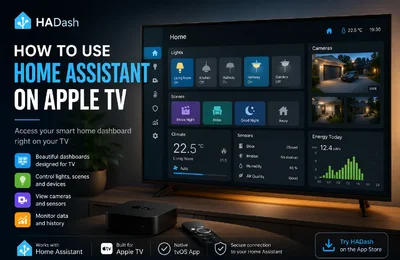
A compact first view could contain three scene buttons, one Entities card for living-room status, one Thermostat card and one camera card. Move detailed graphs, secondary rooms and diagnostic information to additional views.
How HADash Fits into the Dashboard Workflow
Home Assistant remains responsible for:
- Entities and devices
- Scenes and scripts
- Dashboard views
- Card configuration
- Entity names
- Card order and grouping
- Historical and statistical data
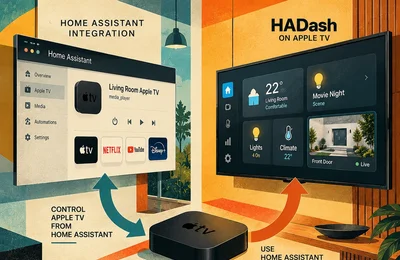
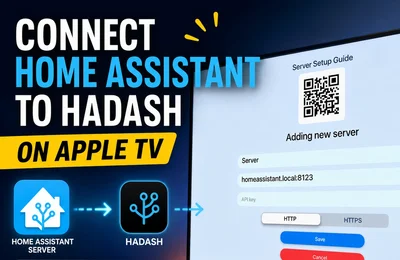
HADash connects to the Home Assistant instance and displays supported dashboard content through a native Apple TV interface. Dashboard editing remains in Home Assistant rather than inside HADash.
A practical setup sequence is:
- Create or select a dashboard in Home Assistant.
- Add supported cards for the required entities.
- Use larger cards, short labels and a limited number of columns.
- Confirm that actions work in Home Assistant.
- Open the dashboard in HADash.
- Test navigation with the Apple TV remote from the normal seating position.
- Move dense or rarely used controls to secondary views.
The remote-friendly Apple TV dashboard guide provides additional layout and navigation recommendations.
HADash Price and Requirements
The U.S. App Store listed HADash at $9.99 when checked on September 4, 2026. Pricing may differ by country or change after publication.
The current HADash App Store listing states that:
- HADash is available only for Apple TV.
- It requires tvOS 17.6 or later.
- A running Home Assistant instance is required.
- The app connects directly to Home Assistant and displays existing dashboards.
- Multiple servers, camera feeds, graphs and themes are supported.
HADash is an independent application. It is not an official Home Assistant or Apple app.
Before installing it, confirm that the cards central to your dashboard appear in the current HADash compatibility information. If the dashboard is already built, test its essential controls before spending time optimising secondary views.