How to Use Home Assistant on Apple TV
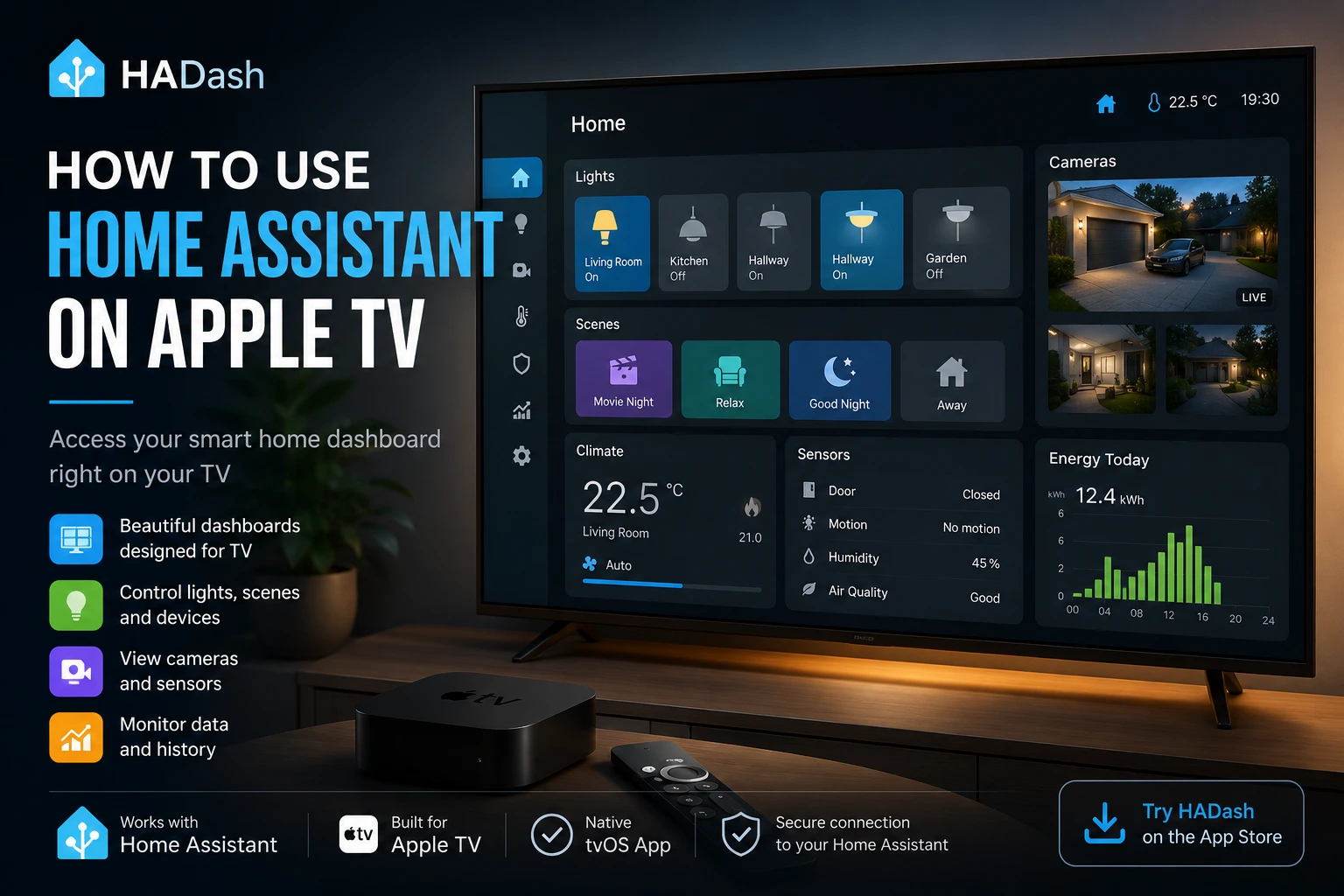
Home Assistant can bring lights, cameras, climate controls, sensors, scenes, and other smart home devices into a single customizable dashboard. But when you want to access that dashboard from the largest screen in your home, the process is less obvious.
Apple TV can be connected to Home Assistant in several different ways. However, there is an important distinction:
- You can add Apple TV to Home Assistant as a media device.
- You can display a Home Assistant dashboard on Apple TV.
- You can use a dedicated Apple TV app to interact with your smart home.
These are different functions and require different approaches.
This guide explains how to use Home Assistant on Apple TV, what options are available, and how to choose the most practical setup for your home.
Can You Use Home Assistant on Apple TV?
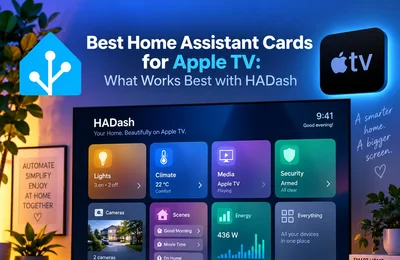
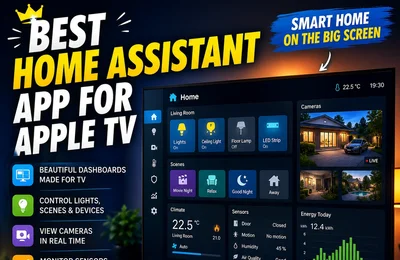
Yes. You can display and interact with your Home Assistant dashboards on Apple TV by using a dedicated tvOS application such as HADash.
Home Assistant dashboards are the primary interface for viewing and controlling a smart home. They consist of views and cards that can display device controls, camera feeds, sensor readings, energy information, weather data, history graphs, and other entities connected to your Home Assistant instance.
Home Assistant does not require every dashboard to have the same layout. You can create multiple dashboards for different rooms, users, or devices. For example, you might use:
- A detailed dashboard on your computer.
- A compact dashboard on your phone.
- A simplified dashboard for guests.
- A living-room dashboard designed for Apple TV.
Home Assistant officially supports multiple dashboards, allowing each one to be configured for a different part of the house or a particular use case.
Apple TV Integration vs Home Assistant Dashboard on Apple TV
One of the most common sources of confusion is the official Apple TV integration in Home Assistant.
The integration allows Home Assistant to discover and connect to an Apple TV on the local network. Once configured, Apple TV can appear as a media player entity inside Home Assistant. Depending on the device and configuration, you may be able to monitor playback, control media functions, launch applications, or use the device in automations.
However, this integration works in the following direction:
Home Assistant controls Apple TV.
It does not automatically provide a Home Assistant interface on the Apple TV screen.
To view and operate your Home Assistant dashboard from Apple TV, you need a tvOS application capable of connecting to your Home Assistant server and rendering the dashboard.
Ways to Access Home Assistant from Apple TV
There are several possible approaches, but they provide different levels of convenience and interaction.
1. Use a Dedicated Home Assistant Dashboard App
A dedicated tvOS application is the most direct way to use Home Assistant on Apple TV.
HADash is an Apple TV app designed to connect directly to an existing Home Assistant instance and display its dashboards on the television. It uses the dashboards already configured in Home Assistant, so users do not need to rebuild their smart home interface separately inside the app.
With this approach, Apple TV becomes a smart home control point for the living room. Depending on the dashboard configuration, you can use it to:
- Turn lights and switches on or off.
- Activate scenes and scripts.
- Check room temperatures and other sensor data.
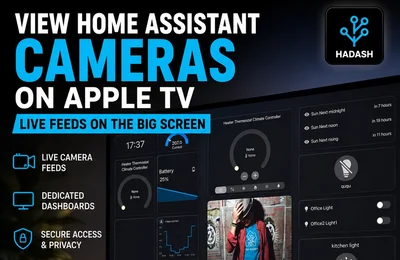
- View compatible camera feeds.
- Monitor doors, windows, alarms, and motion sensors.
- Review history graphs.
- Switch between different dashboards or Home Assistant servers.
- Control devices with the Apple TV remote.
This is the most suitable option when you want regular, interactive access to Home Assistant rather than simply mirroring another screen.
2. Mirror an iPhone, iPad, or Mac with AirPlay
Another option is to open Home Assistant on an iPhone, iPad, or Mac and mirror the device to Apple TV through AirPlay.
This can be useful for temporarily displaying a dashboard on a television, but it is not a fully independent Apple TV setup.
The source device must remain connected and available. Navigation normally takes place on the phone, tablet, or computer rather than through a native television interface. Notifications, display scaling, device orientation, and connection interruptions may also affect the experience.
AirPlay mirroring is therefore better suited to occasional viewing than permanent smart home control.
3. Use Apple Home and HomeKit Bridge
Home Assistant includes a HomeKit Bridge integration that can expose selected Home Assistant entities to Apple Home. This allows compatible lights, switches, sensors, scenes, and other entities to be controlled through Apple’s Home ecosystem and Siri.
This method can be useful when you already rely heavily on Apple Home. However, it does not reproduce your complete Home Assistant dashboard.
Custom Home Assistant cards, dashboard layouts, detailed graphs, many integrations, and advanced interface elements may not be available through Apple Home. HomeKit Bridge should therefore be viewed as an ecosystem connection rather than a complete dashboard solution.
4. Create Custom Automations for Apple TV
You can also use the official Apple TV integration to include the media player in Home Assistant automations.
For example, Home Assistant could:
- Pause playback when a doorbell rings.
- Dim the lights when a movie starts.
- Turn on ambient lighting when Apple TV becomes active.
- Send media commands as part of a scene.
- Trigger another automation when playback stops.
This makes Apple TV part of your smart home, but it still does not provide an interactive Home Assistant dashboard on the television.
How to Connect HADash to Home Assistant
The exact interface may change between app versions, but the basic connection process consists of creating a Home Assistant access token and adding your server to HADash.
Step 1: Prepare Your Home Assistant Dashboard
Before connecting Apple TV, open your Home Assistant instance in a browser or the Companion app and check the dashboard you want to display.
Home Assistant dashboards are built from cards. Each card can show information or provide controls for specific entities.
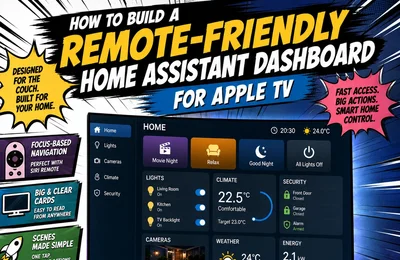
For a television interface, prioritize information that can be understood from a distance:
- Large buttons.
- Clear entity names.
- High-contrast icons.
- Limited text.
- Simple room-based navigation.
- Frequently used scenes and controls.
- Larger camera cards.
- Essential sensor readings.
You can create a separate dashboard specifically for Apple TV instead of modifying the dashboard used on your phone or computer.
Step 2: Create a Long-Lived Access Token
HADash requires authorization to connect to your Home Assistant instance.
In Home Assistant:
- Open your user profile.
- Find the Long-Lived Access Tokens section.
- Select Create Token.
- Give the token a recognizable name, such as HADash Apple TV.
- Copy the generated token and store it securely.
Treat the token like a password. It grants access to your Home Assistant instance and should not be published, included in screenshots, or shared with other people.
Step 3: Install HADash on Apple TV
Open the App Store on Apple TV, search for HADash, and install the application.
HADash is a dedicated tvOS application for displaying and interacting with existing Home Assistant dashboards. The current App Store listing states that it requires tvOS 17.6 or later. (App Store)
Step 4: Add Your Home Assistant Server
Open HADash and navigate to the server configuration section.
Add the following information:
- Your Home Assistant server address.
- The long-lived access token created earlier.
Using the Apple TV Remote interface on an iPhone can make entering a long URL and access token easier.
The HADash setup documentation describes the process as adding a new server from the Servers tab and entering the Home Assistant address and API key.
Your server address may use a local address, a hostname, or a securely configured remote URL. The correct option depends on how your Home Assistant installation is networked and whether you need access outside the local network.
Step 5: Select a Dashboard
Once the server connection is established, choose the dashboard you want to display.
HADash uses existing Home Assistant dashboards, so changes made through the Home Assistant interface can be reflected on Apple TV without rebuilding the entire layout inside a separate editor. (App Store)
You can maintain different dashboards for:
- The living room.
- Security monitoring.
- Cameras.
- Climate and air quality.
- Energy use.
- Media controls.
- A simplified family interface.
What Can You Control from Apple TV?
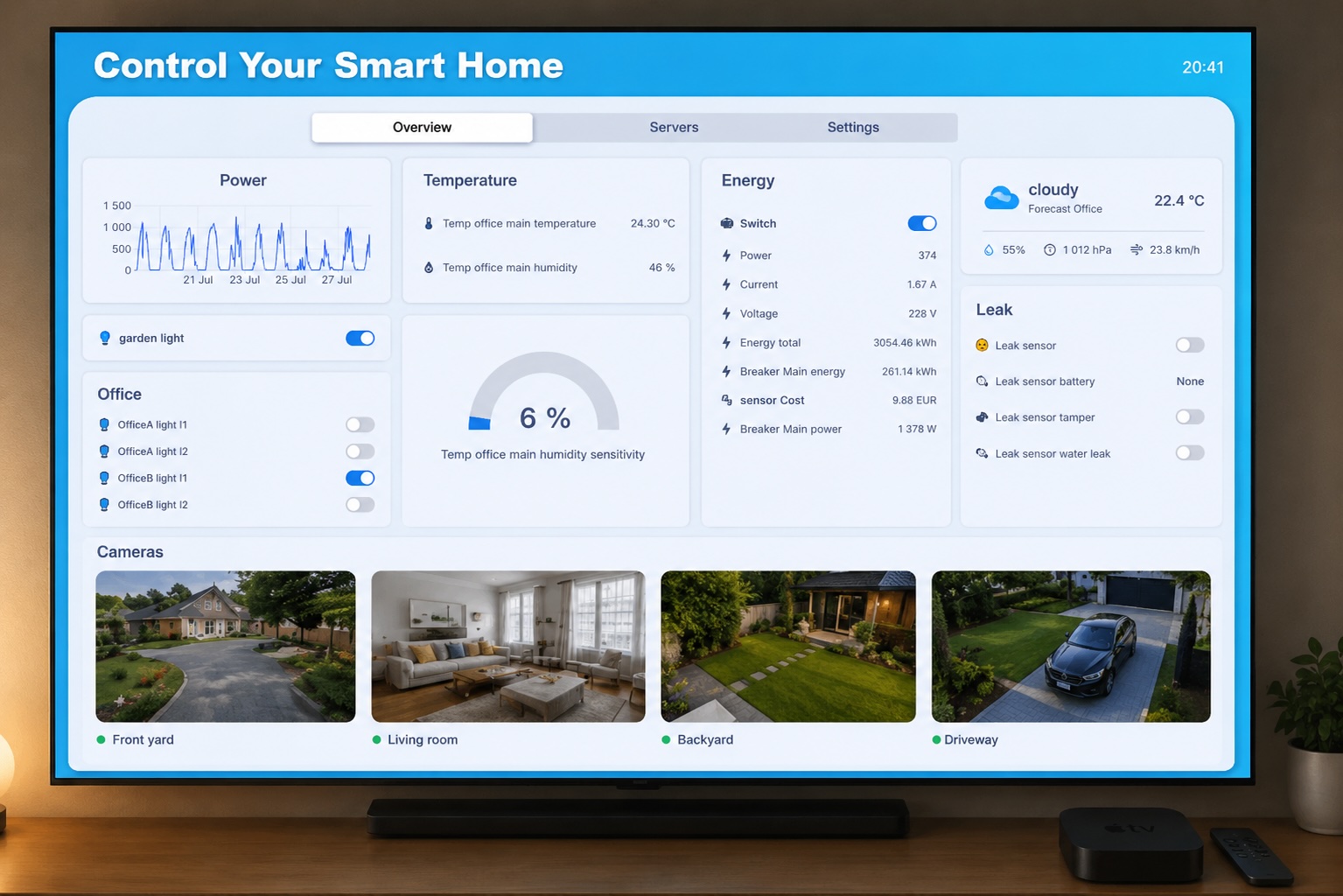
The available controls depend primarily on the entities and cards included in your selected Home Assistant dashboard.
A practical Apple TV dashboard might include the following sections.
Lights and Switches
Place commonly used lights, groups, and switches on the first screen. Large controls are easier to navigate with the Apple TV remote than dense grids of small entities.
Scenes and Scripts
Scenes are particularly effective on a television dashboard because one action can change several devices at once.
Examples include:
- Movie Night.
- All Lights Off.
- Evening Lighting.
- Guests Arriving.
- Good Night.
- Security Mode.
Cameras
A dedicated camera view can help you check an entrance, driveway, garden, nursery, or other monitored area without reaching for a phone.
Camera performance and compatibility can vary depending on the camera integration, stream format, network configuration, dashboard card, and Home Assistant setup.
Climate and Sensors
Apple TV can provide an at-a-glance overview of:
- Indoor temperature.
- Humidity.
- Air quality.
- Thermostat state.
- Open doors or windows.
- Motion detection.
- Water-leak sensors.
- Battery levels.
History and Graphs
Historical data can help you monitor temperature changes, energy use, humidity, or other sensor values over time.
The HADash App Store description includes support for monitoring sensors, cameras, and graphs through existing Home Assistant dashboards.
How to Design a Home Assistant Dashboard for TV
A dashboard that works well on a phone may not work equally well on a television.
The television is viewed from farther away, and navigation is performed with directional controls rather than a touchscreen. The interface should therefore be simpler and more focused.
Use Fewer Cards per View
Avoid trying to fit every entity onto one screen. Divide the dashboard into clear views such as:
- Home.
- Lights.
- Climate.
- Cameras.
- Security.
- Energy.
Prioritize Common Actions
Place frequently used controls near the beginning of the dashboard. Less important diagnostic entities can remain on a more detailed desktop or mobile dashboard.
Use Clear Names
Labels such as Living Room Lights are easier to understand than technical entity names or abbreviations.
Avoid Small Touch-Oriented Controls
Some custom cards are designed primarily for touchscreens. Test navigation with the Apple TV remote and replace cards that are difficult to focus or operate.
Create a Separate TV Dashboard
Home Assistant allows multiple dashboards, making it possible to build a television-specific interface without compromising your mobile dashboard.
Local Access vs Remote Access
When Apple TV and Home Assistant are on the same home network, a local server address may be sufficient.
Remote access requires additional configuration. The exact setup depends on whether you use:
- Home Assistant Cloud.
- A reverse proxy.
- A VPN.
- A custom domain.
- Another secure remote-access configuration.
Avoid exposing an unsecured Home Assistant instance directly to the internet. Use HTTPS and an established secure access method whenever the connection leaves your local network.
Troubleshooting Home Assistant on Apple TV
HADash Cannot Connect to the Server
Check that:
- The Home Assistant URL is correct.
- Apple TV can reach the Home Assistant server.
- The server and Apple TV are on compatible networks.
- The access token was copied completely.
- The token has not been deleted or replaced.
- HTTPS certificates are valid when using a secure remote URL.
The Dashboard Loads but Some Cards Do Not Work
Some custom cards or frontend components may behave differently in a tvOS application than in a desktop browser.
Test the dashboard with standard Home Assistant cards first. Then add custom cards individually to identify compatibility problems.
Navigation Is Difficult
Create a simplified Apple TV dashboard with larger cards, fewer columns, and fewer controls per view.
Camera Streams Do Not Load
Check the camera integration inside Home Assistant first. If the feed also fails in the regular Home Assistant dashboard, the issue is probably not specific to Apple TV.
Stream formats, authentication, transcoding, network bandwidth, and custom camera cards can all affect playback.
The Dashboard Is Too Small
Reduce the number of cards displayed in each row and design the interface around television viewing distance rather than desktop screen density.
Is Apple TV a Good Home Assistant Dashboard?
Apple TV is a strong option when you want to control your smart home from the living room without installing a dedicated wall-mounted tablet.
Its main advantages include:
- A large existing screen.
- Convenient remote control.
- No additional wall display.
- Easy access to cameras and household status.
- A shared interface that family members can use.
- Integration with an existing entertainment setup.
However, Apple TV is not always the best choice for continuous information display. A wall-mounted tablet may be more appropriate when the dashboard needs to remain visible all day or be accessible from a hallway, kitchen, or entrance.
The best approach depends on the intended use:
- Use Apple TV for living-room monitoring and remote-based control.
- Use a tablet for permanent touch-based control.
- Use a phone for personal and mobile access.
- Use a desktop browser for detailed configuration and administration.
Final Thoughts
Using Home Assistant on Apple TV requires more than adding the official Apple TV integration.
The official integration allows Home Assistant to control Apple TV as a media device. To display and interact with a complete Home Assistant dashboard on the television, you need a dedicated tvOS dashboard application or a less direct method such as screen mirroring.
HADash provides a native Apple TV approach. It connects to an existing Home Assistant instance, displays the dashboards you have already created, and lets you access smart home controls, sensors, cameras, and graphs from the television.
For the best experience, create a separate Home Assistant dashboard designed specifically for the television: use large controls, clear navigation, a limited number of cards, and direct access to the devices and scenes your household uses most often.