How to View Home Assistant Cameras on Apple TV
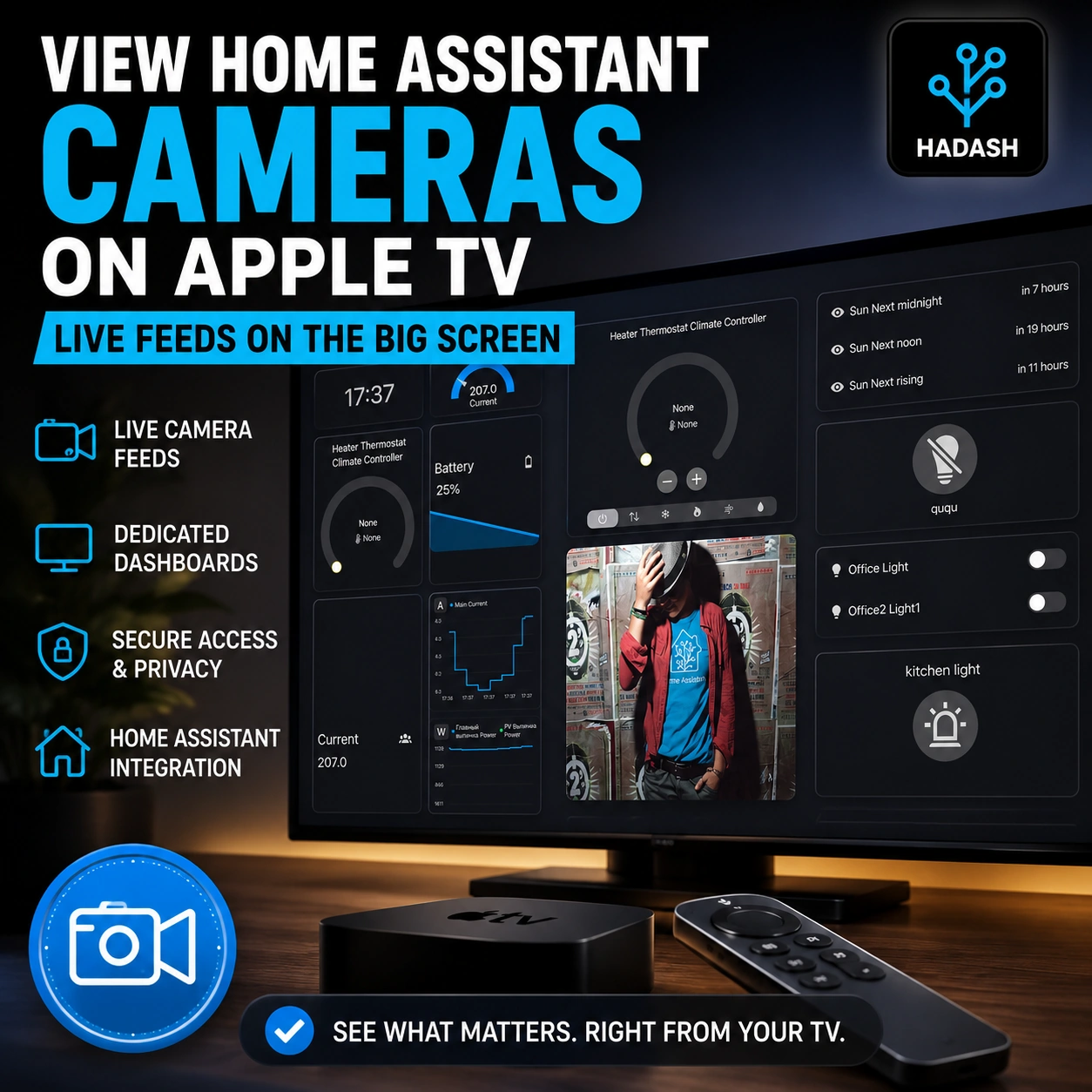
Viewing security cameras on a television is one of the most practical uses for a Home Assistant dashboard. A large screen makes it easier to check a front door, driveway, garden, garage, nursery, or several camera feeds without opening a phone or computer.
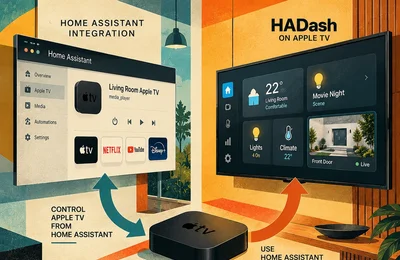
For Apple TV users, HADash provides a direct way to display supported Home Assistant camera entities through dashboards that already exist on the Home Assistant server. HADash is a native tvOS application that connects to Home Assistant, displays existing dashboards, and supports camera feeds alongside lights, sensors, graphs, and other entities. GitHub
This guide explains how to add cameras to a Home Assistant dashboard, open that dashboard through HADash on Apple TV, improve the television layout, and troubleshoot streams that do not load correctly.
Can You View Home Assistant Cameras on Apple TV?
Yes. The basic process is:
- Add the camera to Home Assistant.
- Confirm that the camera entity works in the regular Home Assistant interface.
- Add the camera entity to a compatible dashboard card.
- Open that dashboard in HADash on Apple TV.
HADash currently lists the Picture Entity Card as supported specifically for cameras. Its public documentation also states that the app supports live camera feeds and real-time data. GitHub
The camera itself does not connect directly to HADash. Home Assistant remains the central platform that authenticates the camera, creates the camera entity, and supplies the dashboard configuration.
What You Need
Before starting, make sure you have:
- A working Home Assistant installation.
- At least one camera integrated with Home Assistant.
- A functioning camera entity.
- Apple TV with HADash installed.
- HADash connected to the correct Home Assistant server.
- A dashboard that the HADash user is allowed to access.
- Reliable network connectivity between the camera, Home Assistant, and Apple TV.
Home Assistant uses camera entities as a common interface for camera integrations. When a camera and the Stream integration support live playback, Home Assistant can stream the camera in its frontend and on supported media players. Home Assistant
Step 1: Add the Camera to Home Assistant
The first step is to integrate the camera with Home Assistant.
The exact process depends on the manufacturer and camera platform. Home Assistant supports many vendor-specific camera integrations, while its Generic Camera integration can connect certain cameras or image URLs that do not have a dedicated integration. The result should be a camera entity such as:
camera.front_door
or:
camera.driveway
Before configuring Apple TV, open the camera entity inside Home Assistant and confirm that it displays an image or live stream.
This test is important because HADash cannot repair a camera integration that is already unavailable in Home Assistant.
Step 2: Confirm That the Camera Stream Works in Home Assistant
Open Home Assistant in a desktop browser or the official mobile app and select the camera entity.
Check whether:
- A current image appears.
- The live stream starts.
- The entity is not marked unavailable.
- The stream remains stable for more than a few seconds.
- Authentication does not repeatedly fail.
- The camera works from the same local network used by Apple TV.
Home Assistant documents several possible camera states, including streaming, recording, idle, unavailable, and unknown. Not every camera integration supports every state. Home Assistant
When a camera is unavailable in the standard Home Assistant interface, solve that issue before troubleshooting HADash.
Step 3: Create a Dedicated Camera Dashboard
You can add cameras to an existing dashboard, but a separate television dashboard is usually easier to use.
A dedicated camera dashboard can contain:
- One large primary camera.
- A grid of entrance and outdoor cameras.
- A security overview.
- Door and window sensors next to camera feeds.
- Motion status.
- Alarm state.
- Lights for the area shown by each camera.
For example, you might create views named:
- Front Door
- Outdoor Cameras
- Ground Floor
- Security
- Nursery
- Garage
A television dashboard should not copy every card from a phone layout. The screen is viewed from farther away and navigation is performed with the Apple TV Remote rather than a touchscreen.
Step 4: Add a Picture Entity Card
The safest starting point for HADash is the standard Home Assistant Picture Entity Card.
Home Assistant’s official documentation states that this card can display the image from a camera entity. Its camera_view option can be set to live when the Stream integration is enabled. Home Assistant
In the Home Assistant dashboard editor:
- Open the dashboard.
- Enter edit mode.
- Select Add Card.
- Choose Picture Entity.
- Select the required camera entity.
- Save the card.
A minimal YAML example looks like this:
type: picture-entity entity: camera.front_door camera_view: live name: Front Door show_name: true show_state: false
This configuration tells Home Assistant to display the camera entity and request the live view where streaming is available.
HADash lists the Picture Entity Card as supported for cameras, making it the most appropriate standard card for this use case. GitHub
Live View vs Camera Snapshot
A camera card may show either a refreshed still image or a live stream.
Snapshot or automatic view
A still image requires fewer resources and may load more reliably when:
- The camera connection is slow.
- Several cameras are displayed at once.
- The Home Assistant server has limited processing power.
- The Wi-Fi network is congested.
- Low latency is not essential.
Live view
A live stream is preferable when:
- You need to observe movement immediately.
- The camera is used for a doorbell or entrance.
- You are monitoring children, pets, or outdoor activity.
- The stream remains reliable on the local network.
In the Picture Entity Card, camera_view: live requests the live stream when the Stream integration is available. Home Assistant
A live stream uses more network bandwidth and server resources than a static image, particularly when several cameras are opened simultaneously.
Step 5: Open the Dashboard in HADash
Once the camera card works in Home Assistant:
- Open HADash on Apple TV.
- Select the connected Home Assistant server.
- Open the dashboard containing the camera.
- Navigate to the camera view.
- Wait for the stream to initialize.
HADash displays existing Home Assistant dashboards rather than requiring a separate camera layout to be rebuilt inside the tvOS app. GitHub
When the card opens correctly, Apple TV becomes a shared camera-monitoring screen for the room.
Step 6: Test Navigation with the Apple TV Remote
A card that looks good in a browser may still be awkward on television.
Test:
- Whether the camera view can be reached quickly.
- Whether focus movement is predictable.
- Whether the card is large enough.
- Whether labels are readable from the couch.
- Whether opening and leaving the view works consistently.
- Whether the stream restarts after returning to the dashboard.
Keep the navigation shallow. A camera that requires several menus to reach is less useful during a doorbell event or security alert.
Best Dashboard Layouts for Cameras on Apple TV
One Large Camera
This is the best layout for a front door, nursery, gate, or driveway.
Use a single Picture Entity Card that occupies most of the view. Add only essential related entities below or beside it, such as:
- Door lock state.
- Door contact sensor.
- Porch light.
- Motion detection.
- Alarm status.
The main feed remains large enough to understand from normal television viewing distance.
Two-Camera View
A two-camera layout works well for related areas:
- Front door and driveway.
- Garden and side gate.
- Garage interior and garage entrance.
- Nursery and hallway.
Avoid reducing both feeds so much that details become difficult to see.
Multi-Camera Security View
A grid can provide a useful overview, but every additional live stream increases network and processing demand.
For a four-camera dashboard:
- Use cameras with lower-resolution substreams where available.
- Keep each card at a consistent aspect ratio.
- Avoid unrelated widgets on the same view.
- Consider using still previews and opening a separate live view when needed.
- Test the view on the actual Apple TV rather than judging it only in a browser.
Camera Plus Controls
A practical Apple TV view may pair a camera with controls for the same location.
Examples:
- Front-door camera plus porch light.
- Driveway camera plus gate control.
- Nursery camera plus temperature sensor.
- Garden camera plus irrigation state.
- Garage camera plus garage-door status.
Be careful with security-sensitive controls. A shared television may be accessible to children or visitors.
Which Home Assistant Camera Cards Work Best with HADash?
Based on the current public HADash card-support list, the most relevant options are:
Picture Entity Card
Supported for cameras and the recommended starting point.
Picture Card
Listed as supported, but it is primarily an image card rather than a camera-specific control. It can be useful for navigation or static imagery.
Picture Elements Card
Listed as supported, but its overlaid elements are not clickable in HADash according to the current public support table. It may therefore work for display-oriented layouts but not for interactive camera controls placed over the image.
Picture Glance Card
The public HADash documentation currently lists the Picture Glance Card as planned rather than supported. Avoid making it the foundation of a production Apple TV camera dashboard until support is confirmed in the installed app version.
Custom community camera cards may use browser-specific JavaScript, WebRTC implementations, gestures, or interface elements that are not available in the same form on tvOS. Standard cards should be tested first.
How Home Assistant Streams Camera Video
Home Assistant’s Stream integration proxies supported live camera streams through Home Assistant. It is normally loaded automatically when default_config is used and when the camera platform supports streaming. Home Assistant
The Stream integration currently supports H.264 and H.265 source streams through HLS and Low-Latency HLS. Home Assistant notes that codec support can differ between client platforms, and that some audio codecs are not supported. Home Assistant
Home Assistant also introduced WebRTC camera playback to reduce latency where a compatible connection path is available. When WebRTC cannot be used, Home Assistant can fall back to an older streaming method. Home Assistant
For HADash users, the practical conclusion is simple: camera behavior depends not only on the dashboard card, but also on the camera integration, source codec, Home Assistant stream handling, network route, and tvOS client support.
Should You Enable Preload Stream?
Home Assistant offers a Preload stream option for supported cameras.
When enabled, Home Assistant starts and maintains the camera stream in advance. This can reduce the delay when opening the camera, but it also consumes additional server resources. Home Assistant specifically recommends monitoring CPU usage when this option is used. Home Assistant
Preloading may be useful for:
- A frequently checked front-door camera.
- A doorbell camera.
- A primary security feed.
- A camera that takes several seconds to start.
It may be less appropriate for many cameras on a low-powered Home Assistant server.
Troubleshooting Home Assistant Cameras on Apple TV
The Camera Does Not Appear in HADash
Check that:
- The camera entity exists in Home Assistant.
- The entity is included in the selected dashboard.
- You are opening the correct dashboard and view.
- The Home Assistant user connected to HADash can access that dashboard.
- The card type is supported.
- The entity is not unavailable.
Start with a single standard Picture Entity Card.
The Card Appears but Shows No Image
Open the same card in the normal Home Assistant frontend.
When it also fails there, investigate:
- Camera authentication.
- Camera integration status.
- Snapshot URL.
- Stream URL.
- Network access from Home Assistant to the camera.
- Expired camera credentials.
- Vendor cloud outages.
The Apple TV app receives the camera through Home Assistant; it does not bypass the underlying camera configuration.
A Snapshot Works but Live Video Does Not
This usually indicates that Home Assistant can retrieve a still image but cannot create or deliver the live stream successfully.
Check:
- Whether the camera integration supports streaming.
- Whether the Stream integration is active.
- Whether camera_view: live is configured.
- Whether the source stream uses a supported format.
- Whether the camera provides a separate RTSP stream.
- Whether firewall rules block the stream path.
- Whether the Home Assistant server can decode or proxy the source.
Home Assistant states that live playback requires camera support and a configured Stream integration. Home Assistant
The Stream Has a Long Delay
Some latency is normal because the video may pass from the camera through Home Assistant before reaching Apple TV.
Possible improvements include:
- Use a local camera stream rather than a cloud relay.
- Enable Preload stream for the most important camera.
- Use Ethernet for Home Assistant or Apple TV where practical.
- Reduce camera resolution or bitrate.
- Use the camera’s lower-resolution substream.
- Limit the number of simultaneous live feeds.
- Confirm that WebRTC is available in the Home Assistant setup.
Home Assistant’s WebRTC support is designed to reduce camera latency by finding a fast path where possible. Home Assistant
Several Cameras Load Slowly
Multiple live streams compete for:
- Camera bandwidth.
- Wi-Fi capacity.
- Home Assistant CPU.
- Memory.
- Stream proxy connections.
- Apple TV decoding resources.
Home Assistant notes that Low-Latency HLS opens additional browser connections and can revert to regular HLS when too many streams are open without an HTTP/2 proxy. Home Assistant
Reduce the number of simultaneous live feeds or use snapshots on the overview page.
The Stream Freezes After a While
Check:
- Camera stability.
- Home Assistant logs.
- Network packet loss.
- Wi-Fi signal quality.
- Stream timeout behavior.
- Whether the camera limits concurrent viewers.
- Whether another recorder is already consuming the maximum stream count.
- Whether the dashboard reloads correctly after Apple TV sleeps.
Testing one camera at a time helps separate a camera-specific issue from a general Apple TV or Home Assistant problem.
H.265 Video Does Not Play Correctly
Home Assistant’s Stream documentation states that H.265 playback support varies across client platforms, while H.264 generally has broader compatibility. Home Assistant
When a camera provides both formats, test an H.264 substream for the Apple TV dashboard. This is a practical compatibility measure, not a guarantee, because the final result still depends on the camera integration and client implementation.
The Camera Works Locally but Not Through Remote Access
Remote camera playback introduces additional requirements:
- A secure external Home Assistant URL.
- Valid HTTPS certificates.
- Sufficient upload bandwidth.
- Correct reverse-proxy configuration.
- A route that supports the required stream connections.
- Access to any relay service used by the streaming method.
For an Apple TV located inside the same home, a local Home Assistant connection is usually simpler and may provide lower latency.
Custom Camera Cards Do Not Work
Replace the custom card temporarily with a standard Picture Entity Card.
When the standard card works, the connection and camera entity are probably valid, while the custom card may rely on unsupported frontend behavior.
HADash’s public card-support list should be treated as the current compatibility reference, and it may change between app releases. GitHub
Security and Privacy Considerations
Camera dashboards can expose more sensitive information than ordinary light or climate controls.
A shared television may reveal:
- People entering or leaving the home.
- Children’s rooms.
- Vehicle locations.
- Interior activity.
- Security-system status.
- Private outdoor areas.
Recommended precautions include:
- Create a separate Home Assistant user for HADash.
- Show only cameras appropriate for a shared screen.
- Exclude private rooms from the main dashboard.
- Avoid placing unlock or alarm-disarm controls next to feeds.
- Use secure Home Assistant authentication.
- Protect the long-lived access token used by HADash.
- Remove the token immediately if it is exposed.
- Review who can access the Apple TV and television.
A camera dashboard should be designed around the people who can physically see and operate the screen.
Apple TV Camera Dashboard Ideas
Front-Door View
Include:
- Large doorbell camera.
- Door contact state.
- Porch light.
- Motion sensor.
- Package-detection sensor, where available.
Night Security View
Include:
- Driveway.
- Front entrance.
- Garden.
- Garage.
- Exterior lights.
- Alarm status.
Use fewer live feeds when bandwidth or server capacity is limited.
Nursery View
Include:
- Camera.
- Temperature.
- Humidity.
- Noise or motion sensor.
- Night light.
Avoid making a sensitive indoor camera part of a general household dashboard.
Pet Monitoring View
Include:
- Living room.
- Kitchen.
- Garden or balcony.
- Indoor temperature.
- Relevant doors.
Garage View
Include:
- Interior garage camera.
- Driveway camera.
- Garage-door state.
- Light switch.
- Motion sensor.
Frequently Asked Questions
Can HADash display live Home Assistant cameras?
Which card should I use for a camera in HADash?
How do I request a live camera view?
Why does the camera show a still image instead of video?
Can I show several cameras at once?
Does HADash connect directly to an RTSP camera?
Can I use a custom WebRTC camera card?
Should I enable Preload stream?
Can I view cameras when Apple TV is outside my home network?
Final Thoughts
To view Home Assistant cameras on Apple TV, first make sure the camera works correctly as a Home Assistant camera entity. Then add it to a standard Picture Entity Card, enable live view where supported, and open that dashboard through HADash.
For the most reliable setup:
- Start with one camera.
- Use standard Home Assistant cards.
- Confirm the stream in Home Assistant before testing Apple TV.
- Create a dedicated TV dashboard.
- Use large camera cards.
- Limit simultaneous live streams.
- Prefer H.264 when codec compatibility is uncertain.
- Use Preload stream only for cameras that need faster startup.
- Keep private cameras and sensitive controls off shared screens.
HADash provides the Apple TV interface, while Home Assistant remains responsible for camera integration, authentication, dashboard configuration, and stream delivery. That separation makes troubleshooting easier: first verify the camera in Home Assistant, then verify the card, and only then test the television view.
Sources
- Home Assistant: Camera integration.
- Home Assistant: Stream integration.
- Home Assistant: Picture Entity Card.
- Home Assistant 2024.11 release notes: WebRTC camera streaming.
- HADash public GitHub repository and card-support documentation.
- Apple App Store: HADash application listing.
Camera support, card compatibility, and application behavior were checked against the cited official sources in August 2026. Features may change in later Home Assistant or HADash releases.