Best Home Assistant App for Apple TV
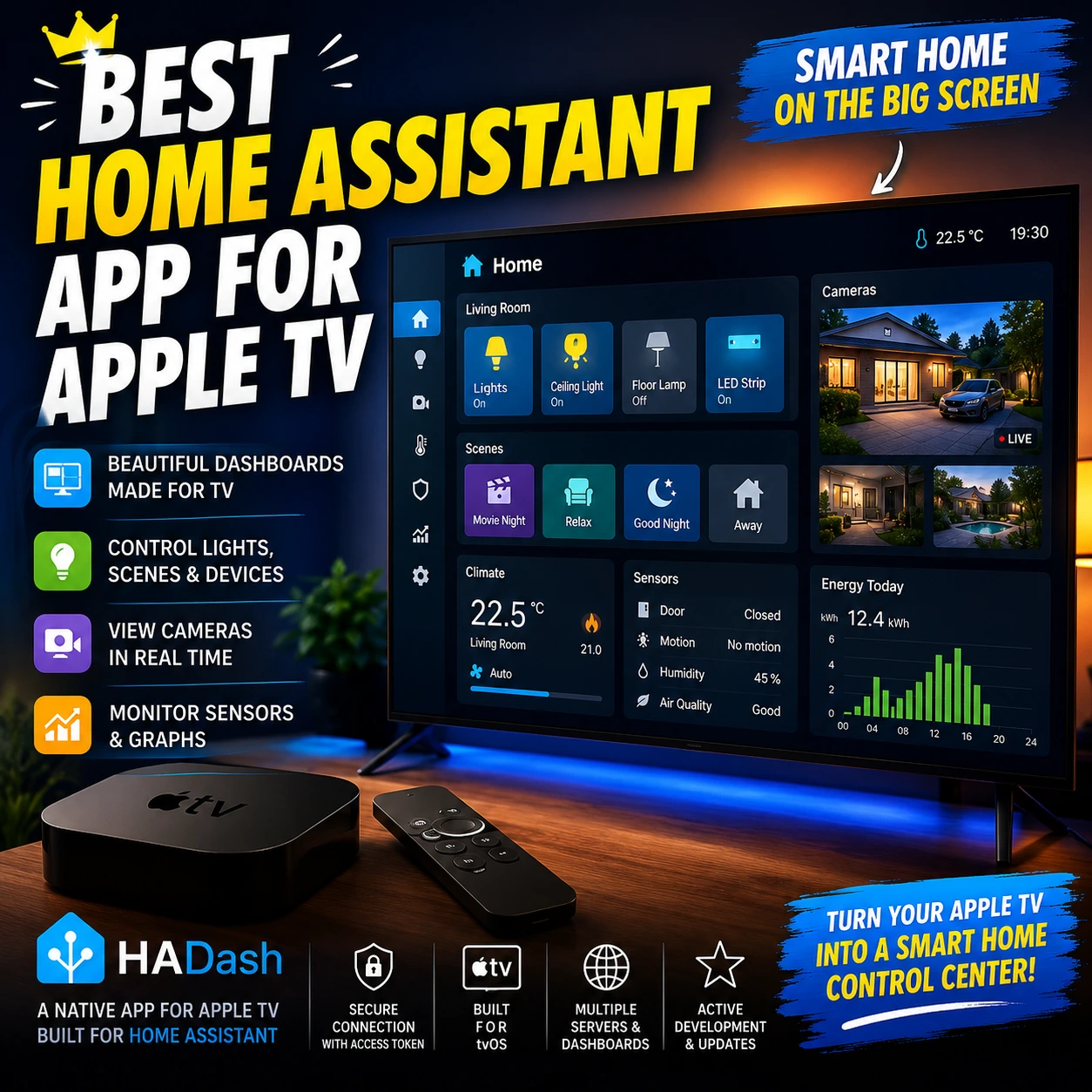
Apple TV can become more than a streaming device. With the right application, it can also provide access to lights, cameras, sensors, climate controls, scenes, graphs, and other devices connected to Home Assistant.
However, choosing the best Home Assistant app for Apple TV is not as straightforward as installing the official Home Assistant mobile app. The official Apple TV integration in Home Assistant serves a different purpose: it allows Home Assistant to control an Apple TV as a media device. It does not place a complete Home Assistant dashboard on the television.
For users who want to view and operate their existing Home Assistant dashboards directly from Apple TV, HADash is one of the most purpose-built options currently available. It is a dedicated tvOS application that connects to a Home Assistant instance and displays existing dashboards without requiring users to recreate their smart home interface inside a separate system.
This article explains what to look for in a Home Assistant Apple TV app, how the available connection methods differ, and why HADash is a strong choice for a living-room smart home dashboard.
Is There an Official Home Assistant App for Apple TV?
Home Assistant provides official Companion apps for several platforms, but the official Apple TV integration documented by Home Assistant is not a dashboard application.
Instead, the integration adds Apple TV to Home Assistant as a controllable device. It currently supports media player, remote, and keyboard-related entities and actions. Home Assistant can use these entities to monitor playback, launch supported applications, send remote commands, and include Apple TV in automations.
This distinction is important:
- The Apple TV integration lets Home Assistant control Apple TV.
- A tvOS dashboard app lets Apple TV display and control Home Assistant.
Installing the official integration therefore does not automatically create a Home Assistant interface on the Apple TV screen.
To use a complete dashboard from the television, you need a dedicated tvOS client, screen mirroring, or an indirect connection through Apple Home.
What Should a Good Home Assistant Apple TV App Do?
A useful Home Assistant app for Apple TV should be evaluated by more than its appearance. The application must work well with the way Home Assistant dashboards are structured and with the way people navigate tvOS from a distance.
Home Assistant dashboards consist of views and cards. They can display device controls, sensor values, camera feeds, graphs, weather information, energy data, and other smart home entities. Home Assistant also allows users to create separate dashboards for different devices, rooms, and household members.
For Apple TV, the most important criteria are the following.
1. Native tvOS Operation
The application should run directly on Apple TV rather than depend on a continuously connected iPhone, iPad, or computer.
A native tvOS app provides a more independent experience. It can be opened from the Apple TV home screen and controlled with the Apple TV Remote without maintaining a screen-mirroring session.
2. Existing Dashboard Support
A good app should use the dashboards already configured in Home Assistant.
Rebuilding every room, entity, scene, and card in a second interface creates unnecessary maintenance. When the app can read an existing dashboard, changes can remain centralized in Home Assistant.
3. Remote-Friendly Navigation
A dashboard designed for a touchscreen is not automatically suitable for a television.
The interface should support focus-based navigation, clear selection states, directional movement, and controls that can be operated with the Apple TV Remote.
4. Support for Common Home Assistant Cards
At minimum, the app should handle the cards most likely to appear on a television dashboard:
- Entities and individual entity cards.
- Buttons.
- Lights and switches.
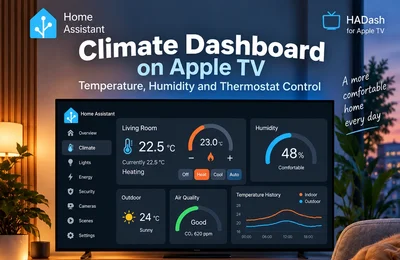
- Thermostats and climate information.
- Sensors.
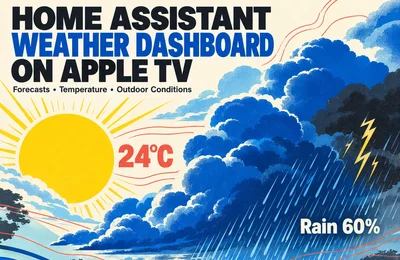
- Weather.
- Cameras.
- Gauges.
- History and statistics graphs.
- Scenes and scripts.
- Layout and stack cards.
Compatibility with custom frontend cards may vary because custom cards are developed independently and can use browser-specific behavior.
5. Camera and Real-Time Data Support
One of the strongest reasons to put Home Assistant on a television is the ability to check cameras and household status from across the room.
A suitable app should therefore support live or frequently updated data rather than only display a static snapshot of the dashboard.
6. Secure Home Assistant Authentication
The app should connect through Home Assistant’s API using an appropriate authorization method.
Credentials and access tokens should be treated like passwords. They should not be shared, displayed in screenshots, or stored in publicly accessible configuration files.
7. Support for Multiple Dashboards or Servers
Advanced Home Assistant users may operate more than one server or maintain separate dashboards for cameras, climate, security, energy, and general control.
An Apple TV client becomes more useful when it can switch between those environments without requiring a separate installation.
Why HADash Is a Strong Home Assistant App for Apple TV
HADash is specifically designed for Apple TV rather than adapted from a phone or desktop interface.
According to its App Store listing, HADash connects directly to a Home Assistant instance and displays existing dashboards without requiring dashboard reconfiguration. The application supports multiple servers, themes, live camera feeds, real-time data, graphs, widgets, and device controls.
That combination addresses the main requirements of a television-based Home Assistant client.
1. It Runs Directly on Apple TV
HADash is listed as an Apple TV-only application in the App Store. It does not rely on AirPlay mirroring from another Apple device.
This means the dashboard can be opened directly from the tvOS home screen and operated as an independent Apple TV application.
For a living-room setup, this is more practical than opening Home Assistant on a phone and mirroring the screen every time someone wants to check a camera or turn off a light.
2. It Uses Existing Home Assistant Dashboards
HADash is designed to display dashboards that already exist on the connected Home Assistant server. The App Store description explicitly states that no dashboard reconfiguration is required.
This is one of its most important advantages.
Home Assistant remains the source of truth for:
- Dashboard structure.
- Entities.
- Card configuration.
- Device names.
- Views.
- Scenes.
- Scripts.
- Automations.
Users do not need to maintain a separate smart home configuration exclusively for the television.
A dedicated TV dashboard can still be created in Home Assistant. This is often the best approach because Home Assistant officially supports separate dashboards for specific devices and use cases.
3. It Supports Smart Home Monitoring and Control
The HADash App Store listing describes support for lights, sensors, cameras, graphs, widgets, and device controls. It also identifies live camera feeds and real-time data as application features.
A practical Apple TV dashboard can therefore be used for tasks such as:
- Turning lights and switches on or off.
- Activating scenes.
- Checking indoor temperature and humidity.
- Viewing compatible cameras.
- Monitoring doors and motion sensors.
- Reviewing historical graphs.
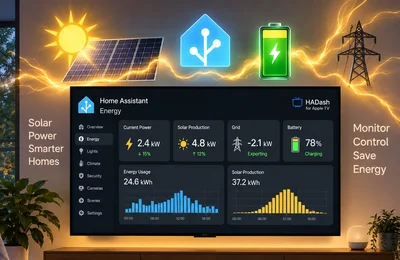
- Checking energy or environmental data.
- Viewing the overall state of the home.
The exact result depends on the Home Assistant entities, integrations, cards, and dashboard design used by the household.
4. It Supports Multiple Home Assistant Servers
HADash can be configured with multiple Home Assistant servers, according to the App Store listing.
This can be useful for users who manage:
- A primary residence and a second home.
- Separate production and test installations.
- A home and an office.
- Multiple independent Home Assistant environments.
It can also simplify troubleshooting by allowing a user to test another instance without removing the original server.
5. It Includes Theme Options
The application supports light, dark, and custom themes, as documented in its App Store feature list.
This matters on a television because dashboard readability changes significantly with screen brightness, room lighting, viewing distance, and display type.
A darker interface may be preferable in a living room at night, while a brighter high-contrast layout may work better during the day.
6. It Continues to Receive Functional Updates
The current App Store version history lists HADash 1.10, released on June 23, with localization support for ten additional languages and a fix related to Weather Card updates. The preceding 1.9.1 update added weather forecast support, History Graph fullscreen mode, optimized history data flow, and fixes for dashboard duplication and gauge limits.
Version history is relevant when evaluating a smart home client because Home Assistant dashboards and cards continue to evolve. An app that receives compatibility and card-support updates is more likely to remain useful as Home Assistant changes.
HADash vs the Official Apple TV Integration
HADash and the official Apple TV integration serve different purposes.
HADash is designed to display a Home Assistant dashboard directly on Apple TV. It allows users to control supported Home Assistant entities from the television and view cameras, sensors, graphs, and other dashboard elements where those cards are compatible.
The official Apple TV integration does not display a Home Assistant dashboard on the television. Instead, it adds Apple TV to Home Assistant as a media player and remote-controlled device.
With the official integration, Home Assistant can send remote commands to Apple TV, monitor the currently active application, and launch supported Apple TV apps. HADash does not perform those media-control functions.
In practical terms, HADash lets you control Home Assistant from Apple TV, while the official integration lets Home Assistant control Apple TV.
Both can be used together because they solve different tasks.
HADash vs AirPlay Screen Mirroring
AirPlay provides another way to display Home Assistant on Apple TV. A user can open a dashboard on an iPhone, iPad, or Mac and mirror that screen to the television.
This method has several advantages:
- No dedicated dashboard app is required.
- It can reproduce the interface visible on the source device.
- It is suitable for temporary demonstrations.
- It can be used for troubleshooting.
However, it is not normally the best solution for routine smart home control.
The source device must remain available, navigation takes place primarily on that device, and notifications or changes in orientation can interrupt the presentation. Mirroring also adds an extra step each time the dashboard is needed.
HADash runs directly on Apple TV and is therefore more appropriate for regular, independent access from the living room.
HADash vs Apple Home and HomeKit Bridge
Home Assistant’s HomeKit Bridge can expose supported Home Assistant entities to Apple Home and Siri. This allows devices that do not natively support HomeKit to appear in Apple’s ecosystem.
This is useful for users who want:
- Siri voice control.
- Devices inside the Apple Home app.
- HomeKit scenes and automations.
- Integration with an existing Apple Home household.
However, HomeKit Bridge does not reproduce the complete Home Assistant dashboard.
It exposes supported entities to Apple Home, while Home Assistant dashboards can contain custom layouts, cards, graphs, themes, views, and detailed data that do not have direct equivalents in Apple Home. HomeKit Bridge also applies protocol and entity-support limitations; for example, the Home Assistant documentation notes a maximum of 150 unique accessories per bridge.
The choice depends on the intended result:
- Use HomeKit Bridge when Apple Home and Siri are the main interface.
- Use HADash when the existing Home Assistant dashboard should appear on Apple TV.
The two approaches can also be used together.
What Are the Limitations of HADash?
No third-party Home Assistant client should be presented as universally compatible with every possible dashboard.
Several limitations should be considered.
Custom Cards May Behave Differently
Home Assistant supports community-developed custom cards. The official dashboard documentation confirms that custom cards can be added to the frontend, but these components are not all built or tested for tvOS.
A custom card may depend on:
- Touch gestures.
- Browser-specific APIs.
- Hover behavior.
- External JavaScript libraries.
- Unsupported media formats.
- Complex responsive layouts.
For the most reliable Apple TV dashboard, begin with standard Home Assistant cards and test custom cards individually.
TV Navigation Is Different from Touch Navigation
Apple TV uses focus-based remote navigation. Dense dashboards with many small buttons may be difficult to operate from a couch.
The dashboard should use fewer cards per view, clear labels, larger interactive areas, and predictable navigation.
Camera Compatibility Depends on the Full Setup
Camera playback can be affected by the Home Assistant camera integration, stream format, authentication method, network performance, card type, and any required transcoding.
A camera that does not work correctly in the normal Home Assistant dashboard should be fixed there before troubleshooting it in the Apple TV application.
A Television Is Not Always an Always-On Dashboard
Apple TV is most useful for deliberate interaction: opening the app, checking household status, activating a scene, or viewing a camera.
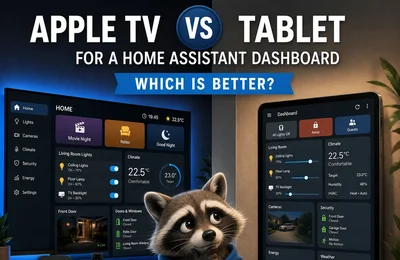
For a dashboard that must remain continuously visible in a hallway or kitchen, a dedicated wall-mounted tablet may still be more appropriate.
How to Prepare a Home Assistant Dashboard for Apple TV
Even the best app cannot compensate for a dashboard that was designed only for a small touchscreen or desktop monitor.
Home Assistant allows users to create focused dashboards for specific devices and people, so the best practice is to create a separate dashboard for the television.
A good TV dashboard should include:
Large, Clear Controls
Use cards that remain readable from normal television viewing distance.
A Limited Number of Views
A practical structure might include:
- Home.
- Lights.
- Climate.
- Cameras.
- Security.
- Energy.
Frequently Used Scenes
Scenes are especially effective on Apple TV because one remote action can control several devices.
Useful examples include:
- Movie Night.
- Relax.
- All Lights Off.
- Good Night.
- Guests.
- Away.
Essential Data Only
Do not copy every diagnostic sensor to the television. Prioritize information that a person may actually need while sitting in the living room.
Standard Cards First
Start with native Home Assistant cards. Add custom components only after confirming that basic navigation and control work correctly.
Is HADash the Best Home Assistant App for Apple TV?
For users whose primary requirement is to display and interact with their existing Home Assistant dashboards directly on Apple TV, HADash is a strong candidate for the best available solution.
That conclusion is based on specific capabilities rather than a universal claim:
- It is built specifically for Apple TV.
- It connects directly to Home Assistant.
- It uses existing dashboards.
- It supports multiple servers.
- It handles device controls, sensors, cameras, graphs, and real-time data.
- It offers theme options.
- It is actively receiving card, localization, and compatibility updates.
It may not be the best choice for every scenario.
AirPlay may be sufficient for an occasional presentation. Apple Home may be preferable for households centered around Siri and HomeKit. A wall-mounted tablet may be better for permanent touch control.
But for turning Apple TV into an interactive Home Assistant dashboard without duplicating the entire smart home configuration, HADash provides the most direct combination of native tvOS access and existing dashboard support.
Frequently Asked Questions
Can I install Home Assistant directly on Apple TV?
Apple TV is not used to host a standard Home Assistant installation. It acts as a client or connected device. HADash connects Apple TV to a Home Assistant server running elsewhere.
Does the official Home Assistant Apple TV integration show dashboards?
No. The official integration adds Apple TV to Home Assistant as media player, remote, and keyboard-related entities. It does not display the Home Assistant dashboard on the television.
Can I control lights from Apple TV with HADash?
HADash supports device controls displayed through compatible Home Assistant dashboards. The exact controls depend on the entities and cards configured in Home Assistant.
Can HADash display security cameras?
The App Store listing includes live camera feeds among HADash’s supported features. Actual playback depends on camera integration, stream compatibility, network configuration, and dashboard setup.
Do I need to create a new dashboard?
Not necessarily. HADash can display existing Home Assistant dashboards. However, a separate TV-focused dashboard usually provides better readability and remote navigation. Home Assistant supports creating different dashboards for different devices and use cases.
Can I use HomeKit Bridge and HADash together?
Yes. HomeKit Bridge can expose supported Home Assistant entities to Apple Home and Siri, while HADash can provide access to the Home Assistant dashboard on Apple TV. They solve different problems.
Final Verdict
The best Home Assistant app for Apple TV should provide more than a mirrored web page. It should run directly on tvOS, work with existing Home Assistant dashboards, support remote-based navigation, display useful real-time information, and avoid forcing users to rebuild their smart home interface.
HADash meets those criteria more directly than the official Apple TV integration, AirPlay mirroring, or HomeKit Bridge alone.
The official integration remains valuable for controlling Apple TV from Home Assistant. HomeKit Bridge remains valuable for Apple Home and Siri. AirPlay remains useful for occasional screen sharing.
HADash fills the remaining gap: using Apple TV itself as an interactive Home Assistant dashboard.
Sources
- Home Assistant: Apple TV integration documentation.
- Home Assistant: Dashboard documentation.
- Home Assistant: HomeKit Bridge documentation.
- Apple App Store: HADash application listing and version history.
The application features and version information in this article were verified against the available official sources in July 2026. Features, prices, compatibility, and version requirements may change after publication.