Home Assistant Weather Dashboard on Apple TV: Forecasts, Temperature and Outdoor Conditions
A weather dashboard on the living-room TV should help everyone answer three questions: What is it like outside? What might change in the next few hours? Is there anything worth paying attention to before leaving home?
Apple TV makes that information visible to the whole household without everyone opening a separate app. Weather also fits naturally alongside indoor temperature, lighting and other household information.
You configure the dashboard in Home Assistant, then use HADash to display supported cards on Apple TV. Before building the layout, check the HADash compatibility information and release notes: support for a Home Assistant feature does not automatically mean every variation works in the Apple TV client.
Quick Answer
A useful Apple TV weather dashboard should prioritize current conditions, outdoor temperature, short-term forecasts, precipitation, wind and only the most relevant additional metrics.
Start with a Weather Forecast Card, then highlight a few individual measurements using supported Sensor Cards. Add sunrise, sunset or indoor climate information if they help your household make decisions.
The TV should emphasize readability and shared awareness rather than display every available weather sensor. A dedicated Weather view can hold detailed information, while the main Home view needs only a compact summary.
What Should a Weather Dashboard Show?
Build the dashboard around the questions your household actually asks.
| Information | What it helps you decide |
|---|---|
| Current condition and outdoor temperature | What to expect when stepping outside |
| Feels-like temperature, if available | Whether conditions may feel different from the measured temperature |
| Hourly forecast | When to leave or plan outdoor activities |
| Daily forecast and high/low temperatures | What to expect tomorrow and later in the week |
| Precipitation probability | Whether to prepare for possible rain |
| Wind and available gust information | Whether outdoor conditions need attention |
| Humidity | How outdoor conditions compare with the home |
| Sunrise and sunset | How much daylight remains |
| Available warnings | Whether to check an important exception |
The exact weather data available in Home Assistant depends on the configured weather integration. The Weather integration documentation describes possible information, but individual providers may supply only some of it.
Start with the Weather Forecast Card
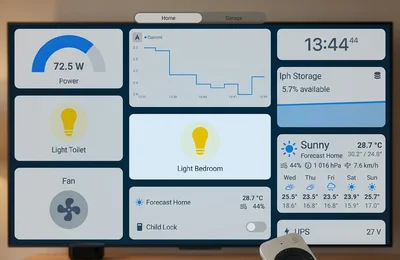
The Home Assistant Weather Forecast Card is the natural starting point for a weather dashboard. It uses a weather entity to present conditions and, when available, forecast information.
Home Assistant offers daily, hourly and twice-daily forecast types. The selected type must be supplied by the weather integration.
HADash documents weather card support, and its release notes record the addition of weather forecast support in version 1.9.2. Check the forecast presentation you intend to use in your installed version; that does not establish compatibility with every custom weather card.
On the TV, give the main weather card enough space for its condition icon, temperature and forecast labels to remain readable from the sofa.
Use Sensor Cards for Selected Outdoor Measurements
A separate card can make an important value easier to find than leaving it among several weather details.
Useful candidates include outdoor temperature, humidity, wind speed, precipitation probability, UV index and pressure. Choose three to five that matter to your household rather than displaying all six by default.
The Home Assistant Sensor Card requires a sensor entity. A value exposed as a weather attribute or forecast field is not automatically a separate sensor.
Use an existing sensor or configure an appropriate derived entity in Home Assistant before trying to place that value in a Sensor Card. Test the result in HADash.
Separate Current Conditions from the Forecast
Current conditions describe the present. Forecasts describe what is expected later. Keep those roles visually distinct.
| Now | Next |
|---|---|
| Current condition | Upcoming hourly conditions |
| Outdoor temperature | Forecast temperature |
| Current humidity | Forecast precipitation probability |
| Current wind | Expected wind changes |
| Local rain sensor state, if installed | Tomorrow’s outlook |
Place daylight information nearby, but label it separately.
This separation prevents a forecast value from looking like a measurement already taken outside your house. It also gives the dashboard a simple reading order: understand the present, then look ahead.
Show the Next Few Hours
For a television dashboard, the current condition and next few hours are usually more useful than a dense table of every available weather attribute.
An hourly forecast can help answer whether to take an umbrella, postpone gardening or expect cooler conditions on the journey home.
Show a short, readable sequence of upcoming forecast periods. Keep the time, condition and temperature prominent; add precipitation or wind only where useful.
Hourly data must be available from your provider, and its presentation should be checked in HADash. Treat “the next six hours” as a layout goal, not a guaranteed card setting.
Keep the Daily Forecast Compact
A daily forecast answers a different question: what should the household expect over the next few days?
Prioritize the day, condition and high/low temperatures. Include precipitation probability only when supplied and clearly associated with that day.
A few readable days are preferable to a long forecast squeezed into small text. A five-day outlook can be a design target, but the available periods and visible presentation depend on the data and card implementation.
Keep detailed forecasts on the Weather view instead of filling the main household dashboard with a miniature weather report.
Distinguish Rain Probability, Rainfall and a Rain Sensor
These values are related, but they do not mean the same thing:
- Precipitation probability expresses the forecast likelihood for a specified period.
- Precipitation amount expresses the forecast or recorded quantity, with units.
- A local rain sensor reports conditions according to that device’s measurements or detection method.
Label each value accordingly: “Rain probability, 19:00” is clearer than “Rain — 60%.”
Do not invent a combined “rain in the next three hours” probability by averaging or adding hourly percentages. Display that interval only if the provider supplies it.
A forecast also does not establish that rain has started at your property.
Make Wind Information Useful
Wind deserves more space when the household regularly uses a garden, balcony, outdoor furniture or an awning.
Start with wind speed and visible units. Add direction or gusts only if available and relevant.
Keep steady wind and gust readings separately labeled. If you create an attention indicator, explain the threshold rather than displaying an unexplained “Danger” label.
For equipment decisions, follow the manufacturer’s limits and appropriate safety guidance. A convenient weather tile should not be treated as a guarantee that it is safe to leave an awning extended.
Add Sunrise and Sunset
Daylight information is useful in its own right and provides context for exterior lighting, blinds and evening routines.
Home Assistant’s Sun integration provides information independently of the weather provider, including the next sunrise and sunset.
Display these times in the household’s local time zone. Label the date when necessary: after sunrise has passed, the next sunrise may refer to tomorrow.
“Next sunrise — tomorrow, 07:42” is more informative than a time without context. Keep daylight in a small supporting section rather than letting it displace current conditions.
Compare Indoor and Outdoor Conditions
Weather becomes more useful when readers can compare it with the room they are sitting in.
An illustrative layout might show:
| Location | Temperature | Humidity |
|---|---|---|
| Living room sensor | 22.5°C | 48% |
| Weather provider’s outdoor conditions | 24°C | 62% |
These are example values, not measurements from a real installation.
Label the source. A sheltered garden sensor and a weather provider’s temperature may describe different locations and conditions; neither should silently replace the other.
For a fuller indoor layout, see Home Assistant Climate Dashboard on Apple TV.
Give Weather Some Climate Context
An outdoor temperature beside the living-room temperature can make heating or cooling information easier to interpret.
For example, a dashboard might show outdoor temperature at 12°C, living-room temperature at 22°C and a reported heating action. Another might show 31°C outdoors, 24°C indoors and active cooling.
Only label heating or cooling as active when the relevant entity actually reports that action. A thermostat set to heating mode does not necessarily mean it is currently heating.
These comparisons provide context, not proof of cause or efficiency. Weather can also sit beside observed solar production in a separate Home Assistant Energy Dashboard on Apple TV, without implying that a weather forecast predicts actual generation.
Connect Weather with Household Scenes
“Rainy Day,” “Hot Day,” “Cold Evening” and “Windy” can be useful names for household scenes.
They are user-created options, not scenes that appear automatically when you add weather information.
For example, a manually selected Cold Evening scene might adjust lighting and a configured thermostat setting. An automation could respond to suitable weather or sensor entities, but its conditions and actions must be built in Home Assistant.
Keep controls distinguishable from information. A button that changes the home should not look like a passive forecast tile.
Put Weather Beside Exterior Lighting
Sunset, dark conditions and rain can provide useful context for exterior lights.
The dashboard might place the next sunset beside a porch-light control and an evening scene. Cloudiness alone should not be presented as a precise measurement of light at the doorway.
For automatic behavior, use suitable entities and test the logic in Home Assistant. HADash provides the display and supported controls; showing weather does not create an automation.
See How to Control Home Assistant Lights and Scenes from Apple TV for the related lighting use case.
A Practical Weather Layout for Apple TV
Organize the page into four logical groups:
| Group | Suggested contents |
|---|---|
| Current | Condition, outdoor temperature, humidity and wind |
| Forecast | Upcoming hours and a compact multi-day outlook |
| Daylight | Clearly dated sunrise and sunset |
| Attention | Available warnings or clearly labeled local indicators |
These are information groups, not a requirement to build four narrow columns. Depending on the screen and card presentation, two or three larger sections may read better.
Place Current first and give Forecast most of the remaining space. Keep Daylight compact. Make Attention noticeable without allowing normal conditions to dominate the screen.
Build with cards confirmed for your client version. The Best Home Assistant Cards for Apple TV guide provides broader layout context.
Main Home View or Dedicated Weather View?
Use both, with different levels of detail.
The main Home view should show current temperature, condition, a short daily outlook and perhaps one useful rain indicator. It is a summary beside lights, climate and other household information.
The dedicated Weather view can contain hourly and daily forecasts, wind, humidity, daylight, additional sensors and available warnings.
This approach keeps weather accessible without forcing everyone through a detailed forecast every time they check the home. It also fits the broader living-room dashboard approach.
Show Weather Alerts Only When Available
If your integration exposes warnings or alert entities, relevant information might include heavy rain, strong wind, heat, frost or storms.
Do not assume official alerts are available in every setup. Show the source, affected area and applicable time when those details are supplied.
Also distinguish official warnings from your own indicators. “Garden wind above configured threshold” is a local rule, not an official severe-weather warning.
For important safety decisions, check the relevant authoritative warning source rather than relying solely on the television display.
Be Careful with Conditional Visibility
Home Assistant provides card visibility options that can help surface exceptions while keeping ordinary conditions uncluttered.
However, conditional visibility in the Home Assistant interface does not establish that the same behavior works in HADash. Verify it on the Apple TV before relying on a card to appear during an alert.
If that behavior is unsupported or uncertain, use an always-visible status card with a clear normal or attention state.
The principle remains useful: normal conditions should stay quiet, while meaningful exceptions should be easy to notice.
Use History and Trends Sparingly
A short temperature or humidity graph can answer questions that a current reading cannot: has the temperature fallen, or has humidity remained elevated?
Home Assistant offers History Graph and Statistics Graph cards. Statistics require entities with appropriate statistical data.
HADash release notes document History Graph support, alongside its documented statistics support. Check the options you need in the installed version.
Choose one useful trend for the TV. Historical measurements are not forecasts, and a rainfall graph needs suitable recorded data—not just a forecast probability.
Make the Dashboard Readable with the Remote
Test the finished page from the sofa, not only at the computer.
Use large values, short labels, a prominent condition icon and generous spacing. Avoid tiny forecast tables, dense graphs and technical entity names.
Keep navigation predictable, with a clear route from Home to Weather and back. If a card offers interaction, confirm that selection and activation work as expected with the remote.
The remote-friendly Apple TV dashboard guide covers the wider navigation principles. Weather should remain useful even when nobody interacts with it.
Common Mistakes to Avoid
- Displaying every metric simply because it exists.
- Repeating the same temperature across several cards.
- Using forecast text too small to read from the sofa.
- Mixing indoor sensors and outdoor conditions without labels.
- Confusing forecast probability with detected rain.
- Leaving forecast periods or measurement units unclear.
- Filling the Home view with graphs and detailed forecasts.
- Assuming every provider supplies hourly data or warnings.
- Treating every custom weather card as HADash-compatible.
- Using technical entity names instead of household-friendly labels.
- Ignoring unavailable readings or stale timestamps when exposed.
Example: A Complete Weather View
The following is an illustrative content plan, not a guaranteed card configuration. All values are hypothetical.
Current Weather
Partly cloudy · 24°CFeels like 25°C · Humidity 62% · Wind 14 km/h
Next Hours
15:00 — Sunny — 25°C17:00 — Cloudy — 24°C19:00 — 22°C — Precipitation probability 60% for the provider’s indicated period
Daily Forecast
Tomorrow — High 23°C / Low 16°CDay 3 — High 25°C / Low 17°CDay 4 — High 21°C / Low 15°C
Daylight
Today’s sunrise — 07:42Today’s sunset — 19:18Both times displayed in local time.
Attention
Possible rain in the forecast period labeled 19:00.
Use actual dates in the finished dashboard and replace every example with verified entity data. The rain indicator expresses a possibility, not a guaranteed start time.
FAQ
Can Home Assistant show weather on Apple TV?
Does HADash support the Weather Card?
Can I show hourly forecasts?
Can I show daily forecasts?
Can I display outdoor temperature and humidity?
Can I show rain probability?
Can I show sunrise and sunset?
Can I combine weather and climate data?
Should weather be on the main Home view?
Can I show weather alerts?
Keep Weather Focused on Household Decisions
The strongest weather dashboard makes the present conditions, near-term outlook and important exceptions easy to understand. Everything else should earn its space.
HADash lets you display supported Home Assistant dashboards on Apple TV, bringing weather together with climate, cameras, sensors and other household information. Check the current compatibility information, start with a small layout and expand only when the additional information is useful.