HADash vs Browser-Based Home Assistant Dashboards on Apple TV
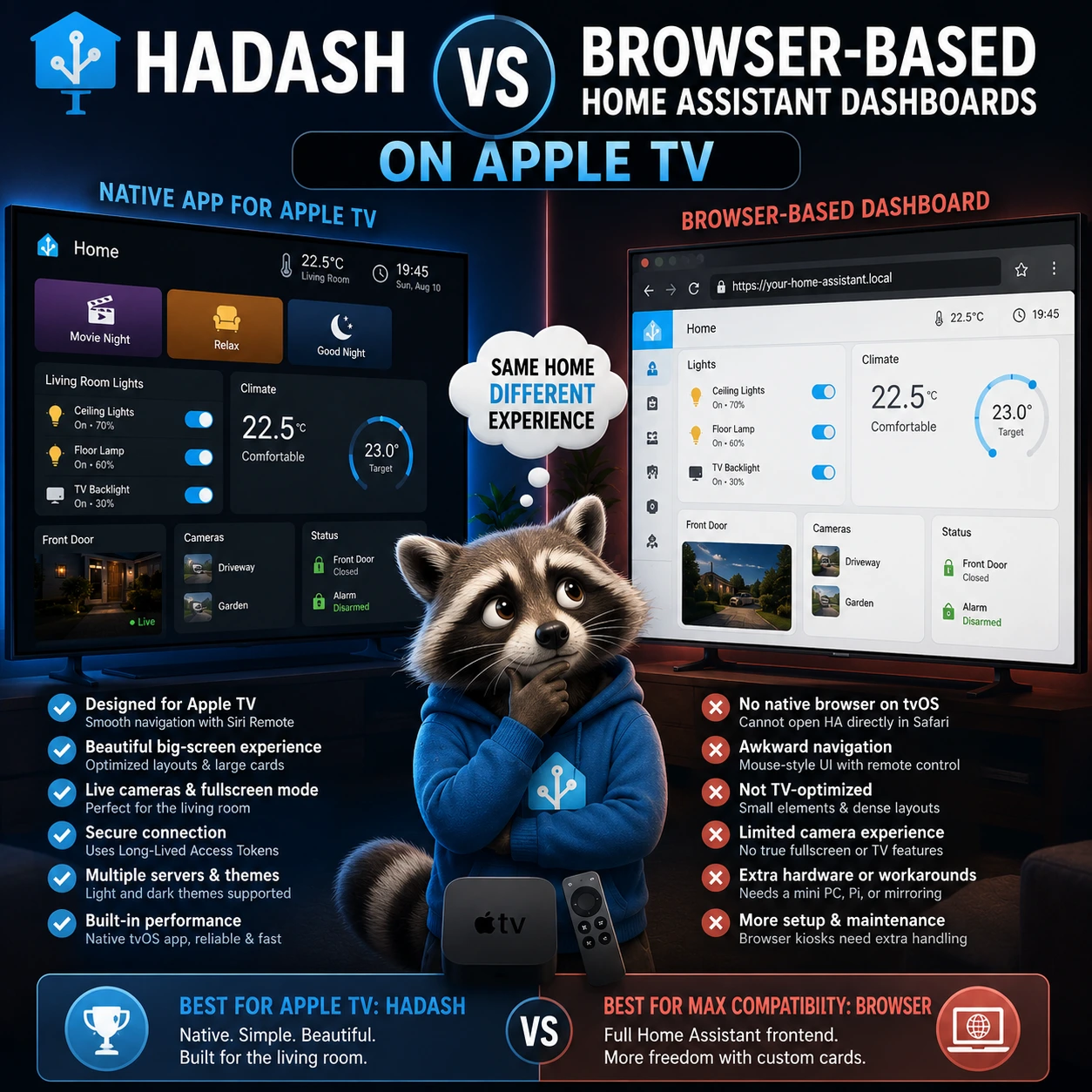
Running Home Assistant on a television sounds simple: open the dashboard in a browser and control it from the couch.
That approach works reasonably well on many tablets, laptops, mini PCs, and some smart TVs.
Apple TV is different.
tvOS does not provide the same general-purpose web-browser environment available on macOS, iPhone, or iPad. Apple’s own developer documentation states that its standard web-view technology is not supported on tvOS.
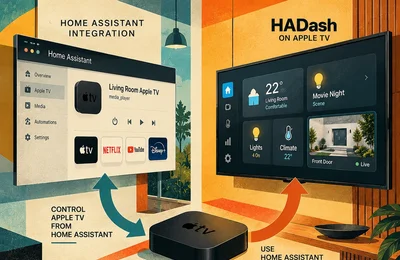
That makes the comparison between HADash and a browser-based Home Assistant dashboard on Apple TV less about choosing between two equivalent apps and more about choosing between a native tvOS solution and various browser-like workarounds.
For most users who want to interact with Home Assistant directly from Apple TV, a native tvOS application such as HADash is the more practical approach.
But browser-based dashboards still have advantages in other environments, and understanding those differences helps clarify where each method fits.
Quick Answer
If your goal is to use Home Assistant directly on Apple TV:
HADash is generally the better fit.
It is a native tvOS application designed specifically to connect to Home Assistant and display compatible dashboard content on Apple TV. According to its public documentation, it connects directly to a Home Assistant instance using a Long-Lived Access Token and supports multiple dashboard types, lights, sensors, cameras, graphs, themes, and multiple servers.
A traditional browser-based Home Assistant dashboard is much easier on platforms that provide a normal modern web browser.
On Apple TV, there is no equivalent workflow where you simply open Safari, enter your Home Assistant URL, and use the full Home Assistant frontend as you would on a Mac or iPad.
What Does “Browser-Based Home Assistant Dashboard” Mean?
Home Assistant’s normal frontend is fundamentally a web interface.
When you open Home Assistant on a computer or tablet browser, the browser loads the dashboard and renders its cards, views, custom components, JavaScript, themes, and interactions.
Home Assistant dashboards are made from cards and views and can be built visually without coding. They can include lights, thermostats, cameras, graphs, sensors, weather information, media controls, and many other entity types.
On a normal computer, a browser-based setup may be as simple as opening:
https://your-home-assistant-address
and signing in.
On Apple TV, the platform architecture makes this much less straightforward.
Why You Cannot Just Open Home Assistant in Safari on Apple TV
Apple TV does not provide the same Safari browsing experience available on Apple’s computers and mobile devices.
More importantly for developers, Apple’s Human Interface Guidelines state that web views are not supported on tvOS.
That matters because a typical embedded browser application relies on a technology such as WKWebView to render arbitrary web pages.
HADash’s own public compatibility documentation reflects this limitation: its Webpage Card is marked as not planned, with the explanation that Apple TV is not intended to function as a general web browser.
So when people search for a “Home Assistant browser on Apple TV,” they are often expecting a workflow that tvOS does not natively provide.
Native App vs Browser Rendering
This is the central difference.
Browser-Based Dashboard
A browser renders the actual Home Assistant frontend.
The browser is responsible for:
- HTML
- CSS
- JavaScript
- Custom cards
- Web components
- Authentication pages
- Dynamic layouts
- Browser APIs
This provides very high compatibility with Home Assistant’s web interface.
HADash
HADash does not turn Apple TV into a general web browser.
Instead, it is a native tvOS application that connects to Home Assistant and renders supported dashboard elements in an interface designed for Apple TV.
That approach sacrifices some browser-level compatibility in exchange for a user interface adapted to the television and Siri Remote.
The Biggest Advantage of a Browser: Compatibility
On platforms where a normal browser is available, browser-based Home Assistant has one major advantage:
It can display the actual frontend.
That means there is usually better compatibility with:
- New Home Assistant cards
- Custom cards
- Custom JavaScript
- Themes
- Community dashboard components
- Complex layouts
- Browser-specific integrations
Home Assistant officially supports a large range of card types and also allows custom cards from the community.
A browser can therefore be the safest choice when your dashboard relies heavily on custom frontend components.
The Biggest Advantage of HADash: It Is Native to Apple TV
HADash is built specifically for tvOS.
Its public repository describes it as:
an Apple TV app for displaying and interacting with Home Assistant dashboards on the big screen.
It connects directly to Home Assistant and displays supported dashboard content without requiring a browser.
That gives it several practical advantages on Apple TV:
- Native remote navigation
- TV-oriented layout
- Direct Home Assistant connection
- Large-screen presentation
- Fullscreen cameras
- Multiple servers
- Light and dark themes
- Real-time data
- No browser workaround
For a living-room environment, these advantages are significant.
HADash Does Not Simply Mirror the Home Assistant Web Interface
This distinction is important.
HADash can use your existing Home Assistant dashboards, but it does not necessarily reproduce every web element exactly as a browser would.
Its public compatibility list specifies which Home Assistant cards are supported, partially supported, planned, or unsupported.
Examples currently listed as supported include:
- Button Card
- Light Card
- Thermostat Card
- Vertical Stack Card
- Heading Card
- Sensor Card
- Clock Card
- Entity Card
- Entities Card
- Gauge Card
- Weather Card
- Statistics Graph Card
- Markdown Card
- Picture Card
- Picture Entity Card
Other card types may have partial support or may not yet be implemented.
That is the main trade-off compared with a browser.
Browser-Based Dashboards Support More Custom Cards
This is one area where browser rendering clearly wins.
Home Assistant has a very large ecosystem of community-built cards.
Examples include custom:
- Climate controls
- Media dashboards
- Floor plans
- Energy visualizations
- Camera cards
- Navigation systems
- Animated buttons
- Graphs
Because these components are written for the Home Assistant frontend, they normally expect a browser environment.
A native tvOS application cannot automatically execute every custom frontend component.
So if your Home Assistant dashboard is heavily dependent on custom cards, you should check HADash compatibility before assuming the exact layout will appear on Apple TV.
Standard Cards Are the Safest Choice for Apple TV
If you want the same dashboard to work reliably in HADash, standard Home Assistant cards are the safest starting point.
Home Assistant currently provides a broad collection of built-in cards for controls, sensors, graphs, pictures, weather, climate, buttons, and other common smart-home functions.
A TV-oriented dashboard can often be built almost entirely from those standard cards.
That has an additional benefit:
Standard cards tend to be simpler and more suitable for remote navigation.
Navigation: Remote vs Mouse or Touch
A browser-based Home Assistant dashboard normally assumes that the user has:
- A mouse
- A touchscreen
- A trackpad
- A keyboard
Apple TV uses focus-based navigation.
The Siri Remote moves the interface focus between elements rather than letting the user click an exact coordinate on the screen.
That changes how a good dashboard should be designed.
Why Browser Dashboards Can Feel Awkward with a Remote
Consider a dashboard containing:
- Eight tiny buttons
- Several sliders
- A dropdown menu
- A color picker
- A popup
- Multiple tabs
- A custom graph
These elements may work perfectly on a touchscreen.
Using them from a sofa with directional navigation can be much less comfortable.
A native tvOS interface can instead prioritize:
- Large targets
- Clear focus states
- Predictable movement
- Short navigation paths
- Remote-friendly controls
This is one of the strongest arguments for using a native Apple TV application.
Dashboard Design Still Matters with HADash
A native application does not automatically make every dashboard television-friendly.
The dashboard itself should still be adapted for the screen.
For Apple TV, prefer:
- Large cards
- Short labels
- Few columns
- Important actions near the top
- Scenes instead of dozens of individual controls
- Separate views for cameras or detailed information
Avoid putting 30 small controls on the first screen.
Home Assistant Sections Work Well for TV Layouts
Home Assistant currently offers four main dashboard view types:
- Sections
- Masonry
- Panel
- Sidebar
Sections is particularly useful for TV dashboards because it organizes cards into a grid and allows logical groups of controls.
For example:
Scenes
Movie Night
Relax
Good Night
Lights
Living Room
Kitchen
TV Backlight
Status
Temperature
Front Door
Alarm
That structure is much easier to navigate on Apple TV than a dense browser dashboard designed for a desktop monitor.
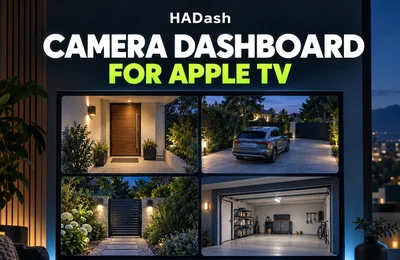
Cameras: Native TV Use Is a Strong HADash Use Case
Cameras are one of the clearest reasons to put Home Assistant on a television.
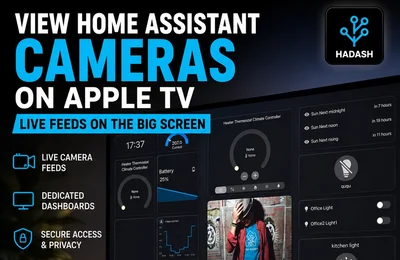
HADash lists live camera feeds among its supported features and supports Picture Entity cards for cameras.
A large television can make it easier to check:
- Front door
- Driveway
- Garage
- Garden
- Baby monitor
- Entry gate
A browser can also display cameras, of course.
But on Apple TV the native approach avoids needing to create a separate browser environment just to access the camera dashboard.
Fullscreen Cameras
HADash’s public changelog lists fullscreen mode for cameras as an available feature.
That is particularly useful in a living room.
A user can keep a general dashboard as the main view and open a camera fullscreen only when needed.
This is exactly the kind of interaction where a TV dashboard makes sense.
Graphs and Sensor Data
Home Assistant dashboards can contain several types of historical and statistical cards.
HADash supports several graph-oriented cards as well, including Statistics Graph and History Graph functionality according to its public changelog and compatibility information.
Graphs are another area where television size can be useful.
Examples include:
- Energy use
- Temperature history
- Solar generation
- Air quality
- Humidity
- Power consumption
A large graph can be easier to read from the sofa than on a phone.
Authentication
Browser-based Home Assistant normally uses the standard Home Assistant login flow.
A native application may use another supported authentication method.
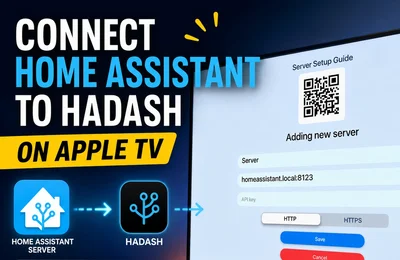
HADash currently connects using a Home Assistant Long-Lived Access Token. Its setup documentation instructs users to create a token in their Home Assistant profile and then enter the Home Assistant address and token in the app.
The token should be treated like a password.
Do not:
- Publish it
- Share it in screenshots
- Post it in support forums
- Store it in public configuration files
For a shared television, using a dedicated Home Assistant user can also make the setup easier to manage.
Browser Authentication Can Be More Familiar
A standard browser has one usability advantage:
Users are already familiar with signing into Home Assistant through its normal login page.
There is no need to manually create a token for normal browser access.
This can make browser-based installation easier on platforms such as:
- Desktop computers
- Laptops
- Tablets
- Raspberry Pi kiosks
- Mini PCs
But again, Apple TV does not provide the same standard browser environment.
Remote Access
Both approaches ultimately need to reach your Home Assistant instance.
The address could be:
- A local IP address
- A local hostname
- A secure external Home Assistant URL
The important requirement is that Apple TV can reach the same Home Assistant server.
A native app does not automatically solve network configuration problems.
If Home Assistant is inaccessible from Apple TV, HADash cannot connect either.
HTTPS
HADash’s public changelog lists HTTPS support.
Using HTTPS becomes particularly important when connecting to Home Assistant remotely.
For local-only setups, some users may still use local HTTP addresses, depending on their network configuration.
Avoid exposing an unsecured Home Assistant instance directly to the public internet.
Performance: Native vs Browser
Native applications and browser applications render interfaces differently.
A web browser must run:
- Browser engine
- JavaScript
- CSS layout
- Web components
- Home Assistant frontend
- Custom card code
A native app can instead implement supported controls directly using platform-native components.
That does not automatically mean every native interface is faster in every situation.
But it gives developers more control over:
- Memory usage
- Focus behavior
- TV-specific rendering
- Navigation
- Large-screen presentation
HADash’s changelog includes several performance and memory optimizations over its development history.
Custom JavaScript Is Where the Browser Wins
If your dashboard requires custom JavaScript-based cards, a browser environment remains difficult to beat.
For example, a custom Home Assistant card may include:
- Its own JavaScript
- Special CSS
- Browser events
- Touch interaction
- Animation
- Third-party libraries
A native application would need explicit support for the feature.
Therefore:
If your priority is maximum frontend compatibility, use a proper browser-capable device.
If your priority is using Home Assistant directly on Apple TV, native rendering is usually the more practical approach.
What About AirPlay or Screen Mirroring?
Another option is to display Home Assistant from an iPhone, iPad, or Mac on Apple TV.
In that scenario, Home Assistant runs in the browser or app on the original device.
Apple TV only displays the mirrored image.
This has some advantages:
- Full browser compatibility
- Custom cards
- No special Apple TV dashboard app required
But it also introduces disadvantages:
- Requires another device
- The other device remains part of the session
- Interaction happens primarily on the phone/tablet/computer
- It is less convenient as a permanent smart-home interface
Mirroring is useful for occasional viewing.
It is not equivalent to running an independent Home Assistant dashboard directly on Apple TV.
What About Home Assistant Cast?
Home Assistant also has technologies for displaying dashboards on compatible casting devices, but Apple TV is not the same platform as a Chromecast or Google TV device.
Do not assume that an Apple TV can use every solution designed for browser-capable or Cast-enabled hardware.
Platform support matters.
Browser-Based Home Assistant Works Better on Other TV Hardware
The browser approach becomes much more realistic when the television is connected to hardware that provides a real browser.
Examples include:
- Mini PC
- Raspberry Pi
- Intel NUC
- Small Windows computer
- Linux box
- Browser-capable smart TV
In those setups, you can run a full browser in kiosk mode and load the normal Home Assistant frontend.
This provides maximum compatibility.
The trade-off is additional hardware and maintenance.
Apple TV Requires Less Additional Hardware
If Apple TV is already connected to your television, HADash lets you reuse that device as the Home Assistant interface.
You do not need to install:
- Raspberry Pi
- Mini PC
- Keyboard
- Mouse
- Browser kiosk system
For users who already own Apple TV, that simplicity can be valuable.
Browser Kiosk vs HADash
A dedicated browser kiosk and HADash can both produce a large Home Assistant dashboard, but their architecture is very different.
Browser Kiosk
Best for:
- Full frontend compatibility
- Custom cards
- Browser plugins
- Complex dashboards
- Experimental interfaces
Requires:
- Browser-capable hardware
- Kiosk configuration
- Additional device management
HADash
Best for:
- Apple TV
- Living-room controls
- Scenes
- Cameras
- Sensors
- Standard Home Assistant cards
- Remote navigation
Requires:
- Supported cards
- Native app compatibility
- Home Assistant connection and token
Which Is Better for Custom Dashboards?
Browser wins.
If you have spent months building an advanced Lovelace interface using several custom frontend components, you should not assume that a native Apple TV app can reproduce it exactly.
Use a browser-capable device if pixel-level reproduction of the full Home Assistant frontend is essential.
Which Is Better for a Simple Smart Home Dashboard?
HADash has the advantage on Apple TV.
A dashboard containing:
- Lights
- Scenes
- Cameras
- Climate
- Sensors
- Weather
- Graphs
can fit the native TV model very well.
You do not need the complexity of a full browser just to activate Movie Night or check the front door.
Which Is Better for Cameras?
On Apple TV:
HADash.
The large screen, fullscreen camera support, and native remote interaction make cameras one of its strongest use cases.
On a mini PC connected to a TV:
A browser may provide more flexibility, particularly with custom camera cards.
Which Is Better for Touch Controls?
Browser-based dashboards on a tablet.
Apple TV has no touchscreen.
If your dashboard relies heavily on:
- Sliders
- Color wheels
- Drag gestures
- Small controls
a tablet remains a better interface.
Which Is Better for the Living Room?
For an existing Apple TV:
HADash is the more natural solution.
The living-room dashboard can focus on:
- Movie Night
- Relax
- Lights
- Front-door camera
- Climate
- Security status
- Weather
- Energy
Those are exactly the kinds of tasks that work well with large cards and a remote.
Which Is Better for a Wall Display?
It depends on the hardware.
If the display is connected to Apple TV:
HADash is a logical option.
If it is a touchscreen tablet:
Use the normal Home Assistant frontend or app.
If it is connected to a Raspberry Pi or mini PC:
A kiosk browser may provide more frontend flexibility.
Do You Need a Separate Home Assistant Dashboard for HADash?
Not strictly.
HADash is designed to display existing Home Assistant dashboards.
However, creating a dedicated TV dashboard is usually a good idea.
Home Assistant supports multiple dashboards specifically for different rooms and use cases.
You can therefore keep:
Desktop Dashboard
- Detailed controls
- Custom cards
- Administration
- Energy analysis
Apple TV Dashboard
- Scenes
- Lights
- Cameras
- Climate
- Security status
This avoids compromising either experience.
Recommended Apple TV Dashboard Structure
A simple setup might contain four views.
Home
Movie Night
Relax
Good Night
Main Lights
Temperature
Front Door
Lights
Living Room
Kitchen
Hallway
TV Backlight
Scenes
Cameras
Front Door
Driveway
Garden
Garage
Climate
Temperature
Humidity
Thermostat
Air Quality
This structure is easier to navigate than trying to reproduce a large desktop dashboard.
HADash vs Browser: Feature Summary
| Feature | HADash on Apple TV | Full Browser Dashboard |
|---|---|---|
| Native Apple TV experience | Yes | No standard tvOS browser |
| Siri Remote navigation | Designed for it | Depends on workaround |
| Existing Home Assistant dashboards | Yes, supported cards | Yes |
| Full custom-card compatibility | No | Yes |
| Standard HA cards | Many supported | Yes |
| Live cameras | Yes | Yes |
| Fullscreen camera | Yes | Depends on dashboard |
| Custom JavaScript cards | Limited/not native | Yes |
| Requires additional device | No | Usually yes on TV |
| Mouse/touch optimized | No | Yes |
| Couch control | Strong | Depends on hardware |
| Browser maintenance | No | Yes |
| Best Apple TV solution | Strong fit | Workaround |
| Best maximum-compatibility solution | No | Yes |
When You Should Choose HADash
Choose HADash when:
- You already use Apple TV.
- You want Home Assistant on the living-room TV.
- You use mostly standard cards.
- Cameras are important.
- You want remote navigation.
- You want scenes and lights from the couch.
- You do not want an extra Raspberry Pi or mini PC.
- You prefer a native tvOS interface.
When You Should Choose a Browser-Based Dashboard
Choose a browser-based dashboard when:
- You need full Home Assistant frontend compatibility.
- You use many custom cards.
- You already have browser-capable hardware connected to the television.
- You need JavaScript-heavy dashboards.
- You want kiosk-mode customization.
- You use a touchscreen display.
- Exact reproduction of your desktop dashboard is important.
When You Should Use Both
Many Home Assistant users do not need to choose one method exclusively.
You might use:
Apple TV + HADash
Living room
Cameras
Scenes
Main lights
Shared status
Tablet or Desktop Browser
Detailed controls
Custom cards
Configuration
Energy analysis
Automation management
Because Home Assistant supports multiple dashboards, each device can have a layout optimized for its interaction model.
Frequently Asked Questions
Can I open Home Assistant in Safari on Apple TV?
Is there a browser for Home Assistant on Apple TV?
What is the best way to display Home Assistant on Apple TV?
Does HADash display my existing Home Assistant dashboard?
Does HADash support custom Home Assistant cards?
Are browser dashboards more compatible?
Can HADash display cameras?
Can I use different dashboards for Apple TV and my phone?
Should I create a special dashboard for Apple TV?
Final Verdict
A browser remains the most flexible way to display the complete Home Assistant frontend on devices that support a modern browser.
But Apple TV is not one of those conventional browser platforms.
Apple’s tvOS architecture does not provide the same web-view environment available on iPhone, iPad, and Mac, which makes a straightforward browser-based Home Assistant dashboard impractical on Apple TV.
Instead of trying to turn Apple TV into a browser, HADash provides a native tvOS interface designed specifically for Home Assistant dashboards. It connects directly to Home Assistant and renders supported lights, sensors, cameras, graphs, weather information, and controls for use from the couch.
The trade-off is straightforward:
Choose a browser when maximum Home Assistant frontend compatibility is the priority.
Choose HADash when using Home Assistant natively on Apple TV is the priority.
For most living-room users who already have Apple TV and mainly need scenes, lights, cameras, climate information, and household status, the native approach is likely to provide the cleaner experience.
Sources
Home Assistant: Multiple Dashboards
Home Assistant: Dashboard Cards
Home Assistant: Dashboard Views
Home Assistant features, Apple platform documentation, and HADash compatibility were checked against the cited sources in August 2026. Supported cards and application capabilities may change in later versions.