Home Assistant Camera Dashboard Ideas for Apple TV
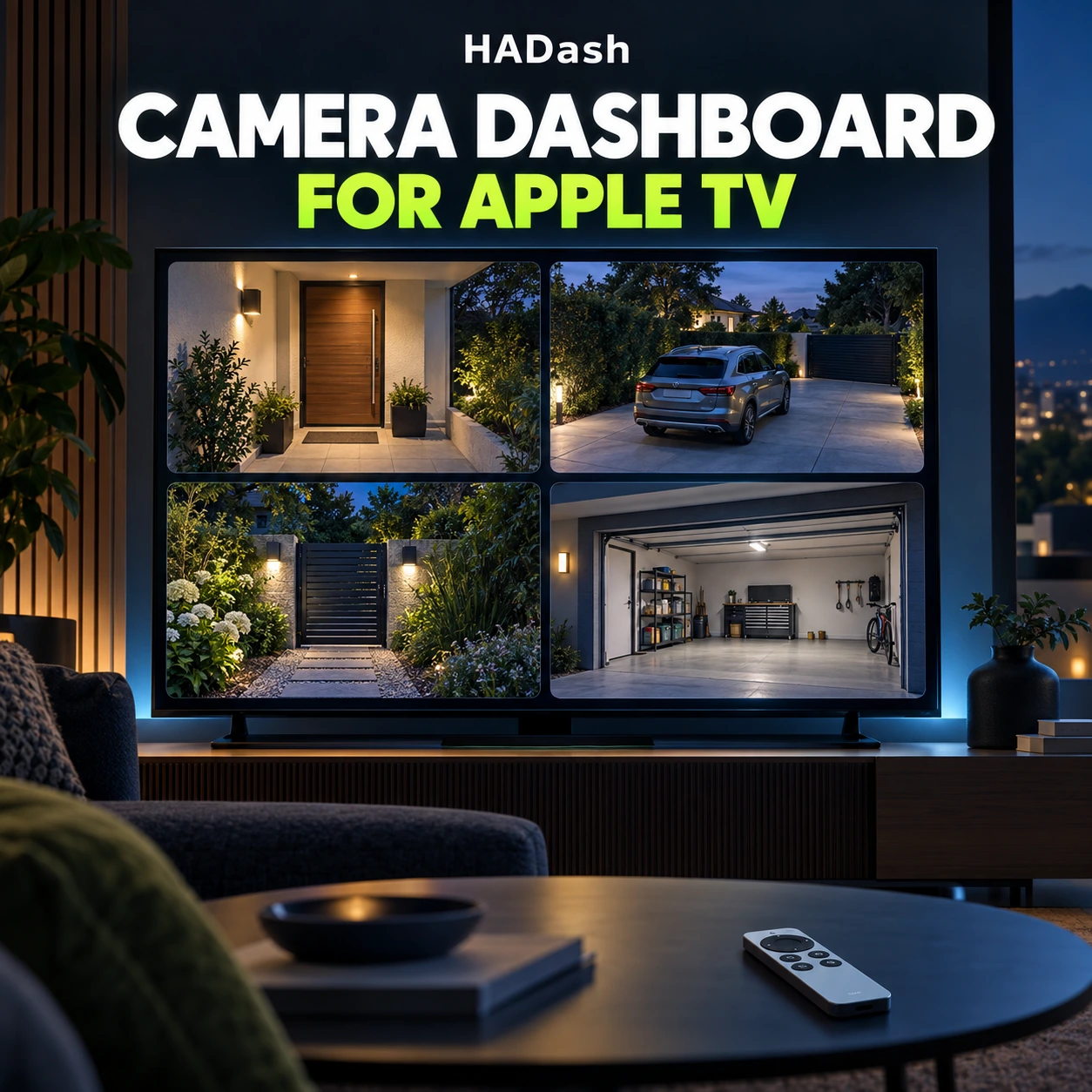
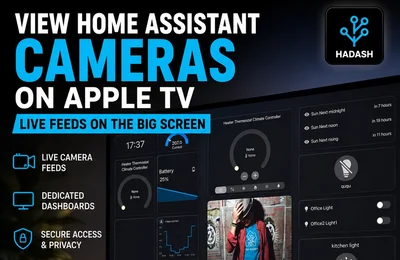
A good Home Assistant camera dashboard for Apple TV should answer one question quickly: what is happening outside or around the home right now?
For HADash, the safest starting point is a large Picture Entity Card connected to a working Home Assistant camera entity. Use one live feed when movement matters, combine the camera with only the most relevant sensors, and reserve multi-camera views for situations where simultaneous context is more useful than detail.
The most practical layouts are:
- one large front-door or driveway camera;
- a doorbell camera with door, motion and porch-light status;
- a camera paired with related garage or gate sensors;
- a four-camera security overview;
- a camera-first living-room dashboard;
- a separate night-security view.
The right design depends on the number of cameras, the importance of live movement, stream latency and how far viewers sit from the television.
Camera dashboard layouts at a glance
| Layout | Best use | Recommended feed mode | Main limitation |
|---|---|---|---|
| One large camera | Front door, driveway or nursery | Live | Shows only one area |
| Camera with sensors | Doorbell, garage or gate | Live for the main camera | Too many controls can reduce image size |
| Fullscreen camera | Investigating an event | Live | Other status information is hidden |
| Four-camera overview | Perimeter monitoring | Snapshots or limited live feeds | More demanding on the server and network |
| Camera-first living room | Regular passive monitoring | One live feed plus secondary snapshots | Can distract from normal TV use |
| Night-security view | Entrances and outdoor areas | Mixed | Requires careful privacy and access choices |
1. Single-camera dashboard
A single large Picture Entity Card is the clearest Apple TV layout for a camera that matters more than all others.
Good candidates include:
- Front Door
- Driveway
- Garden Gate
- Garage Entrance
- Nursery
- Side Entrance
The feed should occupy most of the screen. Keep its name short and visible from normal seating distance.
A minimal Home Assistant configuration can look like this:
type: picture-entity entity: camera.front_door name: Front Door camera_view: live show_name: true show_state: false
Home Assistant documents camera_view: live as the option for requesting a live view when the camera and Stream integration support it. HADash’s current compatibility list marks the Picture Entity Card as supported specifically for camera entities.
Use this design when identifying a person, vehicle or movement is more important than comparing several locations.
2. Doorbell camera with related status
A doorbell dashboard should give context without forcing the viewer to leave the camera view.
Place the doorbell feed first, followed by a small group of relevant entities:
- front-door contact sensor;
- doorbell or visitor event;
- motion sensor;
- porch-light state;
- lock state;
- alarm status.
Avoid placing an alarm-disarm, unlock or open-gate action next to the camera unless that control is appropriate for everyone who can use the television. Apple TV is often a shared device, while security controls may require restricted access.
The dashboard should still be useful if the doorbell camera takes several seconds to start. Door state and motion status can provide immediate information while the stream initializes.
3. Camera plus related sensors
A camera becomes more useful when its neighboring cards explain what cannot be seen clearly in the image.
Garage dashboard
Combine:
- Garage Camera
- Driveway Camera
- Garage Door
- Garage Motion
- Garage Light
The main camera should remain larger than the supporting status cards. A garage-door entity can confirm whether the door is open even when the camera angle is poor or the garage is dark.
Garden dashboard
Combine:
- Garden Camera
- Side Gate
- Outdoor Motion
- Garden Lights
This layout works best as a status view. If controls are included, keep them separate from the camera image so remote focus remains predictable.
Front entrance dashboard
Combine:
- Front Door Camera
- Door Contact
- Porch Motion
- Porch Light
- Alarm State
Use labels that describe the physical location. Names such as “Front Door” and “Driveway” are more useful on television than internal entity identifiers.
4. Fullscreen camera view
Fullscreen is useful when an overview indicates activity and the viewer needs more detail.
A practical workflow is:
- Open the camera dashboard.
- Check the overview or primary feed.
- Select the relevant camera.
- Open the larger or fullscreen view.
- Return to the overview after the event.
Do not make fullscreen the only available layout when users regularly compare the front entrance, driveway and garage. It is better as a second step after a summary view.
Test fullscreen behavior with the installed HADash version and the Apple TV remote. The important questions are whether the camera opens quickly, whether the image remains stable and whether returning to the previous view is straightforward.
5. A 2×2 security camera grid
A four-camera overview can show:
| Front Door | Driveway |
|---|---|
| Garden | Garage |
This layout is useful when the viewer needs perimeter awareness rather than a detailed image from one camera.
However, there is a current HADash compatibility limitation: the public support matrix describes the Home Assistant Grid Card as work in progress and notes only partial operation in an earlier version. A 2×2 grid should therefore be tested on the actual Apple TV before it becomes the main security dashboard.
If the Grid Card does not render or navigate correctly, use one of these fallbacks:
- place cameras in separate views;
- use a supported Vertical Stack layout;
- keep one large live feed and move other cameras to secondary views;
- use snapshots for the overview and open an individual camera when live video is needed.
A static design mock-up is not enough. Confirm that all four cards load and that remote navigation follows the expected order.
6. Snapshot overview with live drill-down
Four simultaneous live feeds may be unnecessary for a dashboard that is viewed only occasionally.
A lighter design uses:
- refreshed snapshots on the overview;
- one selected live camera on a separate view;
- sensor states to indicate where motion or a door event occurred.
This approach makes the overview easier to load while preserving live video for the camera that needs attention.
Snapshots are a strong choice when:
- the dashboard is mainly used for periodic checks;
- several cameras need to appear together;
- the Home Assistant server has limited processing capacity;
- camera feeds are delivered through a cloud connection;
- network bandwidth is constrained;
- a short delay is acceptable.
Live video is more useful when:
- someone has pressed the doorbell;
- movement needs to be observed;
- a gate or garage door is being operated;
- the camera is monitoring an active area;
- timing is important.
The choice does not need to be global. A dashboard can keep the front-door camera live while showing the garden and garage as snapshots.
7. Camera-first living-room dashboard
A camera-first living-room dashboard keeps one security feed visible without turning the television into a dense monitoring wall.
A balanced first view might contain:
- one large Front Door or Driveway camera;
- front-door state;
- exterior motion;
- alarm state;
- current time;
- one navigation control for the full security view.
Secondary smart-home information—weather, indoor climate, energy charts and individual lights—belongs on another view. Mixing every household card with several camera feeds makes the image smaller and increases navigation work.
This dashboard is most useful when the television is already used as a shared household display. For a TV primarily used for entertainment, keep the camera dashboard easy to open and easy to leave rather than trying to display it continuously.
8. Night and security mode
A dedicated night view should prioritize exterior areas and states that may require attention after dark.
A practical order is:
- Front Door
- Driveway
- Garden or Side Gate
- Garage
- Exterior Lights
- Door and Window Summary
- Alarm State
Use a dark HADash theme if it improves comfort in the room, but check that camera names, sensor states and focus indicators remain visible. A dark interface is not useful if the currently selected remote control target becomes difficult to identify.
The night view can use one live entrance camera and snapshots for the other locations. This reduces the number of active streams while keeping broad coverage.
Avoid adding private indoor cameras to a shared security screen unless everyone with access to the television should be able to view them.
Which camera cards are most suitable for HADash?
HADash does not reproduce every browser-based Home Assistant card. The current public compatibility matrix should be checked before building a production dashboard.
| Card or container | Current HADash status | Camera use |
|---|---|---|
| Picture Entity Card | Supported for cameras | Best starting point for a camera entity |
| Picture Card | Supported | Static images and simple visual navigation |
| Picture Elements Card | Supported, but elements are not clickable | Display-oriented layouts only |
| Grid Card | Work in progress; partially works | Experimental 2×2 camera overview |
| Picture Glance Card | Planned | Do not use as the primary HADash camera card yet |
| Horizontal Stack Card | Planned | Not a dependable basis for a camera row |
| Custom WebRTC card | Not guaranteed | Test individually; keep a standard-card fallback |
The Picture Entity Card is the strongest default because it is a standard Home Assistant card and is explicitly listed as supported for cameras.
Picture Elements can display information over an image, but HADash currently notes that its elements are not clickable. Do not place essential light, lock or gate controls over a camera image if users need to select them with the Apple TV remote.
For a broader comparison of supported cards, see Best Home Assistant Cards for Apple TV: What Works Best with HADash.
Stream latency: HLS, LL-HLS and WebRTC
The card layout is only one part of camera performance. The stream path also matters.
Home Assistant’s Stream integration can proxy H.264 and H.265 source streams to HLS and Low-Latency HLS. LL-HLS is enabled by default and can reduce startup time and delay, but Home Assistant notes that it has stricter timing and network requirements and opens additional connections.
When too many streams are open without an HTTP/2 proxy, the Home Assistant frontend may revert from LL-HLS to regular HLS. That is one reason a multi-camera overview can behave differently from a single-camera view.
WebRTC follows a different path. Home Assistant supports native WebRTC for compatible camera integrations and providers. It can reduce latency by allowing a more direct stream path, but WebRTC availability depends on the camera integration and configuration.
Do not confuse native Home Assistant WebRTC support with a custom WebRTC dashboard card. A camera entity may support WebRTC while a particular custom card remains unsupported in HADash.
H.264 or H.265?
Home Assistant Stream supports both H.264 and H.265 source streams, but playback support differs between clients.
H.264 is a conservative format to test first when a live feed works inconsistently across dashboard clients. This is not a guarantee that every H.264 camera will work in HADash: authentication, stream transport, resolution, bitrate and the camera integration still matter.
When a camera offers multiple streams, try a lower-resolution H.264 substream for the Apple TV dashboard while retaining the higher-quality main stream for recording elsewhere.
Do not assume that a 4K feed is the best dashboard feed. On a four-camera overview, lower-resolution streams may load faster and require fewer resources while still providing enough detail to identify activity.
Performance with several live feeds
Each additional live feed can increase demand on:
- the camera or recorder;
- the Home Assistant host;
- the network;
- stream proxy connections;
- Apple TV decoding;
- any remote-access path between the systems.
There is no universal maximum number of cameras that will work well. The result depends on the integrations, codecs, resolutions, bitrates, network and Home Assistant hardware.
Use this testing order:
- Confirm one camera in the normal Home Assistant interface.
- Open the same Picture Entity Card in HADash.
- Add a second feed.
- Observe startup time and stability.
- Add the third and fourth feeds one at a time.
- Replace secondary live feeds with snapshots if performance deteriorates.
- Test again from the normal seating position.
Do not enable Preload stream for every camera automatically. Home Assistant states that preloading can reduce the delay when a stream is opened, but it uses additional server resources and recommends monitoring CPU usage.
Reserve preloading for feeds where faster startup is genuinely valuable, such as the front door or doorbell camera.
Common camera dashboard mistakes
Making every camera live
Four live feeds may create unnecessary network and processing demand. Use snapshots where continuous movement is not needed.
Designing for a desktop monitor
Small labels and six-column layouts may look acceptable close to a browser but become unreadable from a sofa.
Assuming Grid Card support is complete
The current HADash compatibility matrix still marks Grid as work in progress. Test a 2×2 layout and keep a fallback.
Building around Picture Glance
Picture Glance is listed as planned rather than supported. Use Picture Entity for the primary camera workflow.
Relying on a custom WebRTC card without testing
Native WebRTC support in Home Assistant does not prove that every custom frontend card will work in a native tvOS client.
Mixing sensitive controls with passive monitoring
A camera overview does not automatically need unlock, open-gate or alarm-disarm controls.
Using the highest-resolution stream everywhere
High resolution can increase bitrate and decoding requirements without adding useful detail to a small grid cell.
Troubleshooting Apple TV before Home Assistant
If the camera does not work in the normal Home Assistant dashboard, fix the camera entity or Stream configuration before testing HADash.
Hiding camera names
Similar outdoor images can be difficult to distinguish at night. Keep short location labels visible.
Ignoring stalled or delayed feeds
A camera tile that shows an old image can create false confidence. Test how the dashboard behaves when a camera becomes unavailable or a stream stops.
Recommended dashboard architecture
For most homes, a camera system works better as three simple views than as one overloaded screen.
View 1: Camera Overview
- Front Door — live
- Driveway — snapshot
- Garden — snapshot
- Garage — snapshot
- Door and alarm summary
View 2: Front Door
- Large live camera
- Door contact
- Doorbell event
- Porch motion
- Porch light
- Alarm state
View 3: Night Security
- Exterior-camera overview
- Exterior lights
- Garage and gate states
- Door and window summary
- Alarm state
This structure gives the living room a fast overview, a detailed response view and a dedicated security mode without requiring every feed to remain live at once.
How HADash fits into the camera dashboard
HADash is an independent tvOS application that connects to an existing Home Assistant instance and displays supported dashboards on Apple TV. Home Assistant remains responsible for the camera integration, entities, authentication, card configuration and stream delivery.
HADash currently lists support for live camera feeds and the Picture Entity Card. Compatibility with layout containers, custom cards and individual camera configurations should still be tested on the installed app version.
If the cameras are not yet working in Home Assistant, begin with the existing setup guide: How to View Home Assistant Cameras on Apple TV. Once the stream works, use the layouts in this article to turn it into a practical television dashboard.
Frequently asked questions
What is the best Home Assistant camera card for HADash?
Can HADash show a camera fullscreen?
Can I create a 2×2 camera grid?
Should a camera dashboard use snapshots or live streams?
Does HADash connect directly to my cameras?
Does H.264 guarantee that a camera will work?
Is WebRTC always faster?
How many live cameras can I show at once?
Sources
- Home Assistant — Picture Entity Card
- Home Assistant — Camera integration
- Home Assistant — Stream integration
- Home Assistant Developer Documentation — Camera entity and WebRTC streams
- HADash — Public repository and card compatibility
- Apple App Store — HADash
- HADash — How to View Home Assistant Cameras on Apple TV
- HADash — Best Home Assistant Cards for Apple TV
Camera support, card compatibility and streaming behavior were checked against the linked sources on September 9, 2026. Home Assistant and HADash features may change in later releases.
About the author
Alex Carter
Alex writes practical guides about Home Assistant dashboards, Apple TV workflows and smart-home interfaces. Technical claims in this article were checked against current Home Assistant documentation and HADash compatibility information.