Home Assistant Dashboard for a Wall-Mounted TV: Best Layouts, Hardware and Use Cases
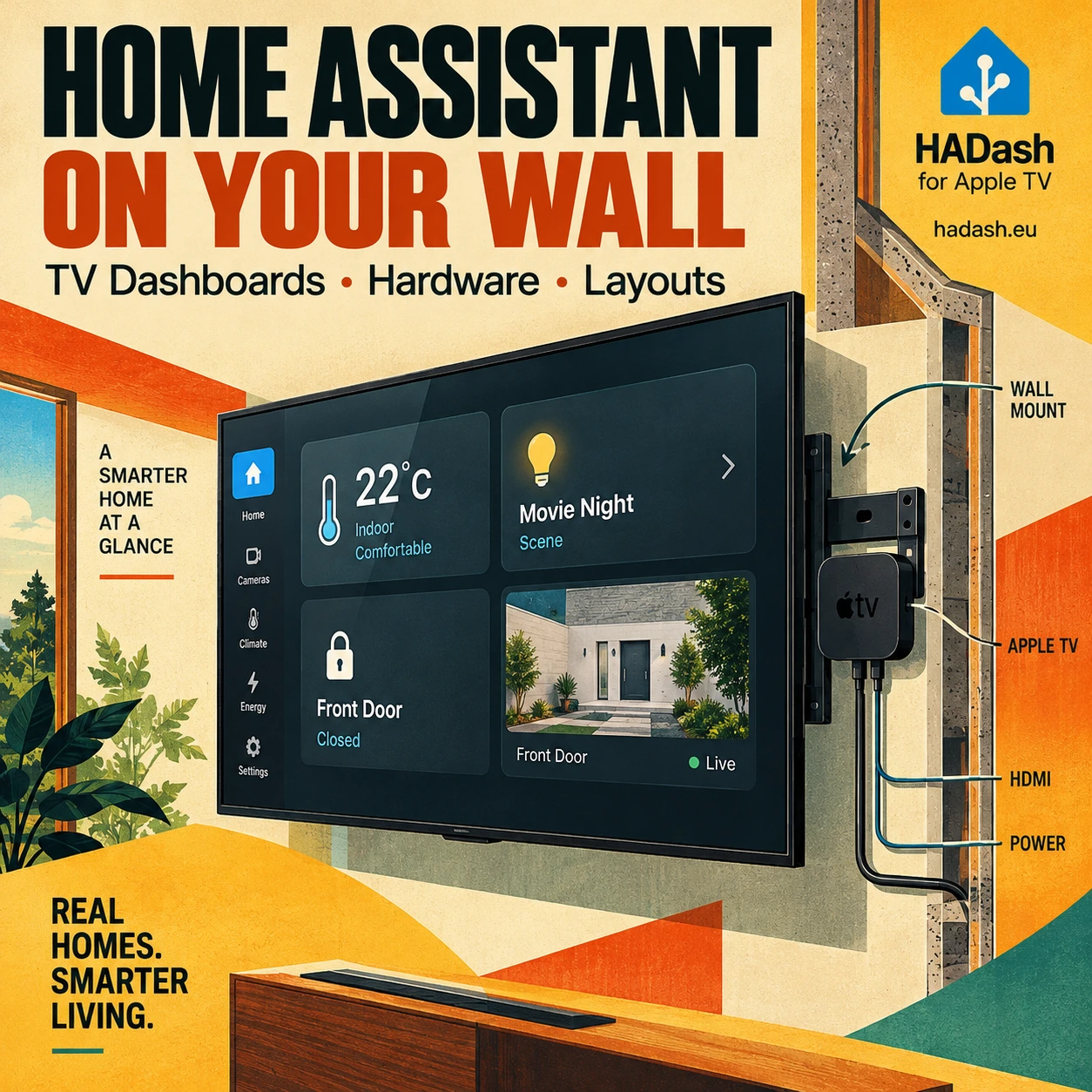
1. Why Use a Wall-Mounted TV for Home Assistant?
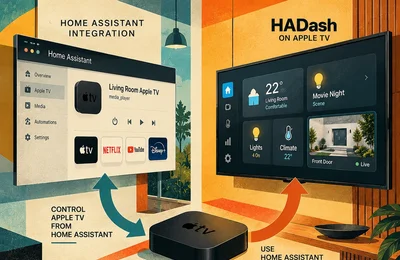
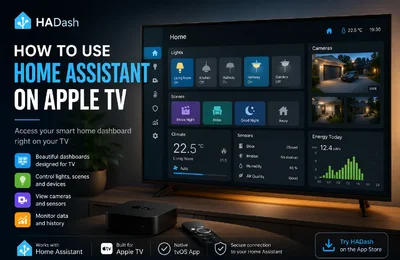
A wall-mounted TV can display Home Assistant through a connected Apple TV, a browser-running computer or compatible casting hardware. The right setup depends on whether the screen is a dedicated household display or an existing television used when needed.
A dedicated wall display has one primary job: keeping selected information visible. In a kitchen or shared space, that might mean indoor temperature, outdoor conditions, current electricity use and open doors. For entrance monitoring, it might show a camera alongside garage and motion status.
An existing living-room TV serves a different purpose. Home Assistant shares the screen with entertainment, so the dashboard should open quickly, provide a useful answer or action, and be easy to leave. Checking the driveway or activating Movie Night does not require a permanent control station.
These roles affect hardware, placement and layout. A passive information screen needs readable status without interaction. A couch-controlled interface needs a small set of predictable actions.
Useful applications include:
- Shared household information: weather, room conditions and important alerts.
- Security cameras: inspecting the entrance, driveway or garden.
- Energy monitoring: current power consumption and solar production.
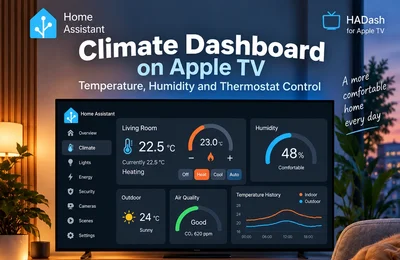
- Climate: temperature, humidity and supported thermostat controls.
- Everyday routines: lighting scenes and other familiar actions.
The Home Assistant dashboard documentation explains the underlying interface for viewing home information and controlling devices. The television is a client display; it does not replace the Home Assistant server.
If your main requirement is frequent touch interaction beside an entrance, a smaller panel may be more appropriate. Our Apple TV versus tablet comparison covers that decision. Here, the focus is making a television-based installation practical.
2. Best Hardware for a Home Assistant Wall Display
Choose the client before designing the dashboard. A layout that works in a desktop browser may depend on features a native TV client does not implement.
Apple TV + HADash
HADash is an independent native tvOS client for an existing Home Assistant installation. It displays supported dashboard cards and provides remote-based interaction.
This approach is useful when Apple TV is already connected to the wall-mounted television. You can add a dashboard without placing a separate computer behind the screen or maintaining a desktop operating system.
The limitation is compatibility, not screen size. HADash renders supported content rather than reproducing the entire browser frontend. Do not assume a custom card, embedded webpage or complex interaction will work because it works on your laptop. Check the actual configuration in the installed app.
A normal television also has no touchscreen. Large buttons and simple navigation make more sense than tiny sliders or intricate pop-ups.
Raspberry Pi or mini PC + browser
A computer connected through HDMI can run the Home Assistant web frontend in a conventional browser. This is the more flexible route when your dashboard depends on browser-based custom cards or you want to configure browser startup and kiosk-style presentation.
That flexibility comes with maintenance. You must manage the operating system, browser updates, saved login, startup behavior and recovery after interruptions. Camera decoding and complex interfaces also need testing on the chosen hardware.
Opening a browser fullscreen is not the same as building a self-recovering kiosk. Decide who will maintain the installation before hiding the computer behind the TV.
Smart TV browser or casting
A built-in browser can avoid another device, but its suitability depends on the TV model and software. Test authentication, rendering, remote navigation and reopening the dashboard after standby.
Casting is a separate approach. Home Assistant Cast can show dashboard views on compatible Google Cast devices and requires Home Assistant to be accessible through HTTPS. It is not a universal solution for every smart TV or casting protocol.
| Hardware | Advantages | Limitations | Best Use Case |
|---|---|---|---|
| Apple TV + HADash | Native tvOS interface; remote control; no separate computer when Apple TV is already installed | Supported-card limits; no touch input; not a general browser kiosk | Existing TV used for household status and occasional control |
| Raspberry Pi or mini PC + browser | Conventional web frontend; broad custom-card compatibility; configurable startup | Additional hardware, operating-system maintenance and recovery setup | Dedicated display with browser-dependent features |
| Smart TV browser / casting | May reuse existing equipment | Model-specific compatibility, navigation and session behavior | Occasional viewing after testing the exact setup |
Choose by the features you need, not by assuming one client is best for every dashboard.
3. Where to Mount the TV and What to Consider
Choose a location based on where people will read the dashboard. A screen viewed from the sofa needs different positioning from one checked while standing in a kitchen.
Before drilling, display a sample layout at the intended position. Read the smallest important label from the actual viewing point. Check the picture while seated and standing, and inspect reflections during daylight and evening use.
There is no universal screen size or mounting distance for Home Assistant. Camera detail, text density, room dimensions and viewing angles all affect the choice. Increasing the diagonal does not fix an interface packed with small labels.
Use a mount compatible with the television’s mounting pattern, weight and wall construction. Follow the manufacturer’s installation instructions and use a qualified installer where necessary. An adjustable mount can help with viewing angle and maintenance, but it must leave enough space for connectors.
Plan the connections before mounting:
- Power for both the television and its client device.
- An accessible HDMI input and enough connector clearance.
- Ethernet where practical, or tested Wi-Fi reception.
- Cable routing that does not pinch leads or obstruct ventilation.
- Access to the Apple TV, computer or casting device for servicing.
Test wireless reception at the final location rather than elsewhere in the room. Where the hardware supports it, Ethernet is worth considering for a fixed installation, especially with cameras.
For long-running displays, review power consumption, brightness and panel protection. Static interfaces deserve particular attention on OLED screens; LG’s display guidance discusses the risk associated with prolonged static content.
Keep manufacturer protection features enabled and avoid unnecessary maximum brightness. Check the display’s intended operating conditions and ventilation requirements. A tidy installation should still allow you to disconnect, inspect or replace the hardware without dismantling the entire wall mount.
4. How to Set Up Home Assistant on a Wall-Mounted TV
Build and test the system before permanently fixing the client behind the television.
1. Confirm that Home Assistant is running. Open it from a phone or computer and verify the entities you want to display. Resolve unavailable sensors or cameras before troubleshooting the TV client.
2. Choose compatible display hardware. Connect the client to the television, select its HDMI input and establish network access. For a browser-based installation, first confirm that the browser can load Home Assistant and complete login.
3. Create a dedicated dashboard. Use Home Assistant’s dashboard settings to create a TV-focused interface rather than editing your everyday administrative screen. The multiple-dashboard guide explains how to maintain separate interfaces.
4. Add the required cards and views. Start with status information and one harmless action, such as a lighting scene. Use the dashboard card documentation to choose suitable components, then check client compatibility.
5. Connect the TV client. For Apple TV, install HADash from the App Store. Note the Home Assistant server URL reachable from the Apple TV.
In your Home Assistant profile, create a Long-Lived Access Token with a recognizable name. Copy it when displayed and keep it private: it is a credential, not ordinary configuration text.
Open HADash, go to Servers, choose Add New Server, and enter the server address and token. An iPhone’s Apple TV Remote can assist with text entry. The HADash GitHub setup guide documents this connection process.
Open the supported dashboard and test selection, activation and movement between views using the remote. Our Home Assistant on Apple TV guide explains the broader client options.
6. Test the installation in normal use. Read it from the intended position, change a sensor state and verify that the screen updates. Leave and reopen the client, wake the television from standby and check what happens after a connection interruption.
Use a dedicated non-administrator account where appropriate. A simplified dashboard is helpful, but hiding controls is not an authorization boundary.
5. Best Dashboard Layouts for a Wall-Mounted TV
The following layouts are starting configurations, not promises that every card or placement will behave identically across clients.
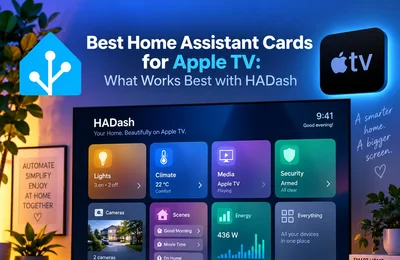
For most mixed-information screens, begin with Home Assistant’s Sections view. It groups cards into sections on a grid and lets you organize related information without constructing everything from stacks.
HADash documents support for Sections and Masonry views. Still, check the rendered result on the television: browser sizing and native-client presentation are not necessarily identical.
Layout A — Minimal Home Overview
Use this for an existing living-room TV.
Place three familiar actions near the start of navigation: Movie Night, Relax and Good Night. Configure them around routines already present in Home Assistant, and verify each action in the TV client.
Alongside or below them, show Temperature, Front Door and Alarm as clearly labeled status information. Use text states rather than requiring everyone to remember a color code.
Add weather and a Front Door Camera preview in a secondary area. The camera should not force the scene controls off the opening screen.
This layout supports a short interaction from the sofa: open the app, check a state or select a routine, then return to entertainment. Keep detailed lighting adjustments and administrative settings elsewhere.
For navigation principles rather than additional layout ideas, see our remote-friendly dashboard guide.
Layout B — Security and Camera Display
Give Front Door the largest viewing area. Place smaller Driveway and Garden cameras beside it or in a separate camera view if the opening screen becomes crowded.
Put door, garage and motion states to the right or below, depending on the space available. Use names that identify the location immediately.
Do not fill the screen with live feeds simply because they fit. Each additional stream adds network and decoding work; the practical limit depends on cameras, stream settings and client hardware.
Begin with one feed, then add the others individually. If responsiveness deteriorates, reduce simultaneous live streams or use snapshots where they answer the question adequately.
A camera image is not proof that the feed is current. Test update behavior and keep sensitive actions, such as unlocking doors or disarming an alarm, away from unrestricted shared access.
Layout C — Home Information Center
Use this for a dedicated screen in a kitchen or shared room.
Organize the view into four groups:
- Weather: current conditions and outdoor temperature.
- Climate: indoor temperature and humidity.
- Energy: current consumption and solar production.
- Home status: doors, windows and important alerts.
Distinguish power from accumulated energy by preserving the correct units. Keep detailed charts and historical analysis in another view.
The Home Assistant views documentation explains how to separate interfaces within a dashboard. Our living-room dashboard ideas provide additional scenarios.
Test this information-center layout without touching the remote. If an important state requires scrolling or interpretation, simplify its placement or label.
6. Always-On vs On-Demand Home Assistant Dashboard
An always-on dashboard should prioritize passive information. An on-demand television dashboard can emphasize controls and frequently used actions.
Always-on operation suits a dedicated display used to monitor cameras, power consumption or household status. The useful test is whether someone can understand it while walking past, without opening menus.
Continuous use needs more planning than simply leaving an app open. Review the television’s timeout, the client’s sleep behavior, panel protection and power consumption. Test whether the dashboard reconnects after Home Assistant restarts or the network becomes unavailable.
Define recovery expectations. After a power interruption, should someone turn the TV on, select HDMI and reopen the application? If that is unacceptable, verify an appropriate startup and recovery mechanism for the exact hardware before committing to it.
On-demand operation fits an existing television. Open the dashboard to inspect a camera, activate a scene, check the weather or control a supported light, then leave it.
This avoids dedicating the entertainment screen to household information throughout the day. It also changes the opening view: useful actions should be immediately reachable rather than buried below monitoring data.
Apple documents its inactivity setting under Settings → General → Sleep After in the Apple TV power guide. The television’s own settings must also be checked.
Do not assume HADash provides a full kiosk lockdown, unattended startup or automatic power control for every TV. Those are separate requirements involving the application, operating system and display.
7. Common Problems and How to Avoid Them
Troubleshoot in three layers: the Home Assistant server and its integrations, the display client, and the television.
Text is too small. Reduce information density and enlarge supported cards. Test from the actual viewing position. If browser zoom helps a browser installation, do not assume a native client has the same setting.
There are too many controls. Keep everyday actions on the opening screen and move secondary functions into separate views. Check navigation order with the remote rather than judging the layout only on a laptop.
The television goes to sleep. Inspect TV power-saving settings and client inactivity settings separately. A screensaver, standby transition and lost connection are different problems.
The connection drops. First check whether Home Assistant remains reachable from another device. Then check the TV client’s network path and credentials. If other clients work, investigate the display device rather than immediately changing the server.
Camera feeds are slow. Test one camera at a time. Compare its behavior in Home Assistant and on the TV, then investigate network stability, stream configuration and decoding compatibility. Do not buy faster hardware before isolating the bottleneck.
A custom card is missing or incomplete. Check the installed HADash version and current compatibility information. Replace it with a supported card or choose a browser client if that component is essential.
Sensitive controls are exposed. Review who can use the remote and the permissions of the connected account. Removing a button improves the interface but does not revoke underlying access.
Record the successful configuration before making further changes. Change one layer at a time so you can identify which adjustment resolves the problem.
8. Final Recommendation and FAQ
Choose Apple TV + HADash when you want a native dashboard on an existing television and your required cards and actions are supported.
Choose a mini PC or Raspberry Pi with a browser when browser compatibility, configurable startup and dedicated-display behavior matter more than avoiding another computer. Verify those behaviors rather than assuming kiosk mode handles every interruption.
Use a built-in browser or casting for limited scenarios after testing the exact television, authentication and reopening process.
Before permanently mounting the hardware, complete a trial installation. Check daytime glare, evening brightness, standby recovery and a normal household interaction. The configuration should work where it will be used, not only on a desk.
Can I display Home Assistant on a wall-mounted TV?
Do I need a Raspberry Pi to display Home Assistant on a TV?
Can a Home Assistant dashboard stay on a TV all day?
What is the best Home Assistant dashboard layout for a large TV?
Can HADash display an existing Home Assistant dashboard?
If you already have Apple TV connected to your wall-mounted television, HADash provides a native way to bring supported Home Assistant dashboards to the big screen without adding a separate computer.