Home Assistant Security Dashboard on Apple TV: Doors, Cameras, Motion and Alarm Status
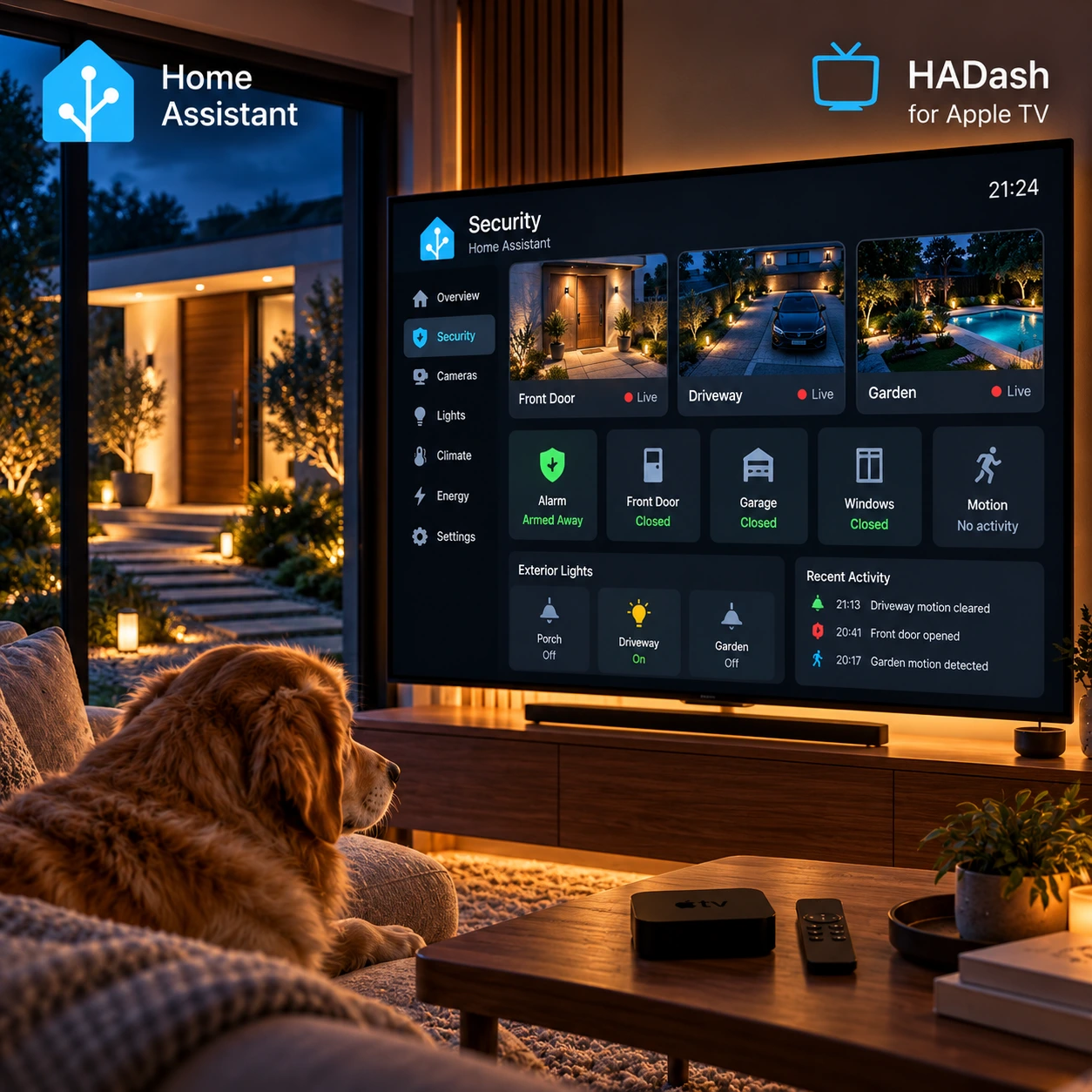
A Home Assistant security dashboard on Apple TV should help you check the house without searching through device lists. From the couch, you should be able to see the alarm state, spot an open entry point, notice relevant motion and inspect the camera covering that area.
The large screen makes this information visible to everyone in the room. That shared access also calls for restraint: displaying a locked door is useful; placing an unrestricted unlock button beside it requires a separate decision.
Home Assistant dashboards provide the underlying interface. HADash displays supported dashboard cards on Apple TV. Its public documentation identifies supported cards and relevant limitations, which should guide your TV layout.
Quick Answer: What Belongs on the Security Dashboard?
A good Home Assistant security dashboard on Apple TV should prioritize alarm status, important doors and windows, selected motion sensors, cameras, and only a small number of safe actions.
Start with four questions:
- What is the current alarm state?
- Are any important doors or windows open?
- Has relevant motion been detected?
- Do I need to look at a camera?
These are indicators to review, not proof that the entire property is secure. A closed contact sensor does not establish that a door is locked, and a clear motion sensor does not prove that nobody is present.
Do not expose every security control simply because it exists in Home Assistant. A shared TV is usually better suited to security awareness than unrestricted access to sensitive actions such as unlocking doors or disarming an alarm.
Separate Status, Visual Verification and Actions
Organize the dashboard into three functions rather than one long collection of entities.
| Function | What to include | What it helps you do |
|---|---|---|
| Status | Alarm, doors, windows, selected motion sensors | Identify a condition that needs attention |
| Visual verification | Front door, driveway, garden or garage cameras | Inspect the area associated with that condition |
| Actions | Selected exterior lights or reviewed scenes | Perform a limited, intentional task |
Keep status at the top. Place the most useful camera nearby. Put controls in a clearly labeled area so that checking a state does not feel like operating a device.
Critical warnings also deserve a visible location. An unavailable entry sensor, for example, should not disappear into an otherwise reassuring list of closed doors.
Door and Window Status: Group by Entry Point
Door and window contacts commonly appear as binary_sensor entities. Home Assistant uses the device class to represent their underlying on/off states as labels such as Open and Closed. Entities can also report Unknown or Unavailable. See the official binary sensor documentation.
Use household names rather than technical identifiers:
- Front Door
- Patio Door
- Garage Entry
- Living Room Window
- Kitchen Window
Split the display into understandable groups.
Entry Points
- Front Door — Closed
- Patio Door — Closed
- Garage Entry — Closed
Windows
- Living Room — Closed
- Kitchen — Open
- Bedroom — Closed
These are illustrative labels, not actual readings.
Do not give 25 contact sensors equal prominence. Keep frequently checked entrances visible and move less important windows into the dedicated Security view.
Also distinguish the pedestrian garage entrance from the overhead garage door. A contact sensor and a motorized garage-door entity may represent different things. Label each according to what it actually measures.
Before relying on the layout, open and close each monitored entry point and verify that its displayed name and state match the physical device.
Best Cards for Doors and Windows
For Apple TV, Entity and Entities cards are practical starting points for security status.
The Entity Card presents one entity’s state. Use it when a single item deserves prominence, such as the front door.
The Entities Card groups related entities. Use it for a compact list of entry points or windows.
| Card | Suggested security use | Design consideration |
|---|---|---|
| Entity | One important entrance or status | Reserve prominent space for a meaningful state |
| Entities | Related doors, windows or motion sensors | Keep each group short enough to read comfortably |
| Picture Entity | Camera covering an entrance or outdoor area | Keep the camera name visible and unambiguous |
HADash lists Entity and Entities support in its card compatibility documentation. Check your particular configuration on the TV rather than assuming every browser-side option behaves identically.
For broader card selection, see Best Home Assistant Cards for Apple TV.
Alarm Status: Show the Actual Mode
Depending on the alarm integration configured in Home Assistant, an alarm entity may expose states such as:
- Disarmed
- Armed Home
- Armed Away
- Armed Night
- Arming
- Pending
- Triggered
Not every system supports every mode. The official Alarm Control Panel documentation also identifies Unknown and Unavailable states.
Preserve the distinction between modes. “Armed Home” and “Armed Away” can represent different monitoring configurations; replacing both with “Armed” removes information you may need.
Likewise, do not display Arming as though the system has already finished arming. Show the state your integration reports.
For the TV, begin by testing the alarm entity in an Entity or Entities card. Verify both its normal state and relevant transitions. Support for those general cards does not establish support for Home Assistant’s dedicated Alarm Panel Card.
A displayed alarm state is information from your configured system. Adding it to a dashboard does not establish certified alarm functionality.
Should You Allow Alarm Disarming From Apple TV?
Treat disarming as an access decision, not a dashboard convenience.
Children, guests and visitors may all be able to use the remote. If selecting a card can disarm the alarm, that action is potentially available to whoever can operate the TV interface.
The conservative design is to show alarm status on Apple TV and keep disarming on a personal device or another access-controlled interface.
If you intentionally add alarm actions, review:
- Who can reach the control?
- Does the integration require a code?
- What happens when the code is missing or incorrect?
- Can another card or script perform the same action?
- Does the behavior work as expected in HADash?
Home Assistant documents confirmation options for supported dashboard actions. Do not assume those options are implemented identically in a native TV client. A confirmation prompt also confirms intent; it does not identify the person holding the remote.
Cameras: Connect the Image to the Sensor
Choose cameras that answer a specific security question:
- Front Door — Who is at the entrance?
- Driveway — What caused the outdoor activity?
- Garden — What is happening near the rear entrance?
- Garage — What is happening inside or around the garage?
- Gate — Is someone waiting at the property boundary?
Home Assistant’s Picture Entity Card can display camera entities. HADash documents camera-only Picture Entity support and fullscreen camera functionality in its public repository.
Keep the name of each camera visible. An image without a clear location label is harder to interpret quickly, particularly when outdoor views look similar at night.
Test each feed on Apple TV before arranging several cameras together. A camera working in the Home Assistant browser interface does not guarantee identical playback in HADash.
For stream setup and camera-specific considerations, use How to View Home Assistant Cameras on Apple TV.
Three Camera Layouts to Consider
Layout A: One Main Camera
Give the Front Door Camera the largest area. Place these states immediately below it:
- Front Door — Closed
- Entrance Motion — Clear
- Porch Light — Off
This layout suits a household that mainly wants to check visitors and entrance activity. It also leaves room for readable labels.
Layout B: A 2×2 Security Overview
Arrange four locations as a visual target:
- Front Door
- Driveway
- Garden
- Garage
A four-camera overview can help you inspect several areas, but it should be treated as a layout to test—not a guaranteed configuration.
HADash’s public matrix describes Grid Card support as partial. Check the resulting arrangement and playback on your installed version. If four feeds make the display slow or the images too small, use fewer cameras or separate views.
Layout C: Camera Plus Status
Place one large camera beside a short status group:
- Alarm
- Front Door
- Garage Door
- Related Motion
This is a useful design when the image needs context. You can inspect the driveway while checking whether motion remains detected or the garage door is open.
These layouts are alternatives. There is no need to reproduce the same camera repeatedly within one view.
Motion Sensors: Select Relevant Areas
Choose motion sensors that help someone decide what to inspect:
- Entrance
- Driveway
- Garden
- Garage
- Hallway, when relevant to the current security setup
An example group might read:
- Driveway Motion — Detected
- Garden Motion — Clear
- Garage Motion — Clear
Verify how each device reports activity. Do not treat “Clear” as a permanent all-clear statement or evidence that an area is empty.
Avoid displaying every indoor PIR sensor. Routine movement in occupied rooms can create visual activity that distracts from entrances and outdoor areas.
Current motion state and previous activity are also different questions. A sensor that is clear now may have detected movement earlier. If you add a “Last detected” value, label it separately and use only a value your setup actually provides.
Pair Motion With the Matching Camera
Place the motion sensor near the camera covering the same area:
Driveway
- Driveway Motion — Detected
- Driveway Camera
- Driveway Light — On
The sensor identifies where to look; the image helps you inspect what is happening.
Do not imply that motion detection identifies a person or confirms an intrusion. Keep the wording tied to the entity’s actual capability.
For a doorbell, use the same approach: show the front-door camera with the doorbell or entrance activity information exposed by your integration. Do not add a “Visitor detected” label unless your system actually supplies that distinction.
Exterior Lights: Keep Controls Limited
Porch, driveway and garden lighting can belong on a security dashboard because they relate to the areas you are checking.
A short group is usually sufficient:
- Porch Light
- Driveway Light
- Garden Light
Use individual controls when household members need to adjust separate locations. Add a grouped action only when its scope is clear.
“All Exterior Lights Off,” for example, should mean exactly that. Review the devices it affects and whether switching them off is appropriate while someone is outside.
Keep lighting actions separate from unlocking, gate opening and alarm disarming. For supported lighting and scene workflows, see How to Control Home Assistant Lights and Scenes from Apple TV.
Conditional Visibility: Useful, but Verify the TV Behavior
A security dashboard should remain visually quiet when everything is normal and make abnormal states easy to notice.
Home Assistant supports conditional card visibility. Potential uses include showing:
- A patio-door warning while the door is open
- A motion warning while activity is detected
- A low-battery warning when a relevant entity reports a problem
- A prominent camera card when an associated condition is met
These are Home Assistant configuration ideas. The HADash public documentation reviewed for this guide does not establish support for every conditional card or visibility rule.
Test both outcomes on Apple TV: the condition being met and the condition clearing. Do not make critical status depend entirely on an unverified visibility feature.
If a condition does not render reliably in your setup, retain a short, always-visible status group. You can still keep the screen calm through layout, labels and restrained emphasis.
Normal State vs Attention Required
Use plain language and consistent placement to separate routine information from exceptions.
| Normal-state example | Attention-required example |
|---|---|
| Front Door — Closed | Patio Door — OPEN |
| Driveway Motion — Clear | Driveway Motion — DETECTED |
| Alarm — Armed Home | Alarm — TRIGGERED |
| Kitchen Window — Closed | Kitchen Window — UNAVAILABLE |
These examples illustrate presentation choices, not automatic HADash styling.
Do not rely on color alone. The label should explain the condition even when someone cannot distinguish the chosen colors.
Unknown and Unavailable deserve explicit treatment. Neither means Closed, Clear or Secure. A dashboard that converts missing information into a reassuring state can mislead the household.
Avoid an overall “House Secure” label unless you have deliberately defined what that summary means and how it handles missing data.
Main Home View vs Dedicated Security View
The main Home view should show only critical security information; detailed sensors and additional cameras belong in a dedicated Security view.
On Home, consider:
- Alarm state
- Front Door
- One useful camera
- A critical warning, when supported and tested
In Security, include:
- Important entry points
- Relevant windows
- Selected motion sensors
- Additional cameras
- Exterior lights
- Sensor or camera problems that affect interpretation
HADash documents multiple dashboard views in its changelog.
This separation leaves the main screen useful for everyday tasks. The same approach applies to living-room dashboard layouts: keep common information visible and move detail into a focused view.
Temperature, humidity and thermostat controls can remain in a separate climate dashboard, rather than competing with security exceptions.
Night Security, Front Door and Garage Views
Night Security View
Keep the bedtime check short:
- Alarm mode
- Front Door
- Patio Door
- Important windows
- Front Door Camera
- Garden Motion
- Exterior lights
A Good Night scene can be nearby, but review its contents. Do not hide disarming, unlocking or garage opening inside a vaguely named scene.
After activating a scene, check the resulting states. The scene’s name is not confirmation that every intended device reached its target condition.
Front Door View
Use this compact arrangement:
- Front Door Camera
- Front Door — Closed
- Doorbell or Entrance Motion
- Porch Light
- Front Door Lock — Locked
Show the lock state without adding an unlock action if the TV is intended mainly for checking the entrance.
Garage View
Keep the scope equally clear:
- Garage Door — Closed
- Garage Motion — Clear
- Garage Camera
- Garage Light
Opening the garage remains a separate control decision. Do not place that action in the normal focus path merely because the door state is visible.
Locks, Garage Doors and Gates: Separate Visibility From Permission
Status visibility and control permission should be considered separately.
“Front Door Lock — Locked” helps someone check a condition. “Unlock Front Door” changes access to the home. The same distinction applies to viewing a closed garage door and opening it.
Review sensitive entities wherever they appear:
- Individual cards
- Rows in an Entities card
- Scene buttons
- Script buttons
- Other dashboards available to the TV account
Do not assume a card is display-only based on its appearance. Test what happens when it receives focus and is selected.
Removing a visible control reduces accidental access through that interface. It does not, by itself, define the underlying account’s permissions.
Use a Dedicated Home Assistant User
HADash connects using a Long-Lived Access Token, as described in its connection instructions.
A separate Home Assistant user can make the Apple TV setup easier to manage independently from a personal account. Name the account and token clearly so you can identify their purpose later.
Do not assume that creating a separate user automatically provides fine-grained restrictions for every entity or action. Review the permissions available in your setup separately.
Keep the token out of screenshots and shared troubleshooting material. If you change the TV’s intended role, review both the dashboard controls and the account used to connect.
Make the Security View Remote-Friendly
Test the finished dashboard from the couch with the Siri Remote.
Check whether someone can:
- Read the alarm mode without leaning forward
- Find the open entrance quickly
- Identify the camera covering that entrance
- Reach the intended light control without passing sensitive actions
- Return to the main view predictably
Use short labels, large readable cards and a limited number of controls. Avoid dense sensor grids and tiny buttons.
Keep technical diagnostics separate. Radio signal strength and detailed battery histories may help maintenance, but they should not obscure an open patio door.
The remote-friendly dashboard guide covers the broader navigation approach.
Example Complete Security Dashboard
Use this as an illustrative blueprint, replacing the names and states with your actual entities.
Overview
- Alarm — Armed Home
- Front Door — Closed
- Patio Door — Closed
- Garage Door — Closed
Cameras
- Front Door
- Driveway
Motion
- Driveway — Clear
- Garden — Clear
- Garage — Clear
Windows
- Living Room — Closed
- Kitchen — Closed
Exterior
- Porch Light
- Driveway Light
- All Exterior Lights Off — optional, after reviewing its scope
Alerts
- Open-entry warnings
- Unavailable critical sensors
- Relevant battery problems
- Conditional presentation only where tested
Before treating this as the household’s regular view, verify the door mappings, camera playback, remote navigation and available actions. Test missing-data states as well as normal ones.
Common Mistakes to Avoid
- Showing every contact sensor: important entrances become harder to find.
- Adding too many camera feeds: images can become small, and playback needs testing.
- Putting eight cameras on Home: the main view loses its quick-check purpose.
- Exposing unlock or disarm actions unnecessarily: checking status becomes mixed with sensitive control.
- Using tiny labels: information readable at a desk may be unreadable from the couch.
- Mixing security and technical diagnostics: maintenance detail distracts from immediate conditions.
- Giving every state equal emphasis: exceptions fail to stand out.
- Including irrelevant motion sensors: routine indoor movement competes with useful alerts.
- Repeating the same camera within one view: screen space is spent without adding context.
- Using technical entity names: household members must decode the interface.
- Treating missing data as normal: Unknown and Unavailable need their own labels.
- Assuming browser behavior transfers unchanged: verify cards, actions and visibility on Apple TV.
FAQ
Can Home Assistant show door and window status on Apple TV?
Can I view security cameras on Apple TV with HADash?
Can I display alarm status on Apple TV?
Should I allow alarm disarming from Apple TV?
Can I show motion sensors on a Home Assistant TV dashboard?
What cards are best for a security dashboard?
Can I create a separate Security view?
How many cameras should I show at once?
Can HADash display Picture Entity camera cards?
Should I show smart locks on a shared TV?
Start With a Small, Tested Security View
Build the first version around alarm status, three important entry points, one camera and selected motion sensors. Check the readings and interactions on Apple TV before adding more detail.
HADash lets you display supported Home Assistant dashboards on Apple TV. Use the public documentation and compatibility information to check the cards and functions your security view depends on.